System Monitoring
System Monitoring exposes device resource information as channels in DewesoftX. Use it to check memory availability and processor load alongside your measurement signals.
1. Open System Monitoring
Select the device in the left sidebar, then open Config → Sys. mon. The module is titled System monitor. Keep the device selected when checking its resources.
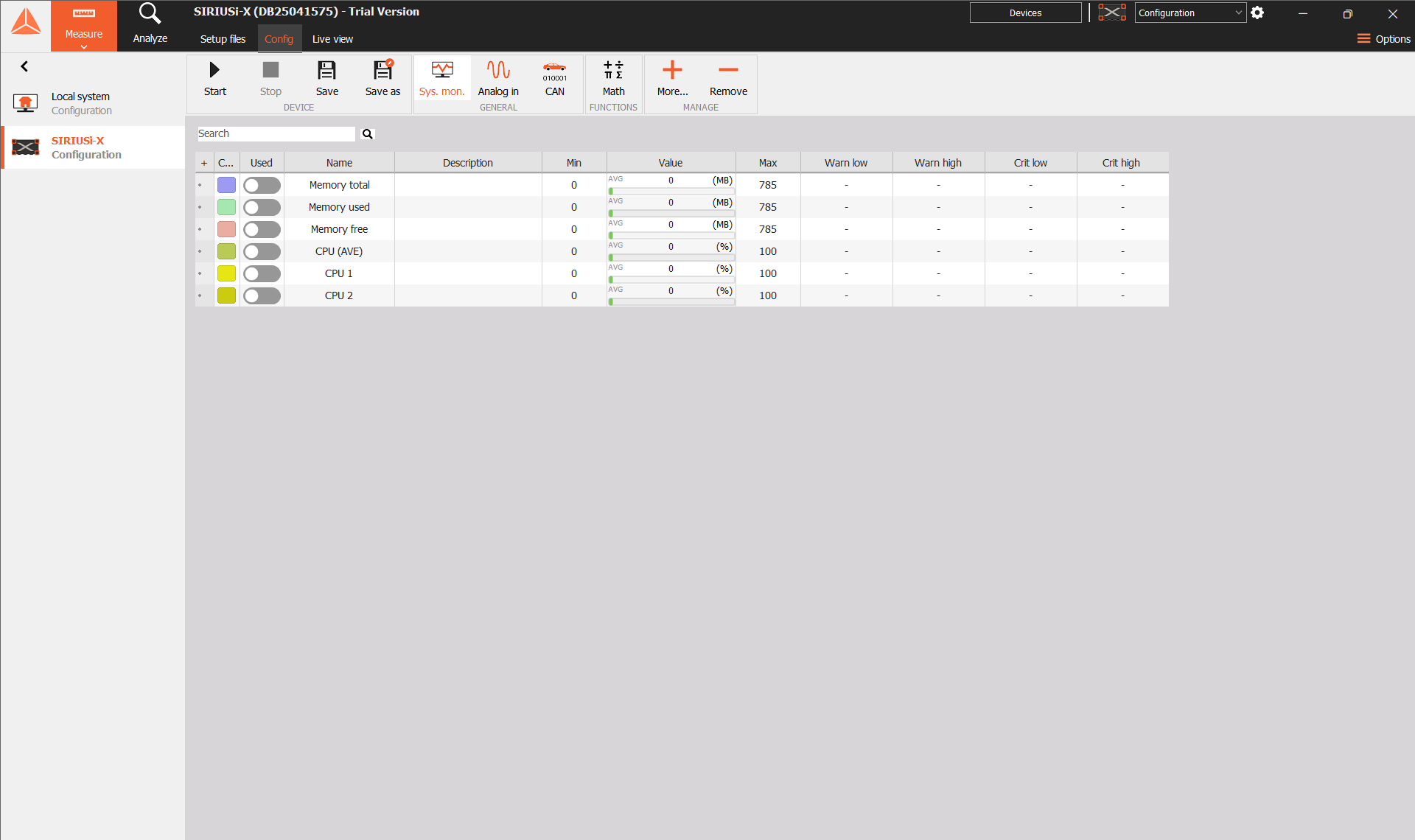
The selected system determines which resources you inspect. The device’s CPU and memory channels describe the device. DewesoftX also has a System Monitor module for computer resources; its available channels and settings can differ from this device view.
2. Choose monitoring channels
The example device exposes these channels:
| Channel | Meaning | Unit |
|---|---|---|
| Memory total | Total memory reported by the device. | MB |
| Memory used | Memory currently in use. | MB |
| Memory free | Memory currently available. | MB |
| CPU (AVE) | Average processor usage. | % |
| CPU 1 | Usage of the first processor core. | % |
| CPU 2 | Usage of the second processor core. | % |
Select the Used switch beside each channel you need. An enabled switch is orange. Start with Memory used and CPU (AVE) for an overview; enable the individual core channels when you need to compare their loads.
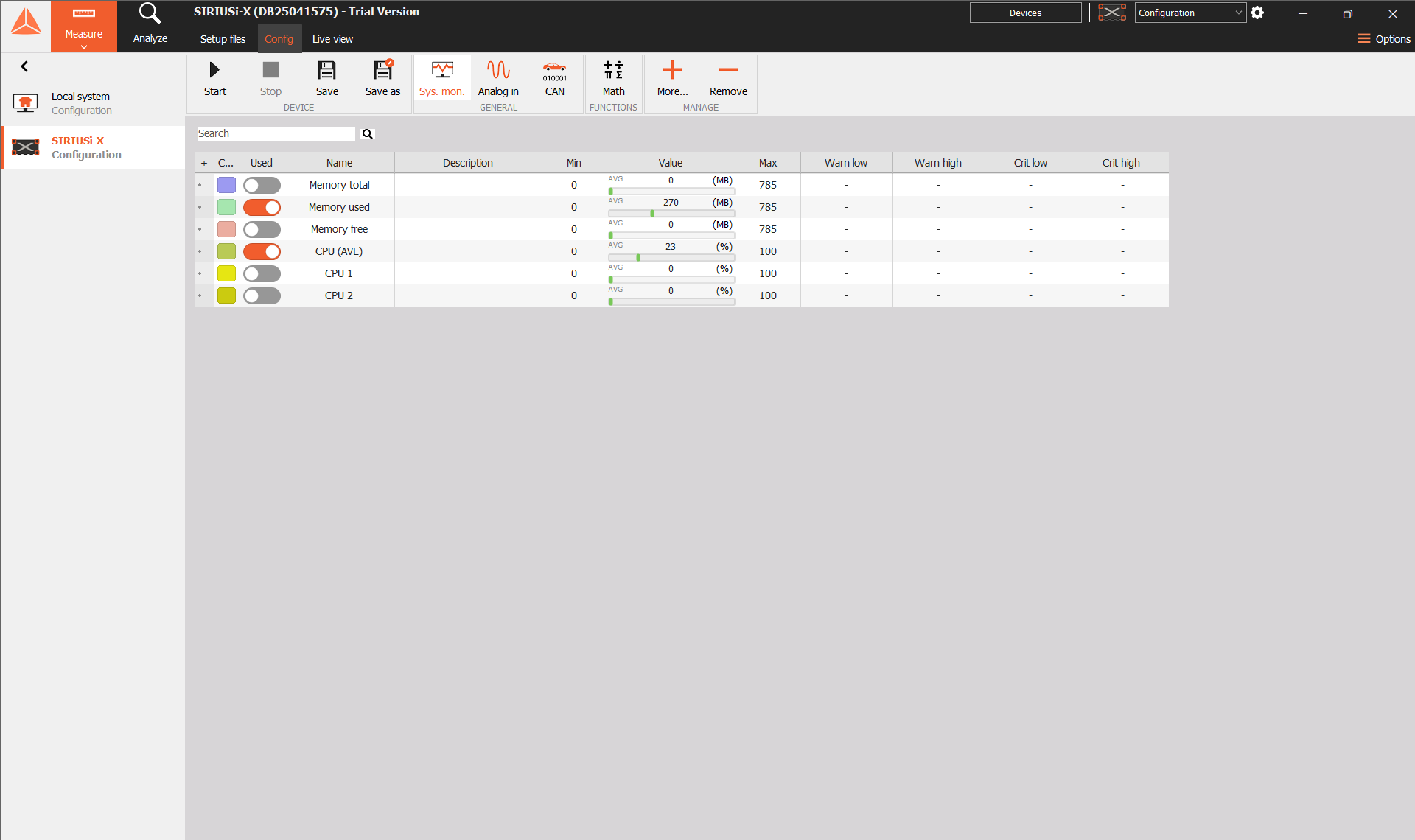
The Value column shows the channel value with its unit. Unused channels showed zero in this example. Enable a channel and check that it updates before treating a displayed zero as a measurement.
Memory channels describe working memory. Check the storing module separately for recording-medium capacity and usage.
3. Read and organize the grid
Use Search above the grid to find a channel by name. Clear the search to show the complete list again.
| Column | Purpose |
|---|---|
| Color | Channel color used for identification. |
| Used | Enables or disables the channel in the setup. |
| Name | Channel name. |
| Description | Optional text describing the channel. |
| Min / Max | Lower and upper channel range shown with the value bar. |
| Value | Channel value and its unit. |
The Min and Max columns are separate from the warning and critical limits. Set thresholds in the appropriate limit columns.
3. Display and record monitoring channels
Enable the channels before adding them to a display. Open Live view, select the required display widget, and choose the monitoring channels from the channel list. A numeric display suits current CPU or memory values; a recorder helps you follow changes over time.
Channel use and recording selection are separate. Used enables a channel; it does not by itself confirm that the channel is being recorded.
If you need a recording, check the selected recorder’s channel list and its storing status. For on-device DXD recording, follow the Storing DXD RT manual and check whether the required monitoring signals are offered by that device’s storing engine. Available recording destinations and signals depend on the device configuration.
4. Check unexpected values
| Observation | What to check |
|---|---|
| A channel shows zero or does not update. | Confirm that Used is enabled, the device is connected, and data is updating. |
| A channel is missing. | Clear Search and confirm that the intended device is selected. Available channels vary by device and firmware. |
| The unit or recording column is missing. | Right-click a heading and open Edit columns. |
| Memory use is high. | Compare Memory used with Memory free and Memory total, and observe the trend under the expected measurement load. |
| Average CPU use hides uneven loading. | Enable the individual CPU core channels and compare their values. |
| Monitoring values are absent from a recording. | Check the recorder’s signal selection and recording status separately from Used. |
A single value describes one moment. Observe the channels while the intended acquisition, processing, display, and recording workload runs to assess resource use under operating conditions.