Widget Templates
NOTE: Widget templates are available in DewesoftX version 2026.2 and onwards. Please visit our Downloads page for the latest version of DewesoftX.
A widget template is made of multiple widgets and/or widget templates. Use widget templates to create your own custom widgets that you can add to any display.
Example - Creating a Digital meter with a Horizontal bar:
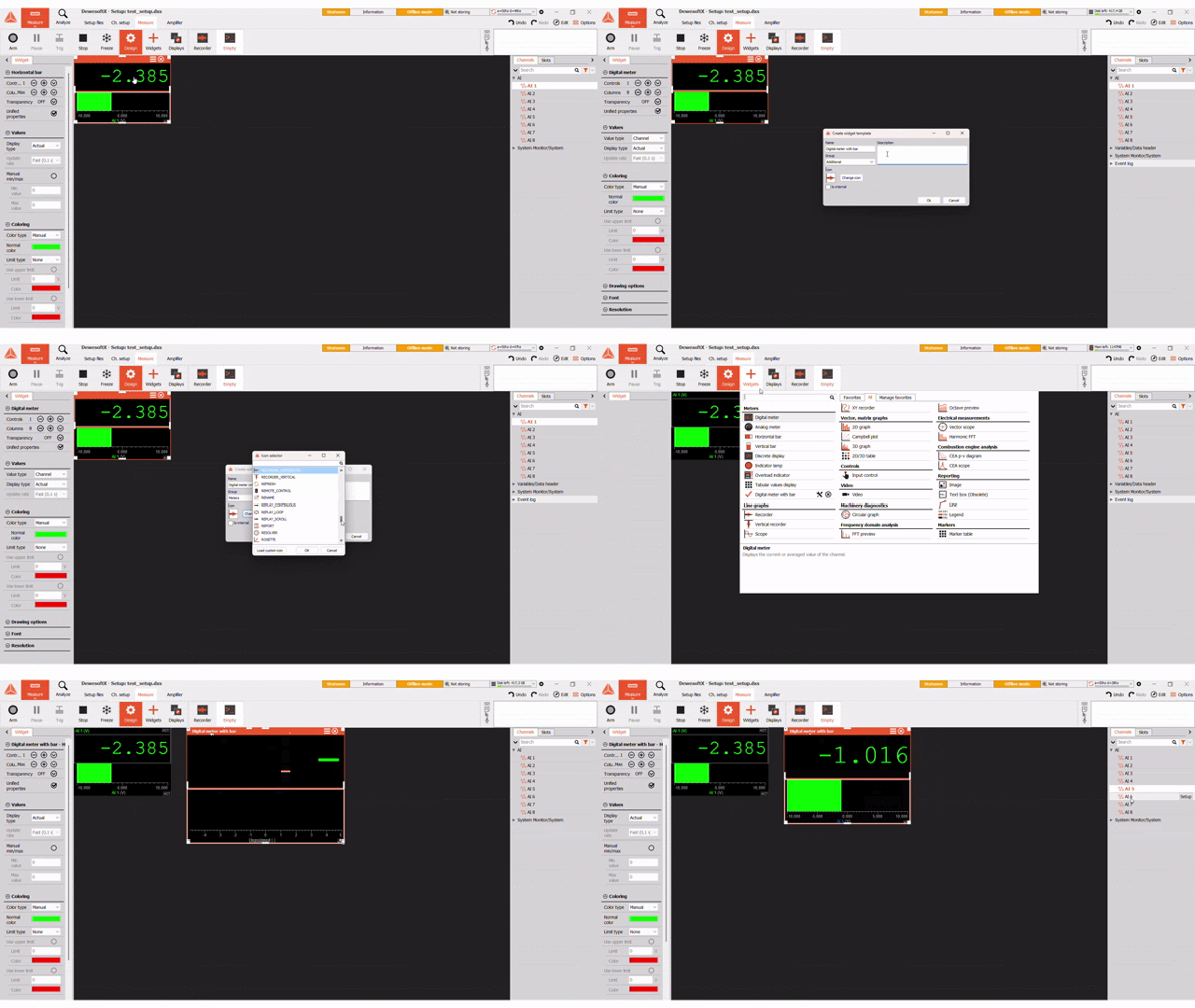
Create a Widget Template
Firstly, add widgets to a display using the + Widgets button. Change their position to obtain a desired layout for the template. In a widget template, an individual widget’s size and position can’t be altered, i.e. the whole template will change.
Select all the widgets you want to add to the template and right click. Select Create widget template and a setup menu will appear.
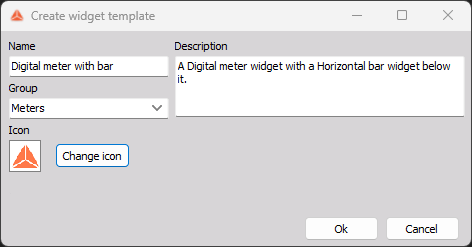
Example - Digital meter with a Horizontal bar:
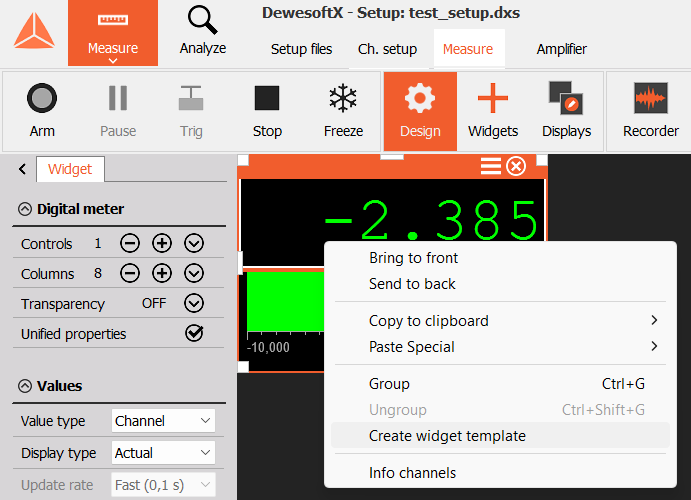
NOTE: You can also use previously created templates to create new ones.
Widget Template Settings
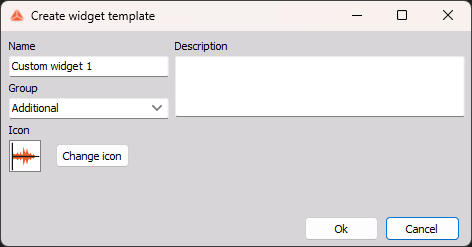
In the Create widget template menu, you can:
- Change the name
- Add a description
- Choose which widget group the template will appear in
- Preview and change the icon using the Icon selector. Choose from Dewesoft icons or Load custom icons.
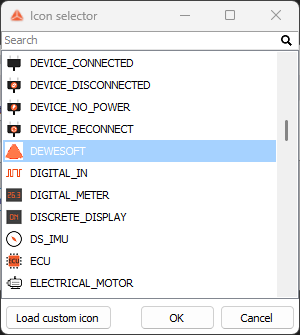
Press Ok to close the window, save changes, and create the template.
Example - Digital meter with a Horizontal bar:
Using Widget Templates
You can find your widget template(s) in the Add widgets menu. In the All tab, you can press Edit or Delete next to a template. If you press Edit, the Edit widget template menu will open, identical to the one that appeared when creating a new template. You can also add the widget template to favorites in the Manage favorites tab, just like any other widget.
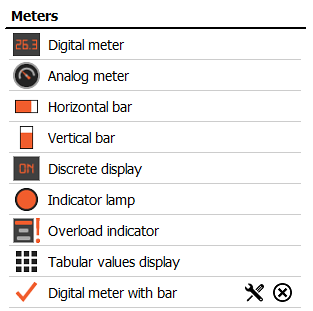

Click on a widget template to place it. You will be able to position it, resize it, and assign channels to it like a single widget. This will affect all widgets within the template. If you click on a specific widget within a template, you will be able to change its settings individually, i.e. line color, data type,…