Data Merger
NOTE: The updated Data merger described below is available in DewesoftX version 2026.2 and onwards. Please visit our Downloads page for the latest version of DewesoftX.
You can use the DewesoftX Data merger to combine multiple data files into one - parallel or sequential merge, or clean up a single file - remove gaps. Whichever one you choose, a completely new file will be generated, i.e. the original data will be preserved.
NOTE: When merging files recorded with DewesoftX, an orange warning “Datafile is missing the setup required for merging” will appear. This warning is purely informational and can be safely ignored. It is a notification indicating that the channel/hardware setup configuration from the original files will not be transferred into the newly merged file (a feature currently supported only for Obsidian files). The merging process itself, as well as the measurement data, will remain completely intact and unaffected.
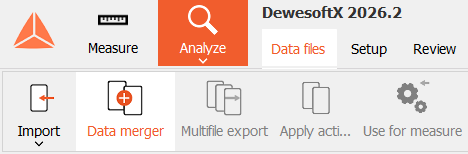
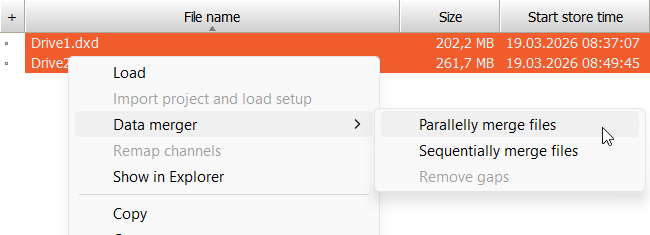
To access the Data merger, go to the Data files tab in Analyze mode. There are two possibilities:
- Click the Data merger button in the upper left part of the screen
- Select one or more files, right click and select one of the Data merger options
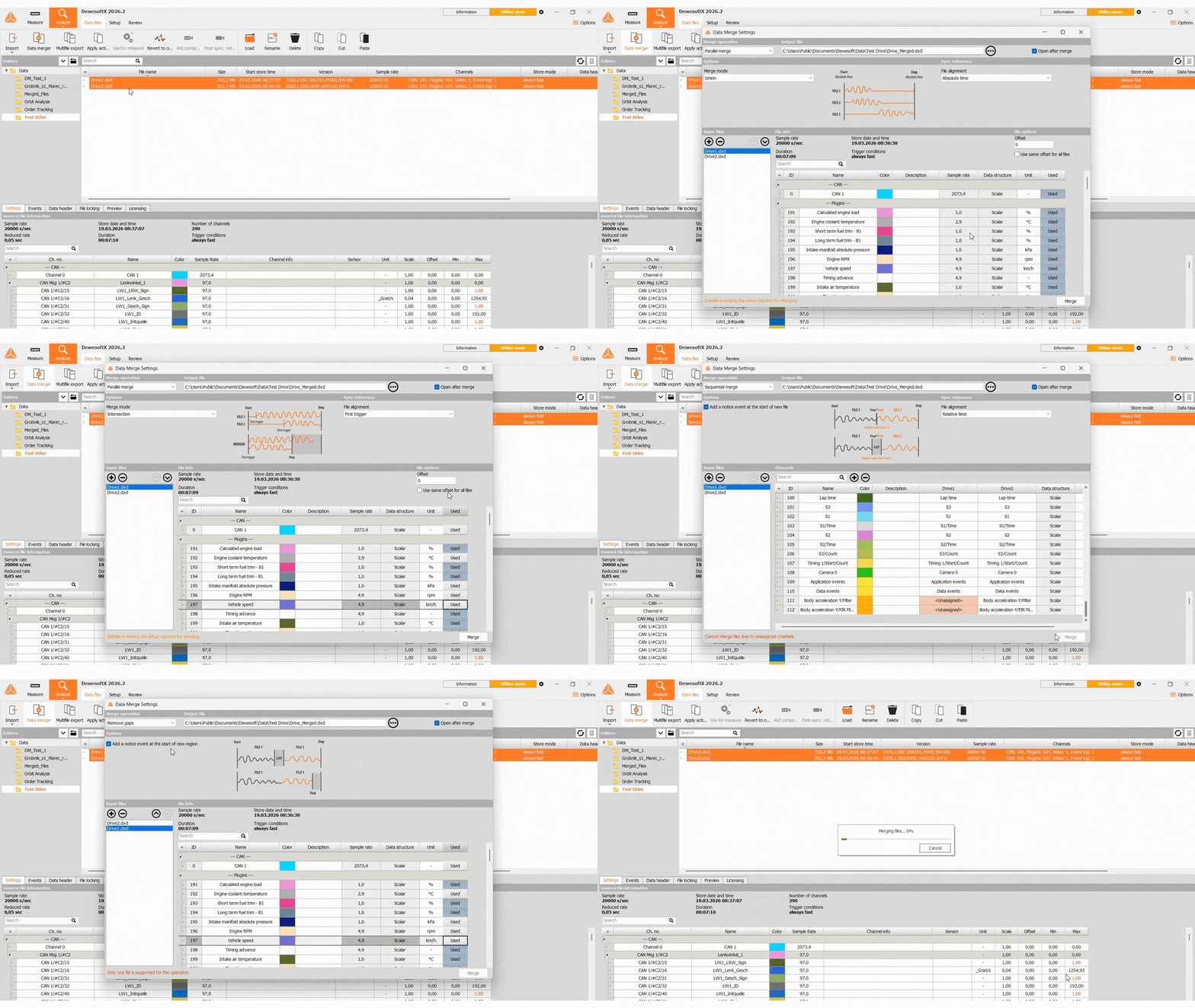
The Data Merge Settings menu will open in a new window. You can change the Merge operation in the upper left corner.
Parallel Merge
By paralelly merging files, you will be able to observe how the same signal behaved during different acquisitions in one data file. If choosing to perform a parallel merge, you will see the following menu:
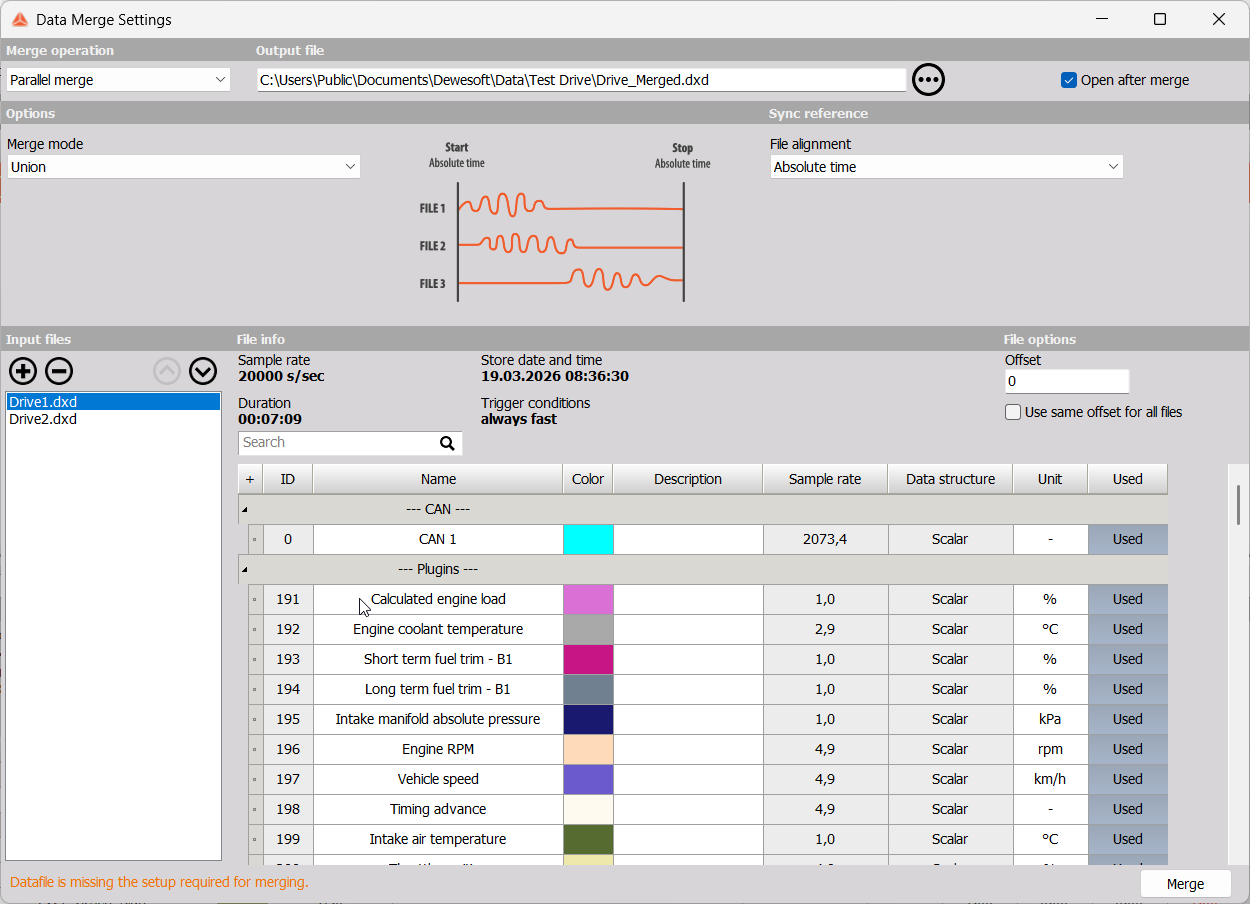
- Output file - Name the file and choose where it will be saved. Use the … button to do this via File explorer.
- Open after merge - Enabled by default.
- Merge mode - Choose which data will be merged.
- Union - All data will be merged into one file.
- Intersection - Only the data that overlap in time will be merged together.
- File alignment
- Absolute time
- Relative time
- First trigger - Beginning of the signal.
- Input Files - All files that will be included in the new merged file. Select a file by clicking on it.
- Add and remove files
- Move files up and down
- File info - General file information: Sample rate, Duration, Sample rate and time, and Trigger conditions.
- Channel grid - All channels available for merging in the selected file.
- Search
- Used - Select which channels from this file will be included in the newly merged file by clicking on the Used button next to each file. All channels are used by default.
- File options
- Offset - Enter an offset value.
- Use same offset for all files - Disabled by default.
Sequential Merge
Sequentially merging files means that the data files will be stitched together. If choosing this operation, the menu will have the following appearance:
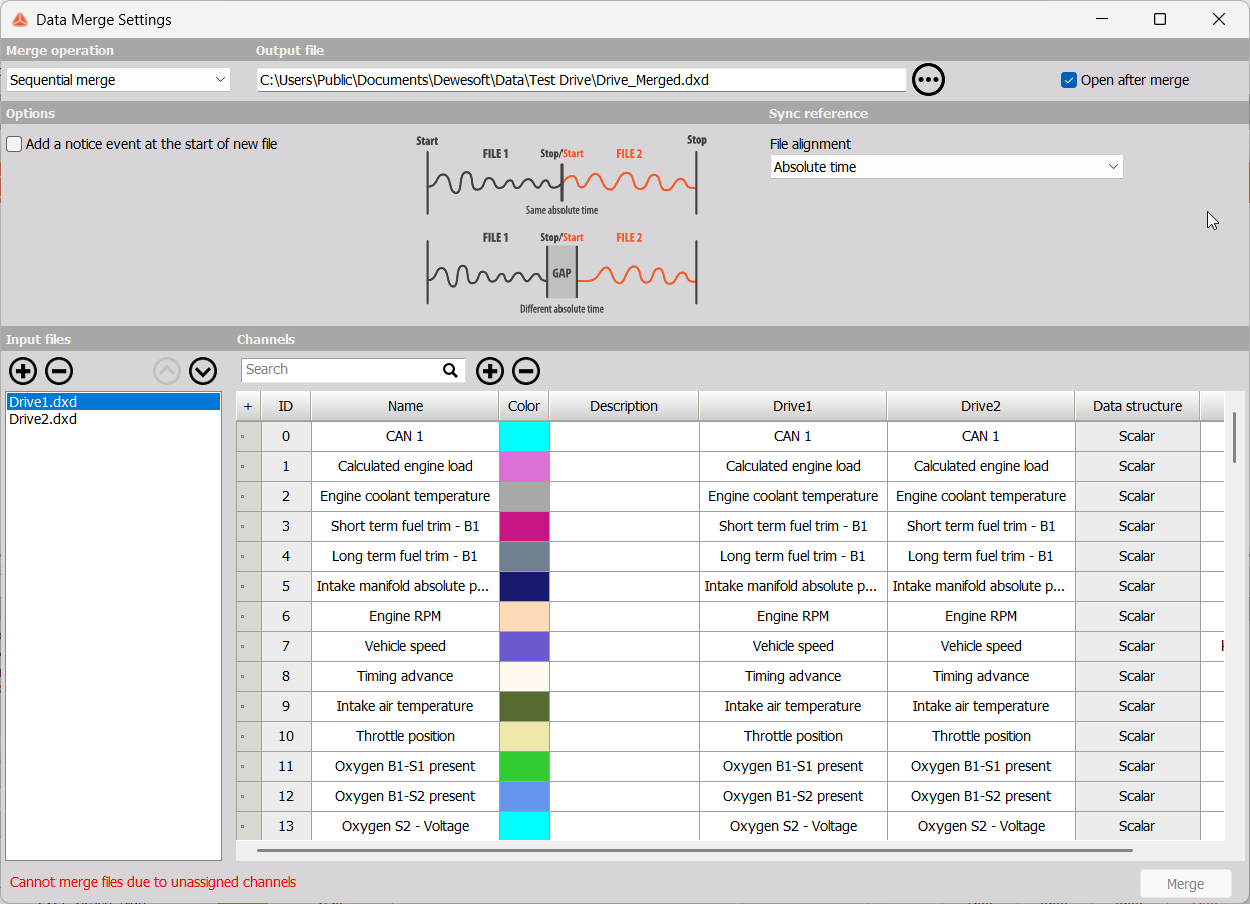
- Output file - Name the file and choose where it will be saved. Use the … button to do this via File explorer.
- Open after merge - Enabled by default.
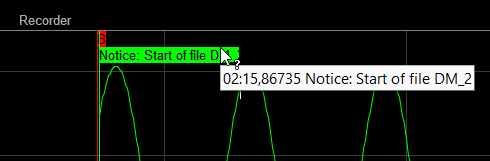
- Add a notice event at the start of new file - When using widgets like the Recorder, you will see a notice marker.
- File alignment
- Absolute time
- Relative time
- First trigger - Beginning of the signal.
- Input Files - All files that will be included in the new merged file. Select a file by clicking on it.
- Add and remove files
- Move files up and down
- Channel grid - All channels available for merging.
- Search
- Add and Remove channels - Select which channels will be included in the newly merged file by clicking on the + and - buttons. After adding a channel,
Remove Gaps
The Remove gaps operation is used on a single data file to cut out gaps in the signal and stitch useful sections together. The following menu will open when choosing this option:
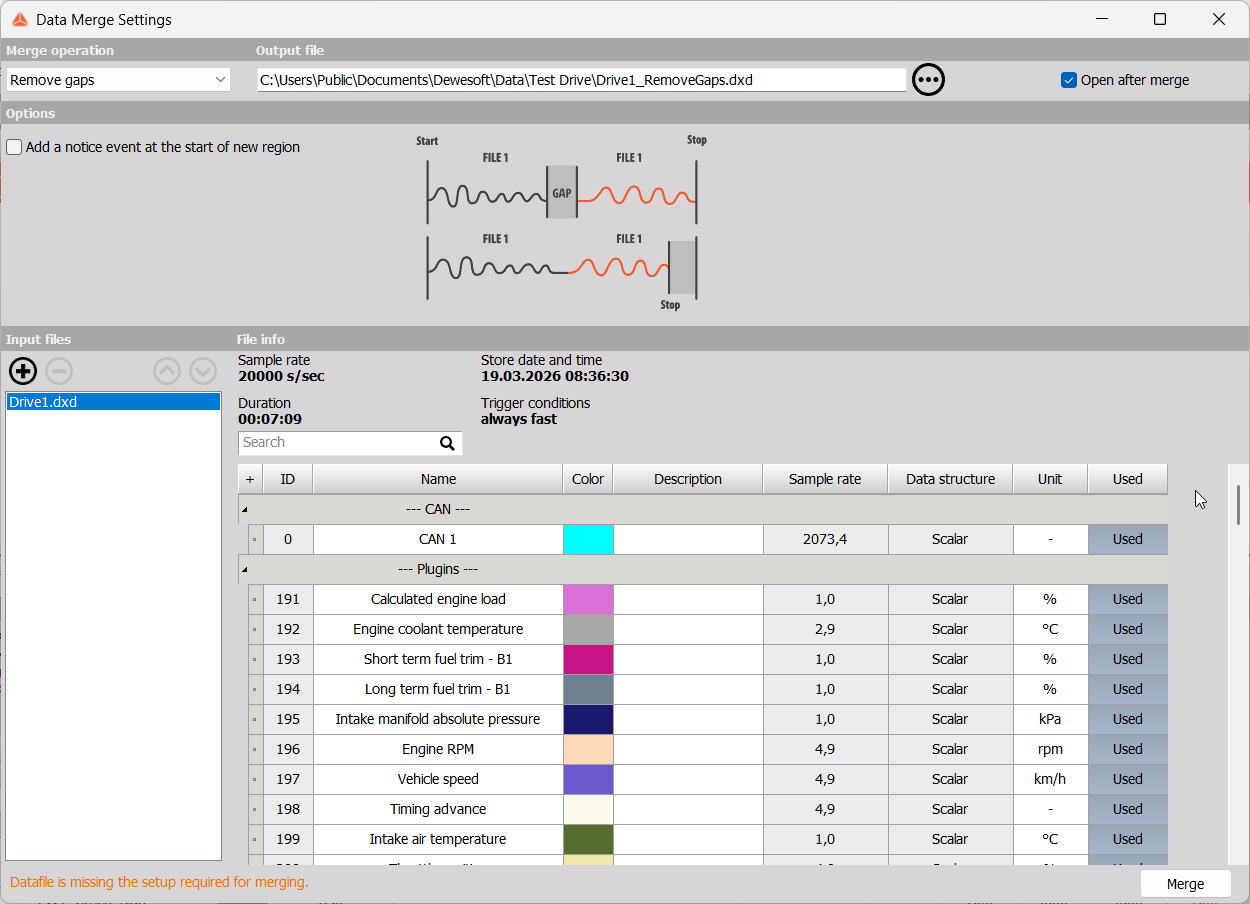
- Output file - Name the file and choose where it will be saved. Use the … button to do this via File explorer.
- Open after merge - Enabled by default.
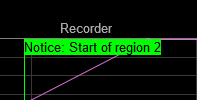
- Add a notice event at the start of new file - When using widgets like the Recorder, you will see a notice marker.
- Input Files - This merge operation can be performed on one file at a time. Remove files until there is only one left by using the - button.
- File info - General file information: Sample rate, Duration, Sample rate and time, and Trigger conditions.
- Channel grid - All channels available for merging in the selected file.
- Search
- Used - Select which channels from this file will be included in the newly merged file by clicking on the Used button next to each file. All channels are used by default.