Spreadsheet
The Spreadsheet widget is designed for presentation and organization of data, particularly for data reports. You can either format text using various font styles, sizes, colors and alignments or copy text from other editors, such as MS Excel, while keeping the formatting.
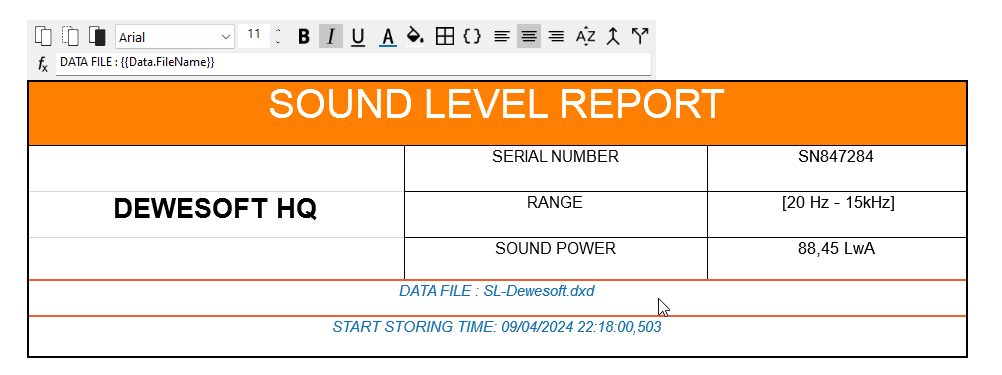
When you select this widget, the following settings will appear in the Widget tab on the left:
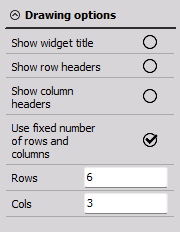
- Spreadsheet Control properties - applicable to all widgets, please consult the linked section of the manual.
- Drawing options
- Show widget title
- Show row headers
- Show column headers
- Use fixed number of rows and columns - the size of the spreadsheet will be adjusted to the size of the widget
- Rows
- Cols
All Spreadsheet functionalities are easily accessible via the toolbar that will appear as soon as you select a cell (not in Design mode). The options are, from left to right, the following:
- Copy/Cut/Paste
- Font family/Font size
- Font color/Background color
- Bold/Italic/Underline
- Font color/Text background color
- Align content
- Border settings
- Expressions
- Sort column contents
- Merge cells/Split merged cells
- Undo/Redo
Expressions
Depending on the expression, it will be translated to a number or text once you unselect the Spreadsheet widget.
You can select expressions from the dropdown menu that appears after clicking on the { } Expressions button or write them between double curly brackets like {{expression}}. Each expression is defined with the notation ObjectName.PropertyName.
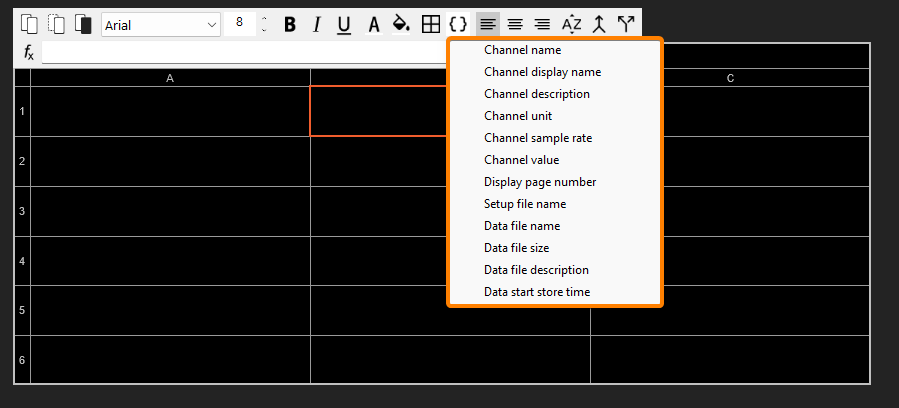
For a list of supported expressions with explanations, please refer to the following page of the manual.