Text Box 
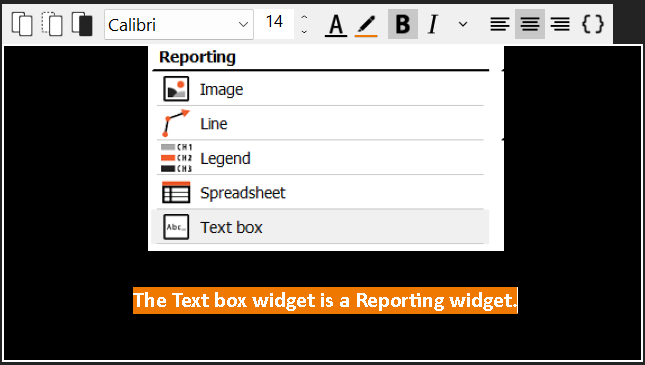
The Text box widget can be used to write any text, like captions, comments, and reminders anywhere on the screen. Any text with special formatting can be copied from other pieces of software, such as MS Word, and pasted with the same inside the Text box widget with the same formatting.
You can also copy and paste any picture inside the widget and adjust its position and size.
When you select this widget, the following settings will appear in the Widget tab on the left:
- Text box Control properties - applicable to all widgets, please consult the linked section of the manual.
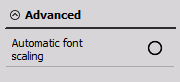
- Advanced
- Automatic font scaling - The text and pictures will automatically resize when changing widget size in Design mode.
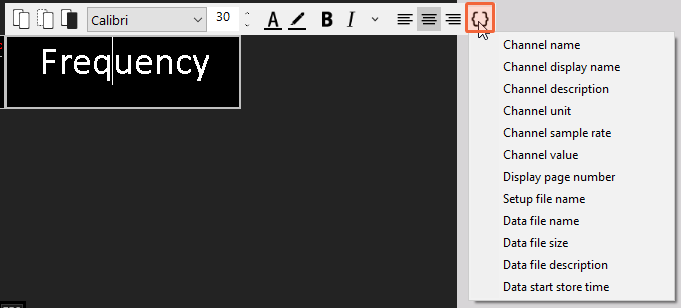
To make the toolbar appear, click on the Text box once (you must not be in Design mode.

The options are, from left to right, the following:
- Copy/Cut/Paste
- Font family/Font size
- Font color/Background color
- Bold/Italic
- Underline/Subscript/Superscript/All caps - in the dropdown menu
- Align
- Expressions
Expressions
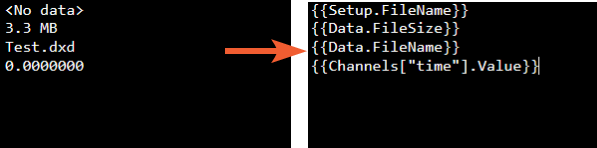
Depending on the expression, it will be translated to a number or text once you unselect the Text box widget.
You can select expressions from the dropdown menu that appears after clicking on the Expressions button or write them between double curly brackets like {{expression}}. Each expression is defined with the notation ObjectName.PropertyName.
Example:
You can see all supported expressions with their results explained below.
| Expression | Result |
|---|---|
| {{Channels[“CHANNEL_NAME”].Name}} | Retrieves the name of the channel specified inside the double quotation marks. If the CHANNEL_NAME does not match any used channels, it will return “Channel not found”. |
| {{Channels[“CHANNEL_NAME”].DisplayName}} | Retrieves the display name of the channel specified inside the double quotation marks. If the CHANNEL_NAME does not match any used channels, it will return “Channel not found”. |
| {{Channels[“CHANNEL_NAME”].Description}} | Retrieves the description of the channel specified inside the double quotation marks. If the CHANNEL_NAME does not match any used channels, it will return “Channel not found”. |
| {{Channels[“CHANNEL_NAME”].Unit}} | Retrieves the unit of the channel specified inside the double quotation marks. If the CHANNEL_NAME does not match any used channels, it will return “Channel not found”. |
| {{Channels[“CHANNEL_NAME”].SampleRate}} | Retrieves the sample rate of the channel specified inside the double quotation marks. If the CHANNEL_NAME does not match any used channels, it will return “Channel not found”. |
| {{Channels[“CHANNEL_NAME”].Value}} | Retrieves the value of the channel specified inside the double quotation marks. If the CHANNEL_NAME does not match any used channels, it will return “Channel not found”. |
| {CurrentDisplay.PageNumber} | Retrieves the page number of the currently active display in the measurement screen. For normal displays, this always returns 0, but for report displays it returns the corresponding report page number. |
| {Setup.FileName} | Returns the file name with extension of the currently loaded setup file. For all new setups that are yet to be saved it returns an empty file name. |
| {Data.FileName} | Returns the file name with extension of the currently loaded data file or the file that is currently being stored. It will return “Data file not available” when the measurement is not stored. |
| {Data.FileSize} | Retrieves the file size in the closest unit of measurement (kB, MB, GB) of the currently loaded data file or the file that is currently being stored. It will return “Data file not available” when the measurement is not stored. |
| {Data.FileDescription} | Retrieves the file description of the currently loaded data file or the file that is currently being stored. It will return “Data file not available” when the measurement is not stored. |
| {Data.StartStoreTime} | Retrieves the absolute start date and time when the data file was stored or the file that is currently being stored. It will return “Data file not available” when the measurement is not stored. |
Keyboard Shortcuts
All supported keyboard shortcuts can be seen in the table below.
| Shortcut | Description |
|---|---|
| CTRL + Z | Undo |
| CTRL + Y | Redo |
| CTRL + A | Select all |
| CTRL + X | Cut selection |
| CTRL + C | Copy selection |
| CTRL + V | Paste from clipboard |
| CTRL + B | Bold selected text |
| CTRL + I | Italicise selected text |
| CTRL + U | Underline selected text |
| CTRL + Delete | Delete next character |
| CTRL + Backspace | Delete previous character |
| CTRL + Home | Move to the beginning of the text widget |
| CTRL + End | Move to the end of the text widget |
| CTRL + Left Arrow | Move the cursor one word to the left |
| CTRL + Right Arrow | Move the cursor one word to the right |
| CTRL + Up Arrow | Move the cursor to the line above |
| CTRL + Down Arrow | Move the cursor to the line below |
| CTRL + SHIFT + A | Change all characters to capitals |
| CTRL + SHIFT + > | Increase font size |
| CTRL + SHIFT + < | Decrease font size |