Alarm
The Alarm module evaluates conditions on the device and produces a binary alarm state. Use start conditions to raise the alarm, stop conditions to clear it, and ignore conditions to suppress start triggers during specified signal or time regions.
1. Configure an alarm
Select the device in DewesoftX, then open Config → Alarms. If Alarms is not visible, open More… and choose Alarms under General. This adds the module and opens its first alarm instance.
Each alarm has its own tab, such as Alarm 1. Select + beside the tabs to add another instance. Use the Used / Unused selector to enable or disable the selected instance.
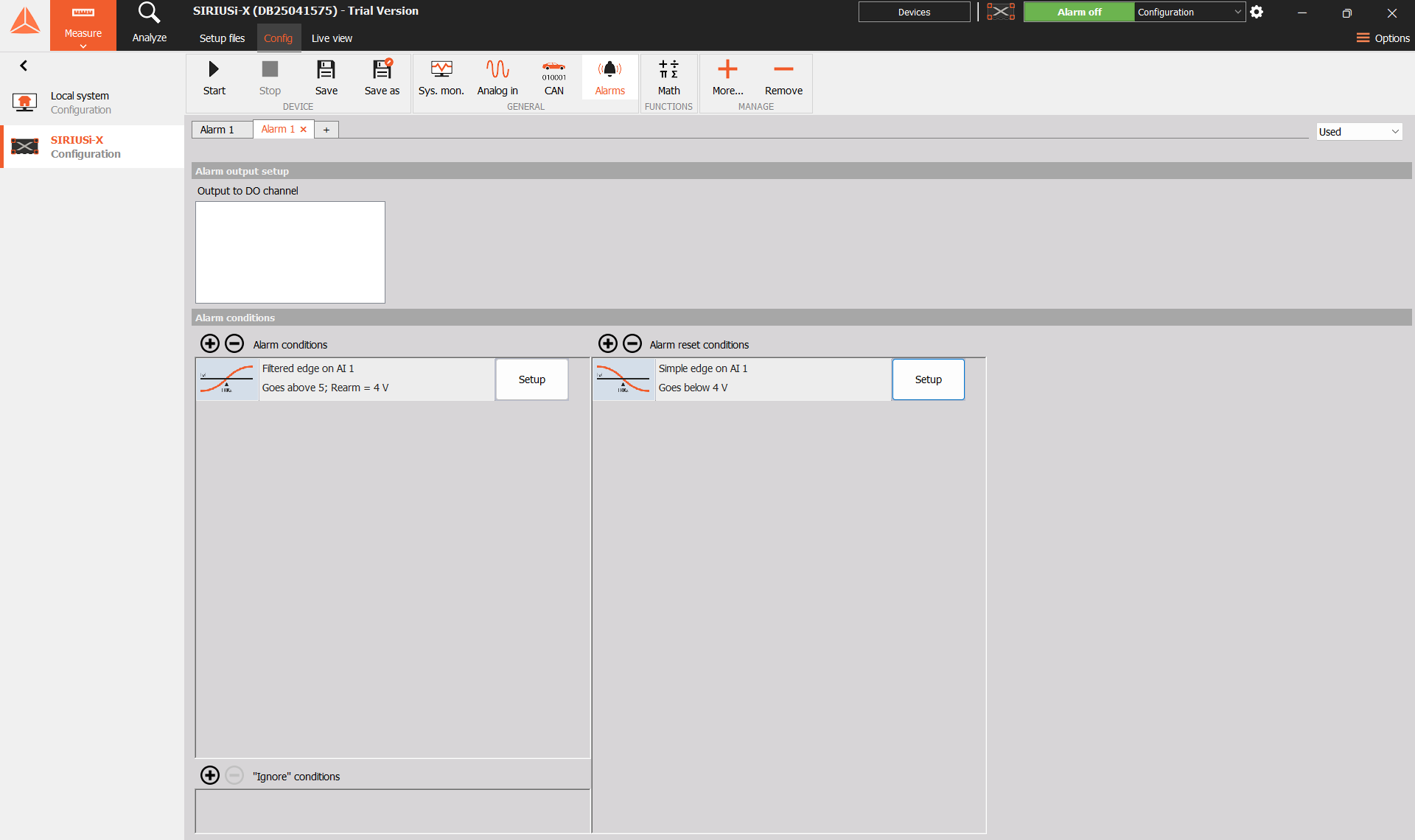
Each alarm has three condition lists:
| Condition list | Purpose |
|---|---|
| Alarm conditions | Start conditions that raise the alarm. |
| Alarm reset conditions | Stop conditions that return the alarm to Idle. |
| “Ignore” conditions | Suppress start triggers in the configured signal or time region. |
Configure the start condition and the way the alarm should clear before using its output. An alarm returns to Idle when a stop condition fires or it is manually reset. Returning the input below a start threshold clears the alarm only when a suitable stop condition has been configured.
The alarm’s state and output are described in the Alarm function block reference.
2. Choose a condition type
Select + beside the required condition list, then select Setup in the new condition row. In Condition setup, choose Data or Time under Trig type. For Data, select Level, Window, or Pulse width under Mode. Ignore conditions support Level and Window.
Select OK to close the condition editor. To remove a condition, select its row and use − beside that list. Check that the selected row belongs to the intended list before removing it.
| Condition | Use |
|---|---|
| Level | Detect a signal crossing a threshold. Ignore conditions use the signal region above or below the threshold. |
| Window / Level span | Detect a signal entering or leaving a range. Ignore conditions use the region inside or outside that range. |
| Time | Act at a relative time or an absolute time and date. |
| Pulse width | Evaluate the duration of a positive or negative pulse. Available for start and stop conditions on the checked device. |
Assign an input signal to each data condition. Choose a threshold in that signal’s engineering units. For example, a level of 5 on an input measured in volts means 5 V.
The lists can contain several conditions. Check each condition’s input and settings before running the measurement. See the Trigger Conditions reference for the shared condition definitions.
3. Set a level condition
Set Trig type to Data and Mode to Level. Select the Input, choose the Value to evaluate, then set the direction and Trig level.
| Setting | Purpose |
|---|---|
| Input | Signal evaluated by this condition. |
| Value | Real data, Average, RMS, Min, or Max. Real data evaluates direct samples. |
| Interval | Aggregation interval when evaluating a statistic. |
| Trig level | Threshold in the input signal’s units. |
| Positive direction | Fires when the value crosses the threshold upwards. |
| Negative direction | Fires when the value crosses the threshold downwards. |
| Trigger on first sample | Allows the condition to fire immediately on the first sample. |
Direct samples evaluate the acquired values. Average, RMS, Min, and Max evaluate a statistic over the configured interval. Choose the statistic to match the quantity being monitored: an RMS threshold and a direct-sample threshold can respond differently to the same waveform.
By default, Trigger on first sample is disabled. Consider enabling it when an alarm must detect a signal that already satisfies the condition when evaluation begins. Check this behavior with the intended input before deployment.
Set rearming
Level start and stop conditions support hysteresis-based rearming. Set Edge to Filtered to show Rearm level. Enter the level the signal must cross before the condition can fire again. Use Simple for a threshold edge without this rearm filter.
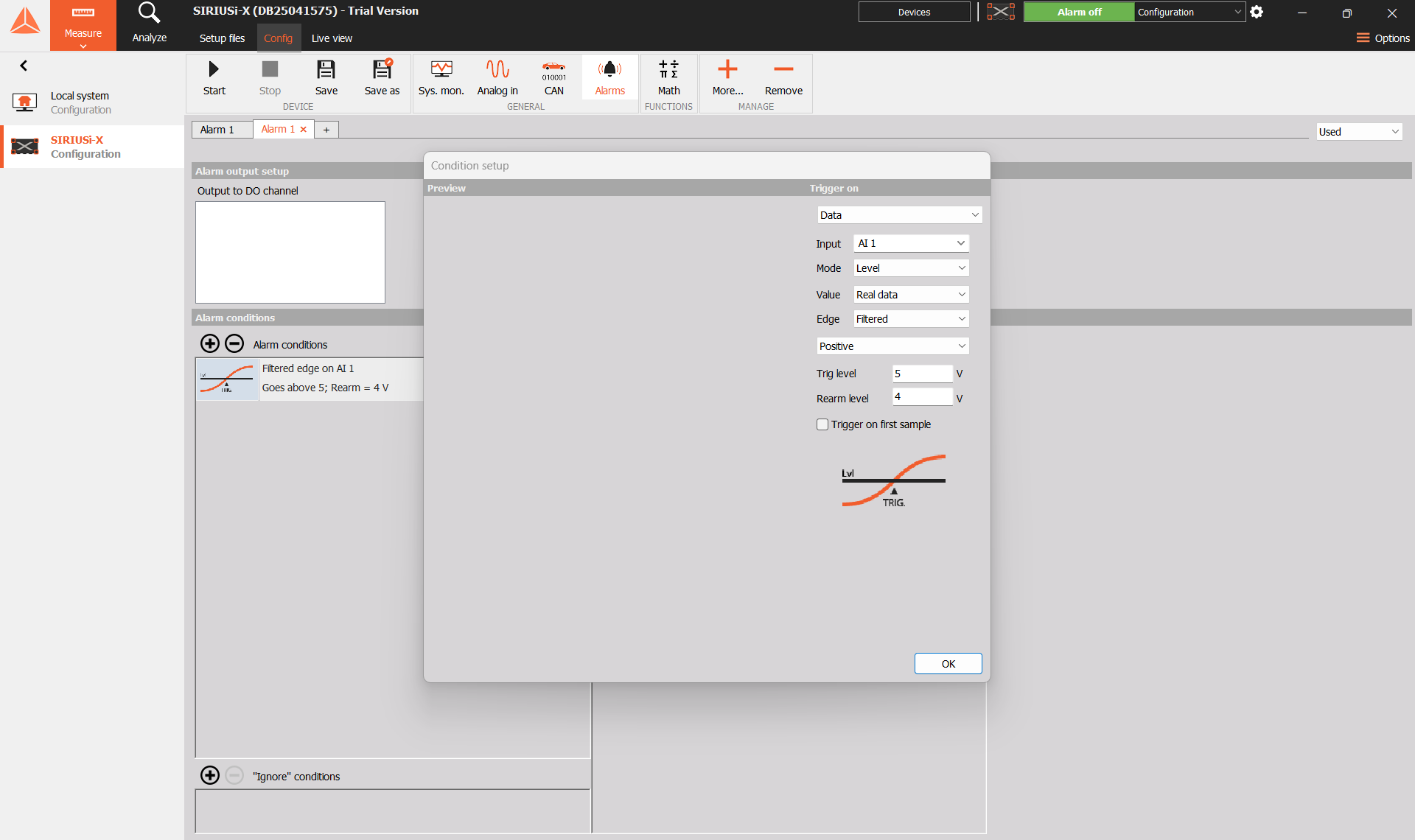
Rearming controls when an individual condition can fire again. Configure a stop condition as well when the alarm must clear automatically.
4. Raise and clear an alarm at different levels
For an input measured in volts, use the following example to raise the alarm above 5 V and clear it when the signal falls below 4 V:
| Condition list | Input | Type | Direction | Level |
|---|---|---|---|---|
| Start | AI 1 | Level, direct samples | Positive | 5 V |
| Stop | AI 1 | Level, direct samples | Negative | 4 V |
Starting with the signal below 4 V, raise it through 5 V. The alarm becomes Active. Lower it to 4.5 V; it remains Active. Lower it through 4 V; the stop condition returns it to Idle.
The gap between the start and stop levels prevents the alarm from repeatedly changing state around a single threshold. Choose levels that suit the measured quantity and its expected noise.
These values are example settings. Adjust them to the input range and engineering units used in the measurement.
5. Use a window condition
Set the lower and upper bounds of the range, then choose whether entering or leaving that range should fire the start or stop condition.
| Choice | Behavior |
|---|---|
| Enter range | Fires when the signal enters the configured range. |
| Leaves range | Fires when the signal leaves the configured range. |
| In range, for ignore conditions | Suppresses start triggers while the signal is inside the range. |
| Out of range, for ignore conditions | Suppresses start triggers while the signal is outside the range. |
Use a leaving-window start condition when a signal must stay within an acceptable range. Add a suitable stop condition when returning to that range should clear the alarm.
Window conditions can evaluate direct samples or interval statistics. Check both bounds and the selected statistic before using the condition.
6. Use a time condition
Choose the time reference, then enter the required time or date.
| Time reference | Purpose |
|---|---|
| Relative | Use equal to for a single event or every for a repeating interval. |
| Absolute (time only) | Evaluate a specified clock time. |
| Absolute (time and date) | Evaluate a specified date and clock time. |
Enter relative time in the hh, mm, ss, and ms fields. For an alarm reset condition, Relative also provides after alarm start, which times the reset from the start condition.
For example, select after alarm start and enter 00:00:10.000 to clear the alarm 10 seconds after its start condition fires.
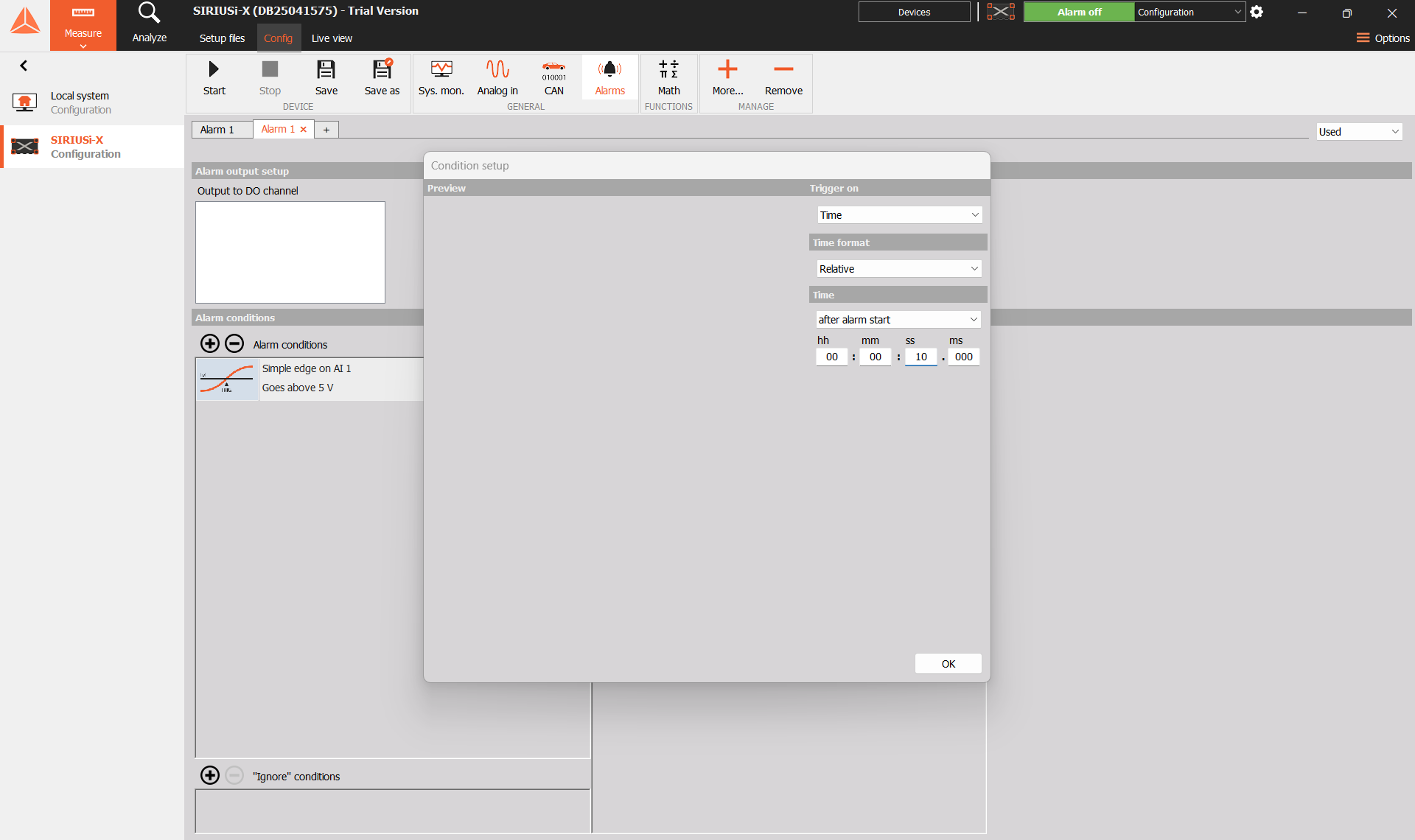
Check the device clock before using absolute timing. The alarm uses the parent device’s time domain for its output timestamps. See the time-condition reference.
7. Use a pulse-width condition
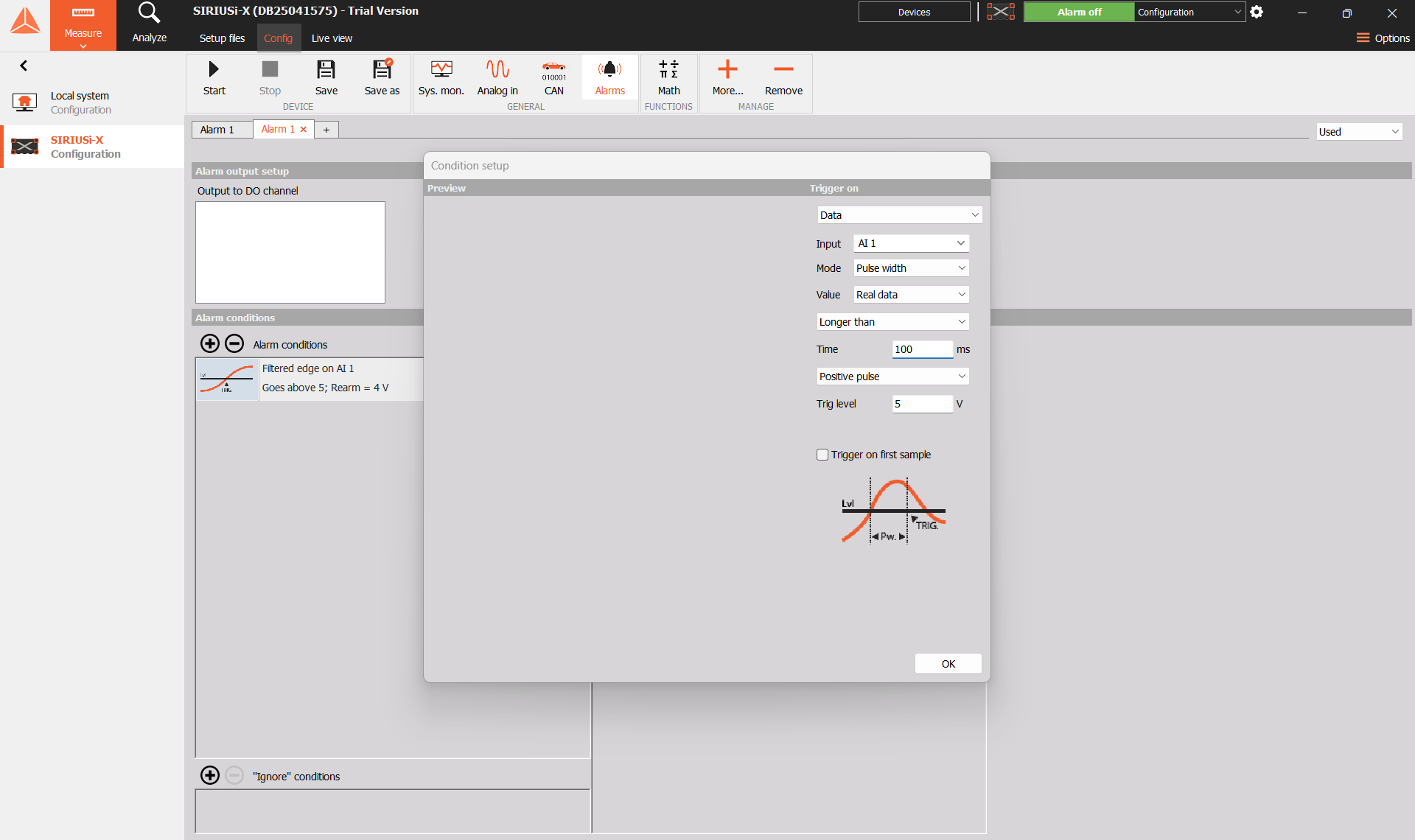
Set Trig type to Data and Mode to Pulse width. Choose the Input, Trig level, and Positive pulse or Negative pulse direction. Select Longer than or Shorter than and enter Time in milliseconds.
The checked device exposes the following settings for pulse-width start conditions:
| Setting | Choices or purpose |
|---|---|
| Value | Real data, Average, RMS, Min, or Max. |
| Direction | Positive pulse or Negative pulse. |
| Level | Threshold used to identify the pulse. |
| Duration comparison | Longer than or Shorter than. |
| Time | Non-negative pulse duration. DewesoftX displays milliseconds. |
| Trigger on first sample | Controls evaluation at the first sample. |
Use a controlled signal to check the response to pulses shorter and longer than the chosen duration. Include pulses that begin before evaluation starts when first-sample behavior matters.
8. Suppress unwanted starts
Use ignore conditions for signal regions or time periods in which start triggers should be suppressed. For example, an ignore condition can suppress starts while an enable signal is below a chosen level.
| Ignore condition | Suppressed region |
|---|---|
| Level | Above or below the configured level. |
| Window | Inside or outside the configured range. |
| Time | Before or after the configured time. |
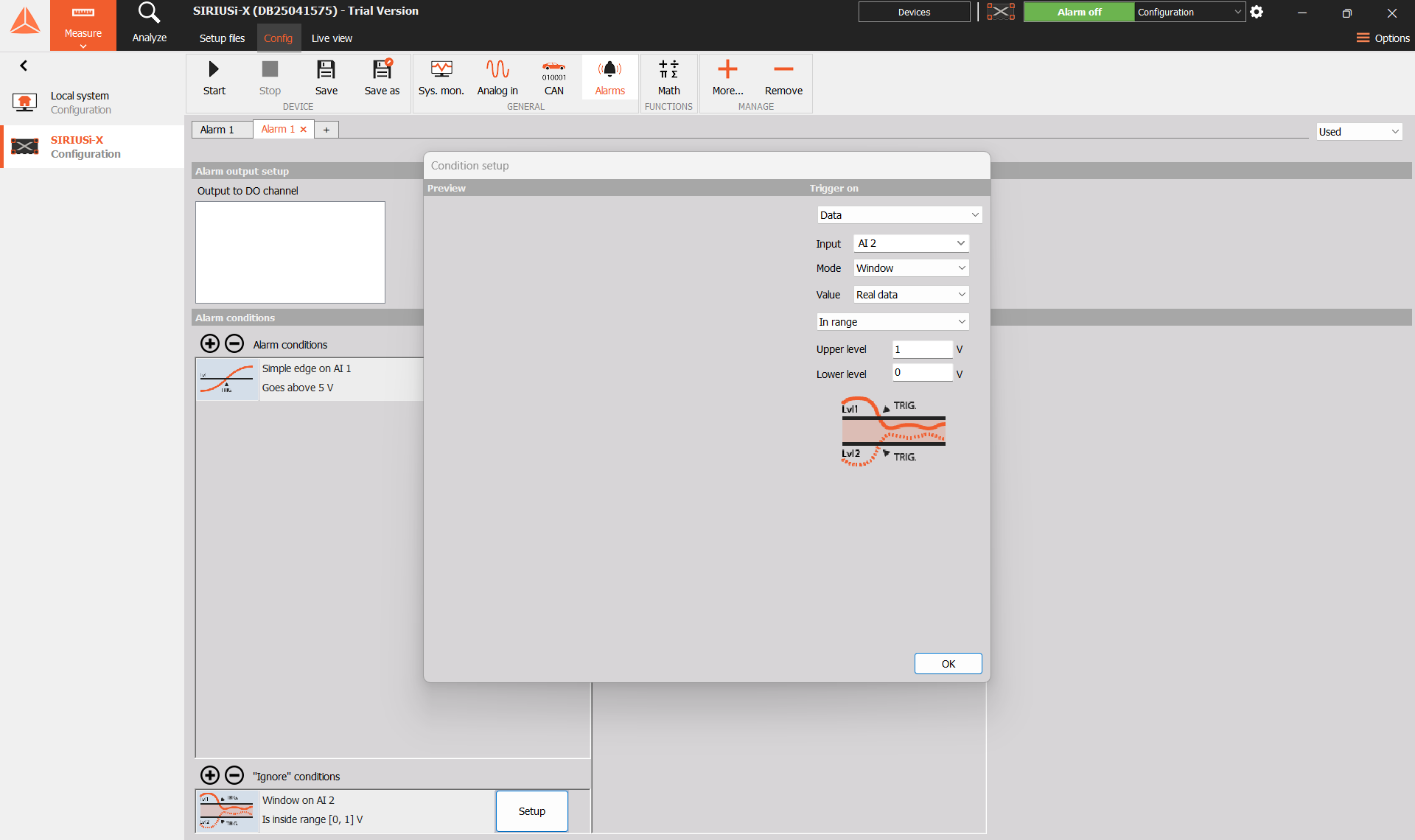
Figure 5. Starts are suppressed while AI 2 is in the range from 0 V to 1 V.
Ignore conditions suppress start triggers. Use stop conditions or a manual reset to clear an alarm that is already Active.
The Alarm block uses the same condition families as triggered storing. Pre time, Post time, Hold off time, and network cross trigger belong to storing and are unavailable on the Alarm block. See the Alarm reference.
9. Check and record the alarm output
The alarm produces an Active signal with two values:
| Value | State |
|---|---|
| 0 | Idle; no alarm is raised. |
| 1 | Active; a start condition has raised the alarm. |
The output uses Int32 samples with explicit timestamps from the device’s time domain. Display the alarm output together with its input so that the state changes can be checked against the configured conditions.
The device status area also shows the alarm indicator, such as Alarm off. Use the individual Active signals when checking several alarm instances.
Use a digital output
The Alarms module has an Alarm output setup section with an Output to DO channel list. Select an available digital output there when the alarm must drive a physical output. Availability depends on the connected hardware and configuration. The list was empty on the SIRIUSi-X configuration shown in these screenshots.
Check the output assignment and verify its physical response with the intended hardware before deployment.
Reset and record the state
Test a start event, the stop or reset, and each ignore region. Also check what happens when the signal already satisfies the condition at the start of evaluation.
For a manual clear, use the alarm’s manual-reset action. This returns the state to Idle and outputs the new state. A later qualifying start condition can raise the alarm again.
To include the alarm state in an on-device recording, select its Active signal in the required storing instance. Select the source signal as well when the recording needs to show what caused the alarm. Configure the storing mode separately and check that the required signals are included in the completed recording.
Creating an Alarm block provides its state signal. Configure the required storing or downstream processing separately. See the Storing function block reference.
If the alarm is missing or unexpected
| Check | Action |
|---|---|
| The alarm never becomes Active | Check the start input, threshold, direction, and ignore conditions. |
| The signal starts beyond the threshold | Review Trigger on first sample and test the startup case. |
| The alarm stays Active after the input returns | Check the stop condition or use the manual reset. |
| The condition does not fire again | Check the rearming settings and whether the signal crossed the required rearm level. |
| Short excursions are missed | Review the selected statistic, aggregation interval, and pulse-duration settings. |
| The alarm changes state too often | Review the start and stop levels and the rearming configuration. |
| An absolute-time condition fires at the wrong time | Check the device clock and the configured date and time. |
| The alarm signal is absent from a recording | Select the Active output in the required storing instance. |