Line
The Line widget can be used to draw lines and arrows, connect different widgets, mark something,…
When you select this widget, the following settings will appear in the Widget tab on the left: * Line - Adjust color, style (e.g. dashed line), and width. * Arrows - If you want to turn the line into an arrow. * Shape - Drawing shapes.
Drawing a Shape
- In the Shape section, check Closed (and Filled if you wish).
- Draw a line (this will be the first two corners of the shape).
- Move the mouse cursor to the third corner of the shape, press and hold the Shift and left-click. The shape will appear. Keep holding the left mouse button to move this corner to its desired location.
- Release the left mouse button and Shift - you have drawn your shape.
- Add a fourth, fifth,… corner the same way you added the third.
Positioning and Size
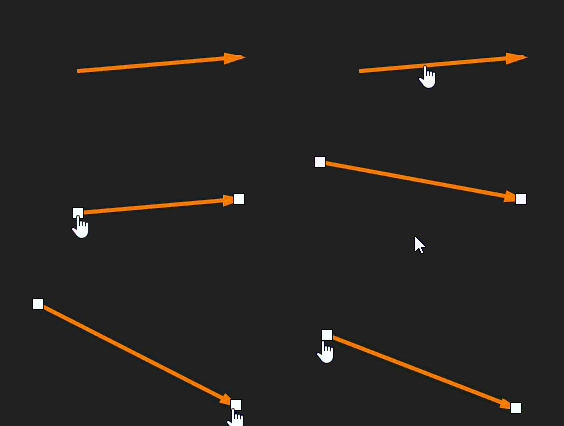
- To move a line, click on it one while in Design mode and drag it to its new location.
- If you want to change the beginning/end, click on the line once and drag one of the white squares to where you want it to be.
For more information on customizing your display, please visit the Screen Editing and Widget Appearance sections of the manual.