SFTP client
The SFTP Client module allows you to send .dxd files from the device to an external third-party SFTP server. To configure the connection, you need to specify the correct host IP address and port number. For authentication, you can choose between using a password or an SSH key.
An optional “Check Connection” feature is available to ensure successful communication with the SFTP server. You also need to select the local folder on the device that you want to synchronize with a corresponding folder on the SFTP server.
If the connection is interrupted, the files will be queued and automatically transferred once you restore the connection.
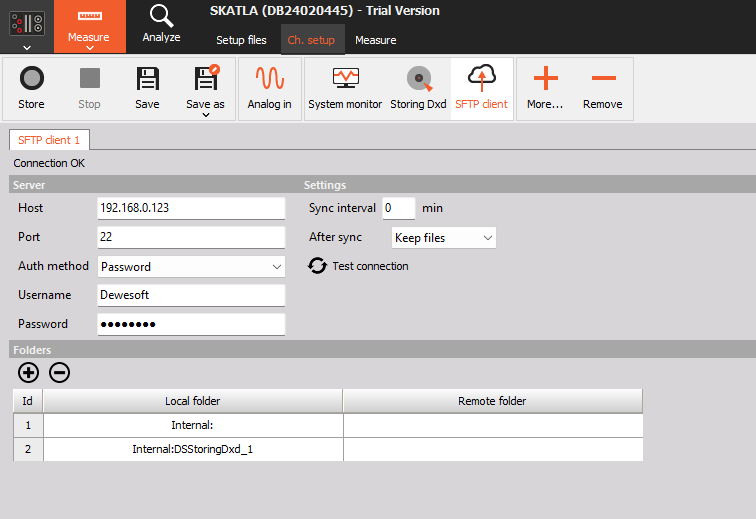
NOTE: When the connection status is OK, it means that the connection to the SFTP server has been established.
1. Purpose and supported functions
The on-device SFTP client sends measurement .dxd files from the device to an external SFTP server. It provides server connection settings, password or SSH-key authentication, scheduled synchronization, local-to-remote folder mappings, and a choice of retaining or removing files after synchronization.
SFTP is SSH File Transfer Protocol. It requires an SFTP-capable server; an ordinary FTP endpoint is not interchangeable with it. The displayed port default is 22.
Dewesoft documents that interrupted connections leave files queued for transfer after connectivity returns. A connection status of OK indicates that a server connection has been established. These are documented behaviors, not outcomes of a transfer test in this session. See Dewesoft: SFTP client.
The module transfers files; Storing separately creates the device’s measurement files. Adding an SFTP client does not configure which measurement channels are stored. Device modules run on the embedded device and depend on hardware and supported functionality; see Modules embedded on DAQ devices.
2. Select the device and add SFTP client
- Expand the device sidebar if it is collapsed.
- Select the intended IOLITE-X. Check its identity in the window title; this session used DB25025486.
- Open Config.
- Click More…, the toolbar control with a plus icon.
- In Add module, find SFTP client under Storing. Use Search if necessary.
- Click SFTP client. The module is added to the device configuration.
- Select SFTP client in the toolbar and confirm the instance tab, such as SFTP client 1.
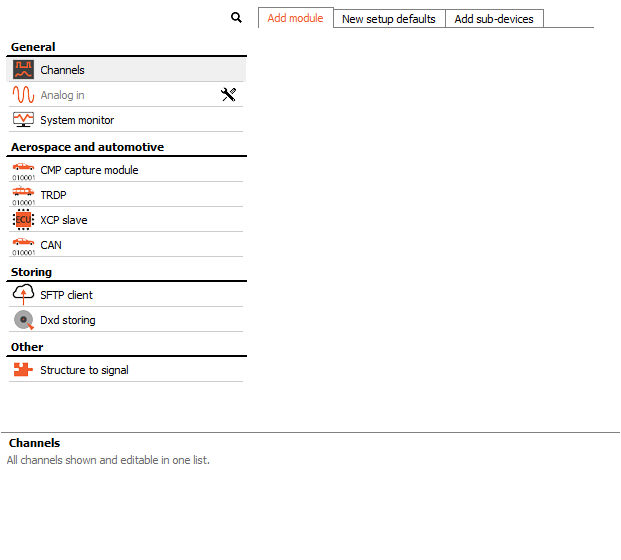
Figure 1. Actual Add module menu. SFTP client appears under Storing, alongside Dxd storing. Choose Add module rather than New setup defaults or Add sub-devices for the current device configuration.
The requested SFTP client 1 instance was added during this documentation session and left in the configuration. No duplicate instance was created during the subsequent file-saving retry.
3. Overview and Used/Unused state
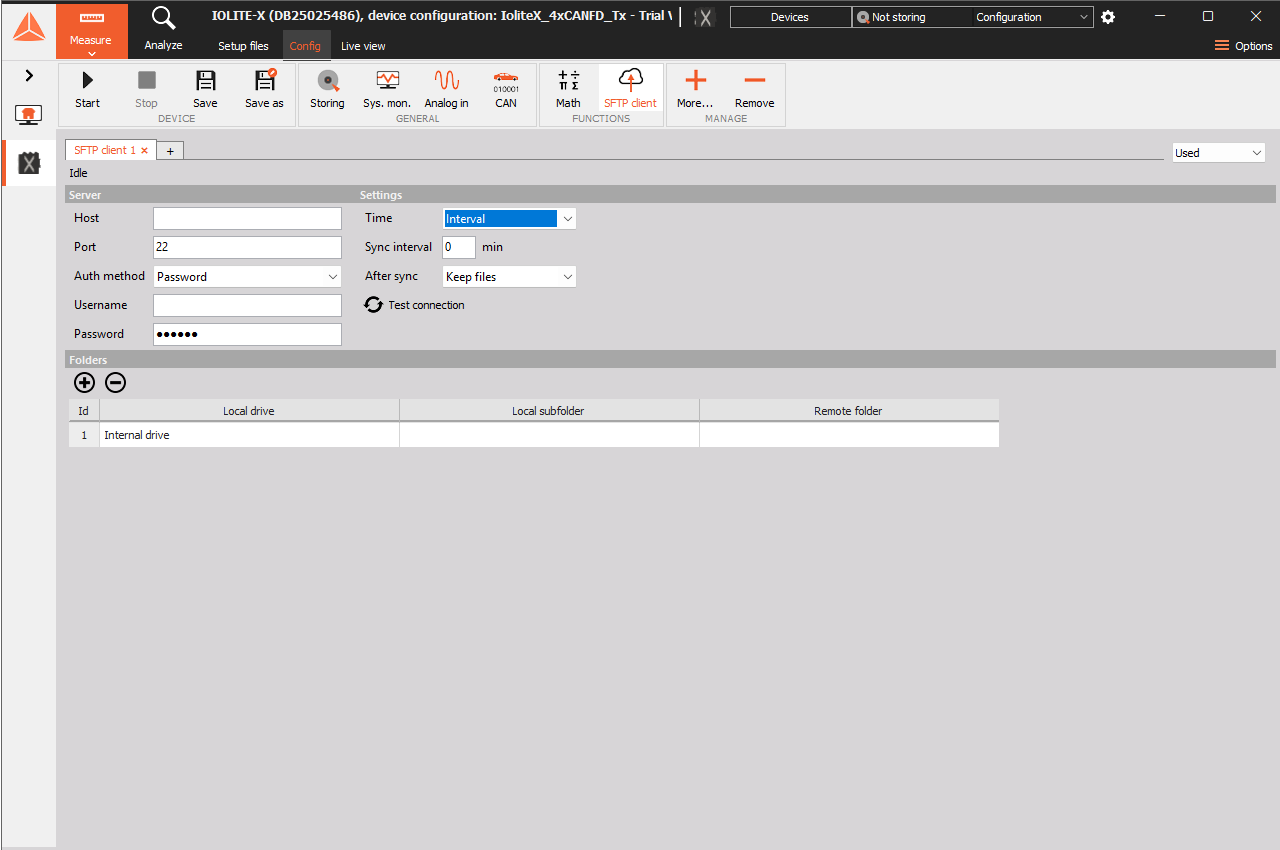
Figure 2. SFTP client 1 after addition: status Idle, authentication Password, port 22, Time Interval, Sync interval 0 min, and After sync Keep files. Host and Username are blank. The password field is masked by the interface; its dots do not establish that usable credentials have been configured.
| Area/control | Purpose |
|---|---|
| SFTP client 1 tab | Select the SFTP client instance being configured. |
| Used / Unused | Enables or disables use of the selected module configuration. Automation names this selector Active. |
| Status line, Idle in this session | Shows the module’s current synchronization status. |
| Server | Configure the host, port, authentication method, and account. |
| Settings | Configure synchronization timing, file handling, and connection testing. |
| Folders | Map folders on the device to folders on the SFTP server. |
- Select the intended instance before editing.
- Use Used when the completed configuration should participate in device operation.
- Use Unused when the configuration should be retained but disabled.
- Check the status line independently. Used does not establish that credentials are correct or that a transfer succeeded.
4. Server configuration
| Exact label | What to configure |
|---|---|
| Host | The SFTP server address. Dewesoft’s documentation specifies the host IP address. |
| Port | The server’s SSH/SFTP listening port; this build initially displays 22. |
| Auth method | Choose Password or SSH key. |
| Username | The account permitted to authenticate and write to the remote destination. |
| Password | Appears for Password authentication. Enter the account’s password. |
| Key file name | Appears for SSH key authentication. It was disabled for direct editing in this build. |
| Upload key | Appears with SSH key authentication and opens a Windows Open dialog for selecting a key file. |
The network connection originates from the device. Ensure the IOLITE-X can reach the server and its configured port; successful access from the PC alone does not prove device reachability.
Password authentication
- Enter Host and Port.
- Select Auth method → Password.
- Enter Username and Password.
- Leave each edited field and verify that the intended non-secret values are accepted.
- Configure the folder mappings before validating an end-to-end transfer.
- Use Test connection once you are ready to contact the configured server.
The screenshot shows the interface’s masked password field. No password was entered or read during documentation.
SSH-key authentication
- Enter Host, Port, and Username.
- Select Auth method → SSH key.
- Click Upload key.
- In the Windows Open dialog, select the appropriate authentication key file and complete the dialog.
- Verify the resulting Key file name and use Test connection.
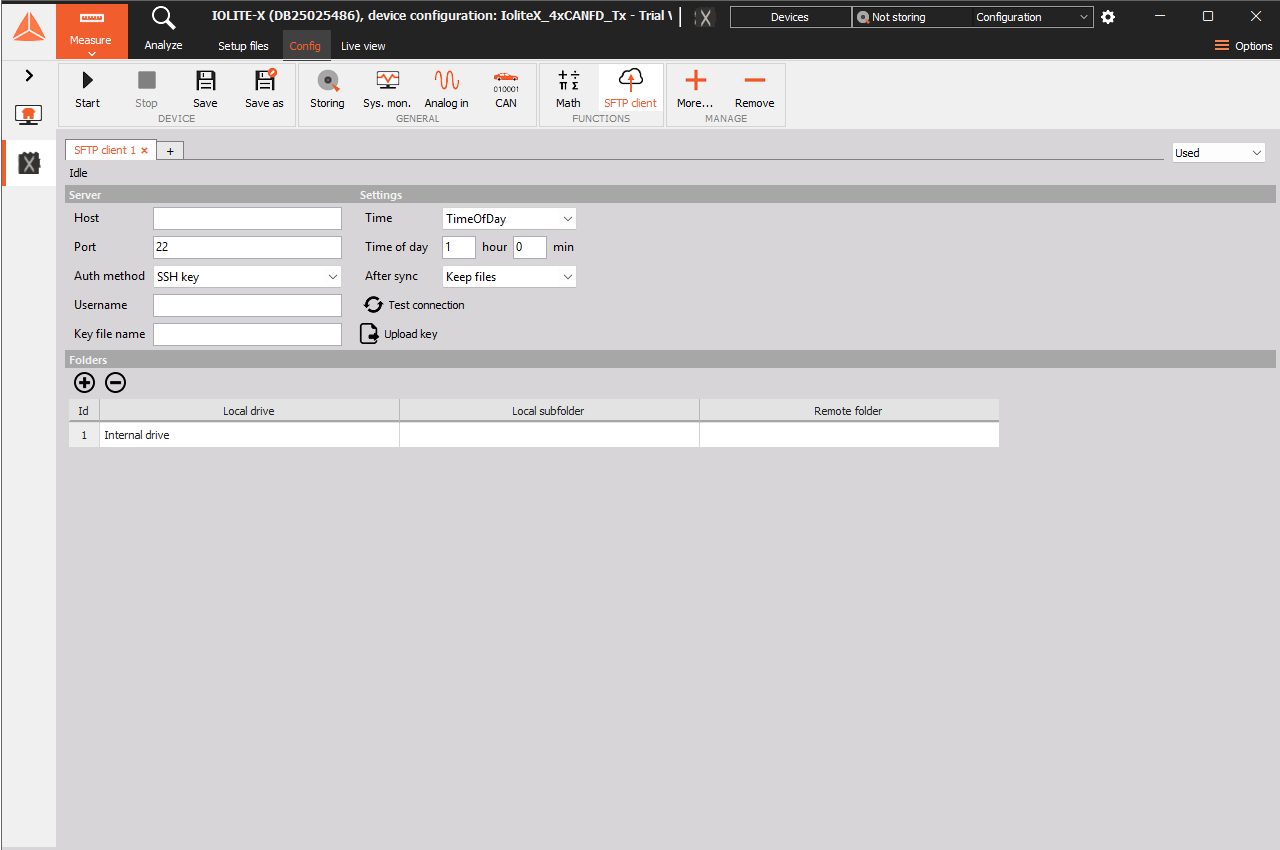
Figure 3. SSH key authentication exposes Key file name and Upload key. TimeOfDay scheduling exposes separate hour and minute fields; this captured example shows 1 hour and 0 min. No key was uploaded and no connection was tested.
Upload key’s file chooser was opened and cancelled during inspection. Accepted key formats, encrypted-key/passphrase handling, and server host-key verification behavior were not established from this interface. Use your server requirements and verify compatibility before deployment; do not infer support for an unlisted key option.
5. Synchronization timing
The Time selector offers Interval and TimeOfDay.
| Exact setting | Visible controls | Intended use |
|---|---|---|
| Interval | Sync interval, unit min | Repeated synchronization according to an interval in minutes. |
| TimeOfDay | Time of day, separate hour and min fields | Synchronization at the configured time of day. |
Configure an interval
- Select Time → Interval.
- Enter the required Sync interval in minutes.
- Leave the field and confirm the accepted number.
- Review After sync and folder mappings before enabling operation.
The new instance displayed 0 min. The meaning of zero, minimum allowed interval, and precise first-run timing were not tested. Set an intentional supported positive interval for an operational setup rather than treating the pictured zero as a recommendation.
Configure a time of day
- Select Time → TimeOfDay.
- Enter the hour and minute in Time of day.
- Verify the device clock and the time basis expected by your installation.
- Check status and server-side file arrival after the scheduled run.
Switching to TimeOfDay showed hour 1 and minute 0. The interface does not show a timezone selector here. Timezone interpretation, daylight-saving transitions, missed-run handling, and recurrence details were not validated. Confirm these on the target device if scheduled delivery time is critical.
6. After-sync file handling
| Exact label | Selection guidance |
|---|---|
| Keep files | Retains the local files after synchronization. Use while commissioning and when local retention is required. |
| Remove files | Selects removal after synchronization. Use only when local retention is no longer required and successful delivery has been verified. |
- Open After sync.
- Choose the required retention behavior.
- Verify the displayed selection before operation.
- Independently review available device disk space and any Storing retention policy.
The inspected default was Keep files, and that selection was preserved. File removal was not exercised. The precise success/deletion criteria and handling of partial transfers were not tested, so verify them before relying on automatic removal as a data-retention policy.
7. Configure folder mappings
Each row in Folders maps a source folder on the IOLITE-X to a destination on the SFTP server.
| Column/control | Meaning |
|---|---|
| Id | Mapping-row identifier. The initial row was 1. |
| Local drive | Storage on the device; this session offered/displayed Internal drive. |
| Local subfolder | Subfolder on the selected device drive. |
| Remote folder | Destination path as seen by the authenticated server account. |
| Plus icon, Add | Adds another folder-mapping row. |
| Minus icon, Remove | Removes the selected folder-mapping row. |
- Identify where the device’s Storing module writes the required
.dxdfiles. - In Folders, select the appropriate row or use Add for another mapping.
- Choose Local drive.
- Select or enter Local subfolder using the options the interface accepts. Confirm the value after leaving the cell.
- Enter Remote folder. Verify that the account can access and write to this destination.
- Review the complete row before testing a transfer.
- To remove a mapping, select its row and click the Folders minus icon. Avoid confusing this with the toolbar’s module-level Remove control.
The device’s local paths are distinct from paths on the PC where DewesoftX runs. Remote paths are interpreted by the SFTP server and may be relative to an account’s restricted root. Confirm the path with the server administrator.
8. Test connection and verify delivery
- Complete the server settings using authorized credentials.
- Click Test connection.
- Read the returned status or message. Dewesoft documents OK as an established server connection.
- Verify the folder mapping and a suitable source
.dxdfile. - Run an intended scheduled synchronization under controlled conditions.
- Check that the expected file arrives in the server destination and is usable.
- Check local file retention against After sync.
- Check recovery behavior if interruption handling is part of your acceptance test.
A successful connection test establishes connectivity/authentication; independently verify destination permissions, file selection, and actual delivery. This session did not invoke Test connection because no server or credentials were supplied.
Dewesoft documents automatic transfer of queued files after connectivity returns. Duplicate-filename handling, overwrite policy, integrity verification, recursive scanning, and synchronization of files still being written were not tested. Validate these details against your intended recording workflow.
9. Storing, saving, and device operation
Configure the measurement files separately
- Open Config → Storing on the same IOLITE-X.
- Review the storing instance, its selected input signals, Storing type, file name, and storage location.
- Identify the actual device folder containing the intended
.dxdfiles. - Return to SFTP client and map that folder to the required remote destination.
Storing creates the measurement files; SFTP handles their delivery. Their settings should agree, but they are separate modules. For example, a working SFTP login cannot compensate for Storing being Off or writing into an unmapped folder.
Save the configuration
- Review the SFTP instance, server, schedule, retention policy, and all folder rows.
- Use Save or Save as in the device toolbar when the configuration is ready to persist.
- Complete the relevant prompts and verify the saved setup through the device’s configuration workflow.
The new SFTP module was added as requested, but no Save or Save as action was invoked during documentation. Persistence across a reload or restart was not tested.
Start and stop
- Before starting the device, review the complete device configuration, including any CAN transmit definitions and other output functions.
- Use the device’s Start control when the intended operational configuration is ready.
- Monitor SFTP status, Storing status, and the server destination.
- Use Stop when the intended measurement should end.
Whether scheduled SFTP synchronization also operates in device Configuration state was not established. Do not assume that starting/stopping acquisition alone describes every aspect of the transfer lifecycle; verify the target device’s behavior.
During inspection, the device displayed Configuration, Not storing, and SFTP Idle. Start was available and Stop was disabled. The plugin’s generic state reported setup, acquiring true, storing false. These generic acquisition readings should not be used alone to infer that SFTP is running.
10. Troubleshooting
| Symptom | Checks and next action |
|---|---|
| SFTP client is absent | Confirm the intended device is selected and inspect Config → More… → Storing. Availability may depend on the device/build. |
| Status remains Idle | Review Used state, server details, mapping, schedule, source files, and device operating state. Idle alone does not identify a failure. |
| Connection test fails | Confirm Host, Port, device network reachability, server availability, and the selected authentication method/account. |
| Password authentication fails | Confirm Username and Password with the server owner. Masked dots are not proof of a valid saved password. |
| SSH key does not work | Verify that Upload key completed, Key file name is correct, and the server account authorizes the corresponding key. Confirm key-format compatibility. |
| Connection is OK but files are absent | Check Local drive and Local subfolder, source .dxd files, Remote folder, destination permissions, and schedule. Verify transfer results separately from connection status. |
| Local subfolder returns to blank | Use an accepted existing source folder and read back the cell after editing. Do not assume typed text was applied. |
| Expected scheduled run did not occur | Check Interval versus TimeOfDay, the accepted numeric values, device clock/time basis, and device state. Zero-interval behavior was not established. |
| Transfer was interrupted | Restore connectivity and observe the documented queue recovery. Inspect the resulting files rather than assuming completion from a connection alone. |
| Device storage fills | Review Keep files, Storing retention policy, successful deliveries, and available space before changing removal behavior. |
| Files disappear locally | Review After sync → Remove files and any independent Storing deletion policy. |
| Network communication is blocked | Have the administrator check the device-to-server route and the configured SFTP port. Dewesoft’s general network/firewall reference covers device networking services; use the actual configured SFTP server port for this transfer. |
11. References
- Dewesoft SFTP client manual: module purpose, authentication, connection status, and queued transfer recovery.
- Dewesoft on-device modules: embedded device-module context.
- Dewesoft network and firewall rules: device network-service reference.