Chapter 10 Storing
Chapter 10 is the digital recorder standard of IRIG 106, maintained by the Range Commanders Council (RCC), which defines how flight test data such as PCM, MIL-STD-1553, analog, video and discrete signals are packetized, time-stamped and recorded together, and is the common recording format in aerospace and defense testing.
Chapter 10 storing saves the selected signals as Chapter 10 (.ch10) files on the device’s storage medium and can also stream the data over UDP. You configure it in DewesoftX.
Chapter 10 storing requires a valid DSStoringCh10 license. Without it, the storing tab shows the message Error: No valid license for DSStoringCh10 found!
1. Open the storing configuration
Select the device in DewesoftX and click Storing in the General group of the device toolbar. Each storing instance has its own tab, such as Chapter 10 storing 1.
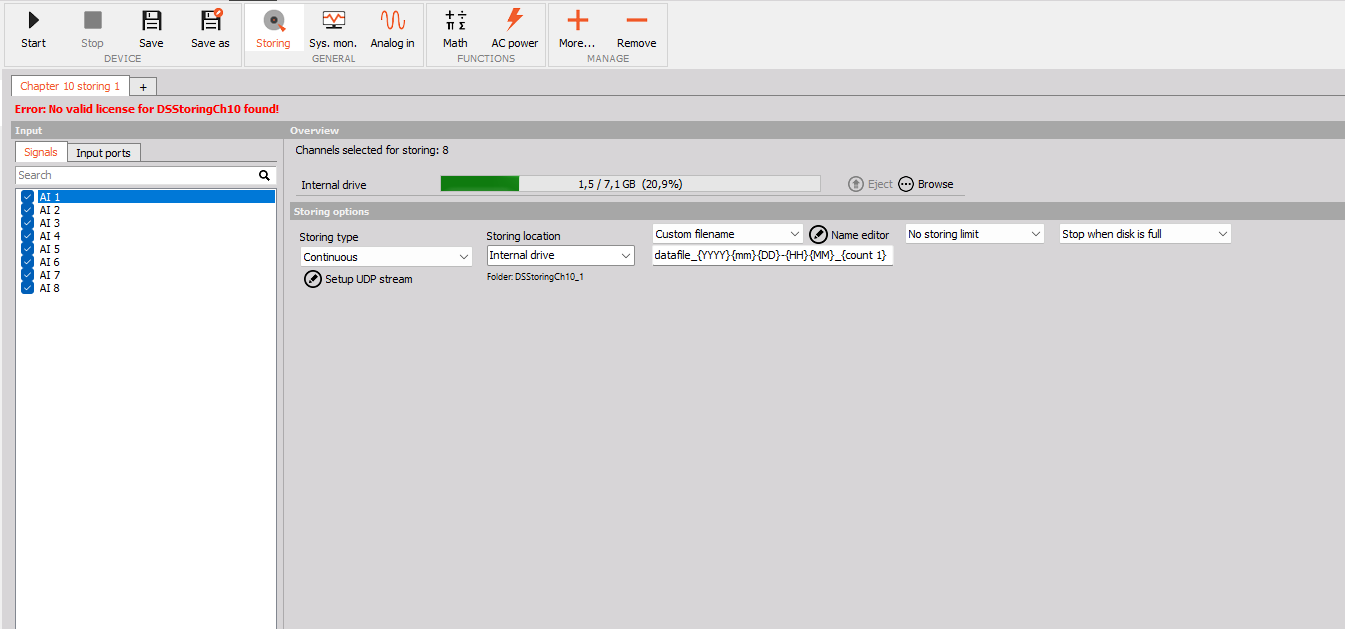
The page shows the available signals and input ports, the number of channels selected for storing, the storage usage and the storing options.
Multiple storing engines
A device can run several Chapter 10 storing instances. Each instance has its own channel selection, input port assignment, storing type, UDP stream settings, filename template, file splitting and cyclic retention policy. Files are saved in separate instance folders, such as DSStoringCh10_1 and DSStoringCh10_2.
To add an instance, click + beside the storing tabs and choose Chapter 10 storing, then open its tab to configure it. Check the channel selection before recording, because a new instance may already have signals selected.
Instances share the device’s operation state and available storage.
2. Select signals
In the Signals tab, select the signals you want to store. You can select acquisition channels and the outputs of on-device processing. Use Search to filter the list. The Overview shows the number of selected signals under Channels selected for storing.
The example selects AI 1 to AI 8.
Assign input ports
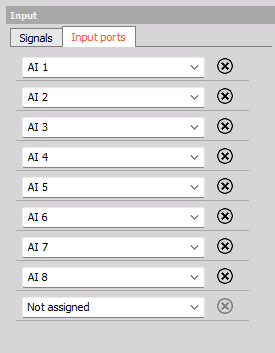
The Input ports tab shows which signal is assigned to each input port of the Chapter 10 recording.
- To assign a signal to a port, select it from the drop-down list.
- To remove a port, click the remove button (⊗) next to it.
- To add a port, select a signal in the last row, marked Not assigned.
3. Set the storing type
Select the storing type under Storing type. Continuous records all selected signals for as long as storing is running.
Storing runs only in Operation mode.
Check that recording is active
In the device status area at the upper right, check that the storing indicator is green and the device mode is Operation.
If the device shows Not storing, check the storing type, the channel selection, the DSStoringCh10 license, the storage destination, the free space and any errors on the storing tab. Confirm that the files show Finished in the device file browser or in Analysis mode.
4. Stream data over UDP
Chapter 10 storing can send the Chapter 10 data as a UDP stream to another computer on the network.
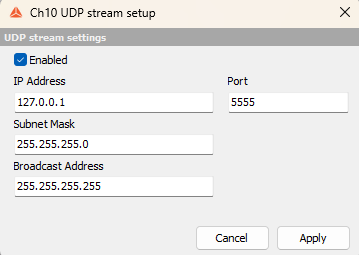
- Click Setup UDP stream below Storing type.
- In the Ch10 UDP stream setup window, select Enabled.
- Enter the network settings.
- Click Apply.
| UI setting | Purpose |
|---|---|
| Enabled | Turns the UDP stream on or off. |
| IP Address | Destination address of the stream. The default 127.0.0.1 is the local host. |
| Port | UDP port on which the destination receives the stream. The default is 5555. |
| Subnet Mask | Subnet mask of the streaming network. The default is 255.255.255.0. |
| Broadcast Address | Address used to send the stream to all hosts on the network. The default is 255.255.255.255. |
5. Choose a storage destination
Select the destination under Storing location. The example device stores to the Internal drive. The Overview shows the used and total capacity of the medium, for example 1,5 / 7,1 GB (20,9%). Other media, such as an SD card, are listed when the device supports them.
Use Browse to view the files on the medium. Use Eject where the medium supports it.
The folder of the current instance is shown below the drop-down list, for example Folder: DSStoringCh10_1. Files are organized by storage medium and then by storing instance. Access the files with Browse or through Analyze → Data files.
6. Set filenames
Choose Custom filename or Copy Dewesoft X filename. For a custom name, type the template directly in the filename field or click Name editor.
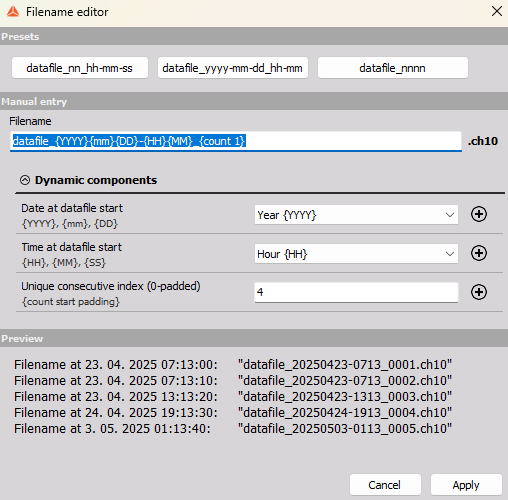
The Filename editor contains:
- Presets: ready-made templates
datafile_nn_hh-mm-ss,datafile_yyyy-mm-dd_hh-mmanddatafile_nnnn. - Manual entry: the filename template. The
.ch10extension is added automatically. - Dynamic components: select a date component, a time component or the unique consecutive index and click ⊕ to insert it into the template.
- Preview: example filenames for several start times.
Click Apply to use the template.
| Token | Meaning |
|---|---|
{YYYY} |
Four-digit year |
{mm} |
Two-digit month |
{DD} |
Two-digit day |
{HH} |
Hour, in 24-hour format |
{MM} |
Minute |
{SS} |
Second |
{count N} |
Counter starting at N, padded to four digits by default |
{count N P} |
Counter starting at N, padded to P digits |
Tokens are case sensitive. {mm} is the month and {MM} is the minute.
The default template is datafile_{YYYY}{mm}{DD}-{HH}{MM}_{count 1}. For example, a file started on 23 April 2025 at 07:13 with counter 1 is named datafile_20250423-0713_0001.ch10. The next file gets the counter 0002.
7. Set recording limits and file splitting
| DewesoftX option | Behavior |
|---|---|
| No storing limit | Records to one file with no split or stop threshold. Available storage still limits recording. |
| Stop storing after | Stops recording when the entered limit is reached. |
| Make a new file after | Starts a new file when the limit is reached and keeps recording. |
For the last two options, enter a limit and choose its unit, such as MB, sec, min or h. A time limit divides a long recording into shorter files.
8. Set cyclic retention
| DewesoftX option | Behavior |
|---|---|
| Stop when disk is full | Keeps all existing files and never deletes them. Recording stops when the medium is full. |
| Keep only last | Keeps the set number of most recent files and deletes older files of this instance. |
| Delete oldest file on full disk | Deletes the oldest file when the medium is full. |
With Keep only last, set how many files to keep. Combine it with Make a new file after to keep a rolling set of recordings.
Monitor storage usage and storing status during long recordings.
9. Browse and retrieve recordings
Click Browse beside a storage medium to open Files on device.
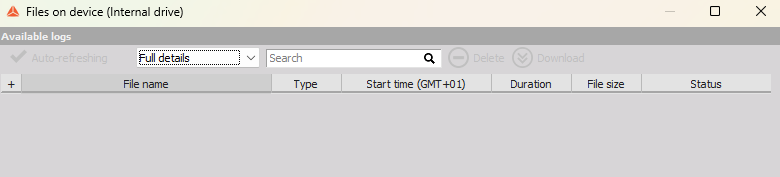
The list shows the File name, Type, Start time (in the device time zone), Duration, File size and Status of each recording. You can search for files or switch between the Full details, Quick list and Drive root views. Select Auto-refreshing to update the list automatically.
Select files to Download or Delete them. Download recordings to the PC to work with them, and delete device files you no longer need.
To open .ch10 files in DewesoftX, use the Chapter 10 plugin in Reproducer mode.
Access files in Analysis mode
- Open Analyze → Data files and select the device in the left sidebar.
- Expand Device, then choose Internal drive or SD Card.
- Select the instance folder, such as
DSStoringCh10_1.
The list shows each file’s name, size, start store time and status. Expand a grouped recording to see its individual files. Select a file to use the Download, Load or Delete actions.