Analog In RT: configure device analog inputs
Use Analog in to select the device’s physical analog inputs and configure sampling rate, amplifier settings, and engineering units.
1. Open Analog In on the device
Select Your device in the left sidebar, then open Config → Analog in. If the module is absent from the toolbar, select More… and look under General. A module already included in the setup is marked Module already added.
2. Read the Analog In grid
The inspected device exposes eight inputs, AI 1 to AI 8, with X-UNIi amplifiers. All eight Used switches are enabled. Each row shows a sampling rate of 20000 Hz, Voltage measurement, a 100 V range, and units of V.
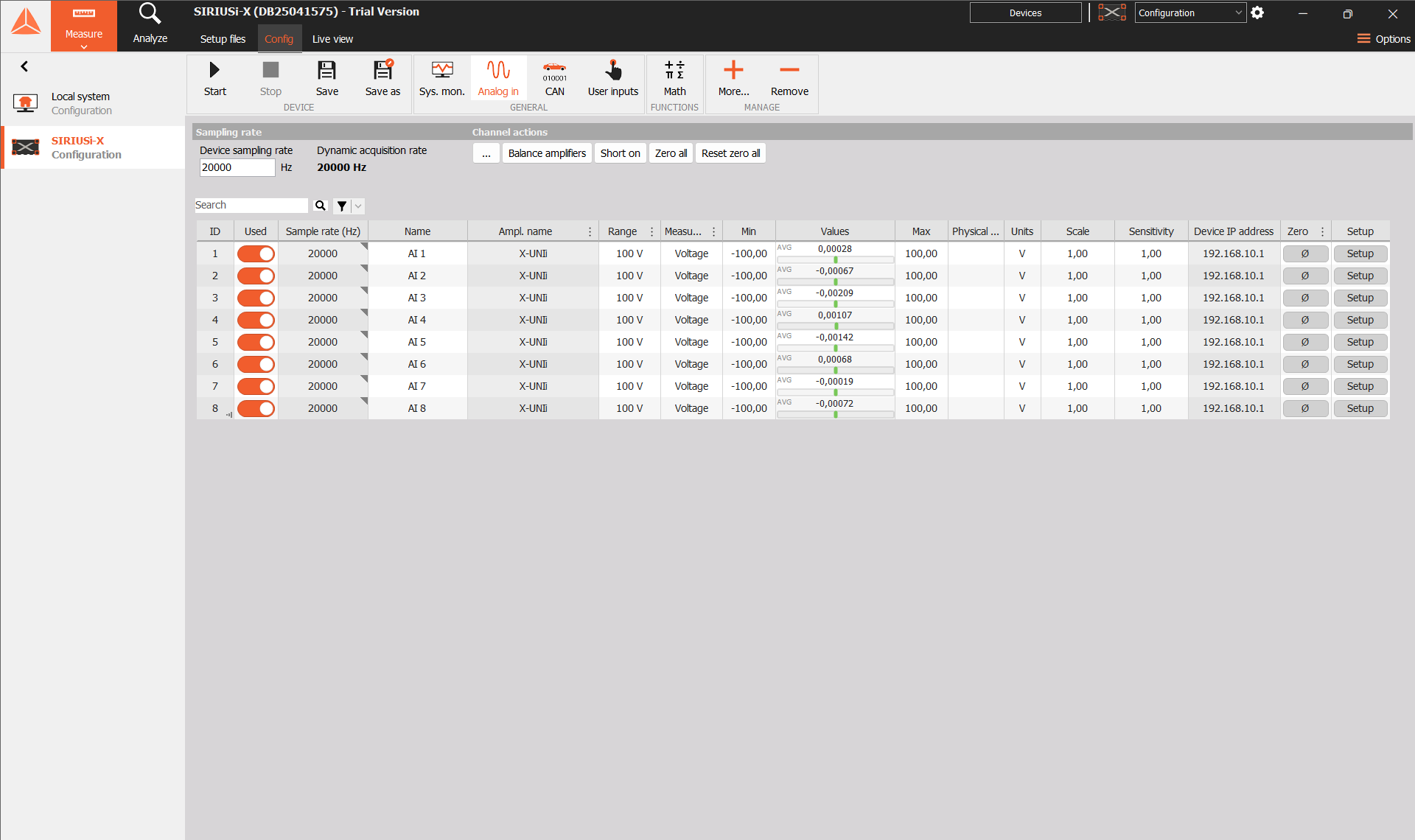
Figure 1. Analog In with a device sampling rate of 20000 Hz and eight enabled X-UNIi inputs.
| Column | What it shows or controls |
|---|---|
| ID | Number identifying the input row. |
| Used | Enables or disables use of the channel. Enabled switches are orange. |
| Sample rate (Hz) | Sampling rate reported for that channel. |
| Name | Editable signal name, such as AI 1. |
| Ampl. name | Amplifier type; X-UNIi in this example. |
| Range | Selected amplifier input range. |
| Measurement | Selected measurement type; Voltage in this example. |
| Min / Max | Configured channel limits shown in the grid. |
| Values | Current displayed signal value. |
| Physical quantity / Units | Quantity and unit associated with the signal. |
| Scale / Sensitivity | Scaling parameters offered for the channel. |
| Device IP address | Device address associated with the input. |
| Zero | Channel zero control. |
| Setup | Opens the settings for that input. |
The sample-rate cells are disabled in the inspected grid; the device sampling rate is available above it. A field being shown does not mean it can be edited for every device or measurement type.
3. Select and name channels
Use the Used switch in the required input row. Before changing it, check the channel name and physical input number. Review dependent calculations and recording selections when disabling a source signal.
Edit Name to identify the measured quantity and location. For example, use Supply voltage for a voltage input measuring a supply. Keep names distinguishable when several channels represent the same quantity.
Check Values in the same row after connecting the source. The inspected grid updates small voltage readings around zero on the eight inputs. These displayed readings confirm what the grid presents; they do not establish calibration accuracy or correct sensor wiring.
For a known voltage source, compare the displayed result with the expected voltage before using it in a measurement. Check the input number, measurement type, range, and scaling together if the result is unexpected.
4. Set the sampling rate
The device Analog In view includes a Device sampling rate field above the grid. The inspected setting is 20000 Hz, and every AI row reports the same rate.
Choose a supported rate appropriate for the signal. Recheck the per-channel rate after changing the device setting. The inspected screen provides no editable per-channel rate in the grid, so do not assume that each input can be assigned an independent value there.
At 20000 samples/s, the interval between regularly spaced samples is 50 microseconds. A 1000-sample statistics block on that stream covers 0.05 seconds. Changing the input rate changes the time represented by a fixed sample count in downstream processing.
The general Analog In reference describes the acquisition-rate area, amplifier actions, and input grid. The available rates depend on the acquisition hardware. See Analog in.
5. Configure the input and engineering units
Use the row’s Measurement and Range settings where editable, or select Setup to open its channel configuration. Choose settings supported by the installed amplifier and the connected source.
In the inspected configuration, AI 1 is set to Voltage, 100 V, V, Scale = 1, and Sensitivity = 1. Min and Max show −100 and 100. This is an example of the existing configuration, rather than a required setting for every input.
Check the measurement type before setting the range. A sensor requiring excitation or signal conditioning needs the appropriate supported amplifier mode. The available setup controls and measurement modes can differ between amplifier types.
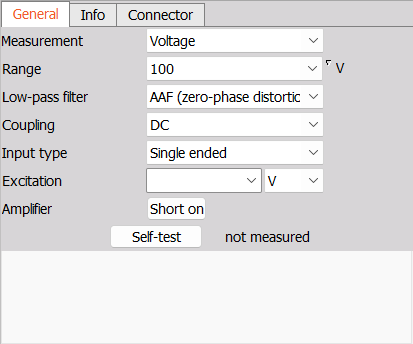
Figure 2. Amplifier panel for AI 1: Voltage, 100 V range, AAF low-pass filter, DC coupling, and Single ended input.
The inspected amplifier’s General tab provides Measurement, Range, Low-pass filter, Coupling, Input type, and Excitation controls. Info and Connector tabs are also available. Select the measurement mode and conditioning that match the sensor and wiring; the illustrated voltage settings are one example.
When converting a sensor’s electrical output into an engineering quantity, set the quantity, unit, and scaling to match its calibration. A unit label by itself is insufficient to define a sensor conversion. Apply a known input and check the resulting value after configuring scaling.
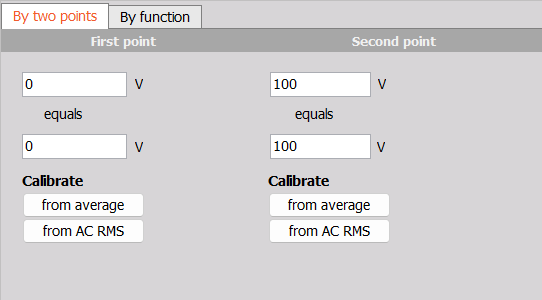
Figure 3. By two points scaling maps 0 V to 0 V and 100 V to 100 V in this example.
The Scaling panel offers By two points and By function. In By two points, define the electrical input and corresponding engineering output for each point. The example is an identity mapping. Use the calibration values for the actual sensor when a conversion is required. Select OK to accept intended edits or Cancel to discard them.
The grid’s Min and Max are configuration fields. Use statistical output channels when you need calculated minimum and maximum measurements over a time interval. See the Basic Statistic RT manual.
6. Find channels and adjust columns
Use Search above the Analog In grid to locate a channel. The inspected view also provides Add filter. Clear a search or filter when an expected row is missing.
Right-click a column heading and choose Edit columns to adjust the displayed information. Select the required column and use the available visibility, order, width, and digit controls. Select OK to apply the layout or Cancel to leave it unchanged.
Use the input’s Setup button for detailed analog configuration.
7. Use channel actions
The inspected Analog In screen offers Balance amplifiers, Short on, Zero all, and Reset zero all above the grid, plus a Zero control for each input. The available commands depend on the amplifier.
Check whether the command applies to one input or the whole set before using it. Apply zero only when the source is at the intended reference condition. Applying it to a real nonzero signal changes the reference used for subsequent readings.
Use the individual input’s setup when checking channel-specific conditioning. After a zero or amplifier action, compare the resulting signal with a known reference. No amplifier, zero, or balance action was applied while inspecting this configuration.
8. Display and record the channels
Open Live view, select the required display, and select the intended channels. Confirm their names, units, and values before starting the test.
Treat acquisition, display selection, and recording selection as separate checks. A channel being enabled in Analog In does not by itself confirm that the intended recorder saves it. Check recording selection in the device’s storing configuration.
For recording on the device, follow the Storing DXD RT manual. Select the required signals in the device’s storing configuration and verify a short recording containing a known input change.
9. Check unexpected behavior
| Observation | What to check |
|---|---|
| An expected input is missing. | Check the selected device, clear search and filters, and check the device connection. |
| A channel cannot be selected elsewhere. | Check its Used switch and the availability of its source. |
| The sample-rate cell is disabled. | Check the device sampling-rate control above the grid. |
| The signal has the wrong magnitude. | Check wiring, measurement type, amplifier range, sensor calibration, scaling, and units. |
| The signal remains near zero. | Check the connected source, correct physical input, and any active zero or short condition. |
| A required setting is absent. | Check the column layout and whether the hardware supports that setting. |
| A displayed channel is absent from a recording. | Check the recorder’s signal selection and recording status separately. |