User Input
User Input channels let you enter numeric values in DewesoftX and use them alongside measurement signals. Use them for operator-entered parameters, test values, or a manual setpoint in a processing chain.
NOTE: With 2026.3 this is still experimental feature.
1. Open User inputs
Select the device in the left sidebar, then open Config → User inputs. If the module is not visible, open More… and choose User inputs under General.
The grid lists the device’s User Input channels. Each row has its own name, range, unit, default value, and value-entry controls.
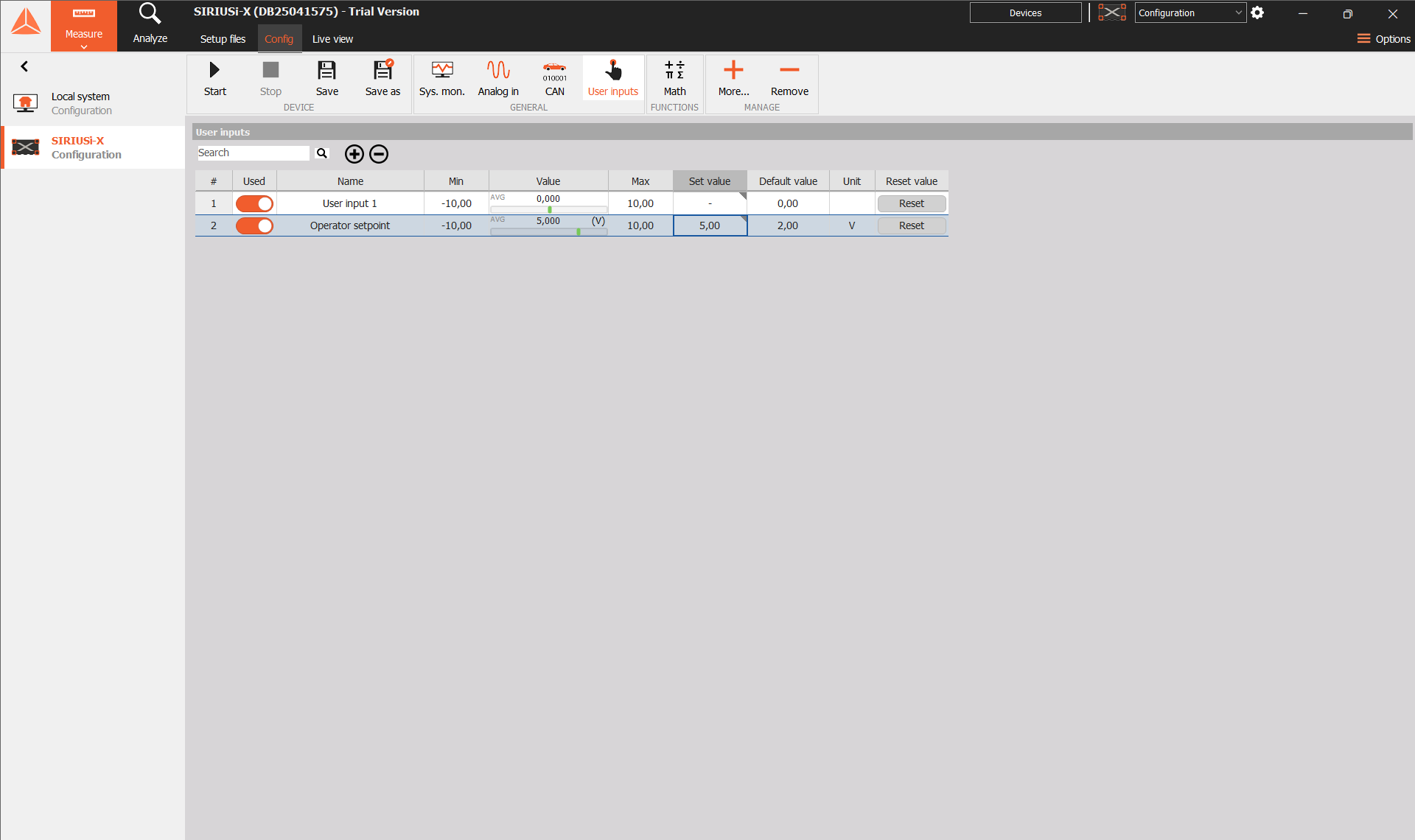
Keep the intended device selected when adding or editing channels. The instructions here describe its User inputs module.
2. Add and configure a channel
Select + above the grid to add a User Input channel. The new row is named automatically, such as User input 2. Select its Used switch to enable or disable it; an enabled switch is orange.
Edit the channel’s Name to describe what the value represents. Set Min, Max, and Unit for the intended quantity.
| Column | Purpose |
|---|---|
| # | Row number. |
| Used | Enables or disables use of the channel in the setup. |
| Name | Channel name. |
| Min / Max | Lower and upper limits of the configured signal range. |
| Value | Current channel value, with its value bar and unit. |
| Set value | Entry field for sending a new numeric value. |
| Default value | Configured default used by Reset. |
| Unit | Unit label for the channel. |
| Reset value | Reset button that applies the default value. |
For example, name a channel Operator setpoint, keep Min = −10 and Max = 10, enter V as the unit, and set Default value = 2.
The unit labels the entered quantity. Enter values in that unit; adding a unit label does not convert an existing number. Min and Max describe the signal range; do not rely on them as validation of an operator entry.
3. Enter a value
Edit the channel’s Set value cell, enter a number, and confirm the edit. Check Value in the same row to see the applied result.
For the example in Figure 1, entering 5 in Set value changes the current value to 5 V. Default value remains 2 V.
Use the decimal separator accepted by the current DewesoftX locale. The screenshots show decimal commas, such as 5,00.
Value, Set value, and Default value serve different purposes. Read Value to check the current result. Use Set value to apply a manual change and Default value to configure the value used for reset.
User Input produces a sample when a value is submitted. Its output is intended for manual updates and does not behave like a continuously sampled analog input. Device timing supplies timestamps when available. See the User Input function block reference for the underlying signal behavior.
4. Reset to the default
Set Default value to the value required for reset. Select Reset in that channel’s Reset value column, then check Value.
In this example, Reset changes the current value from 5 V to 2 V, matching Default value.
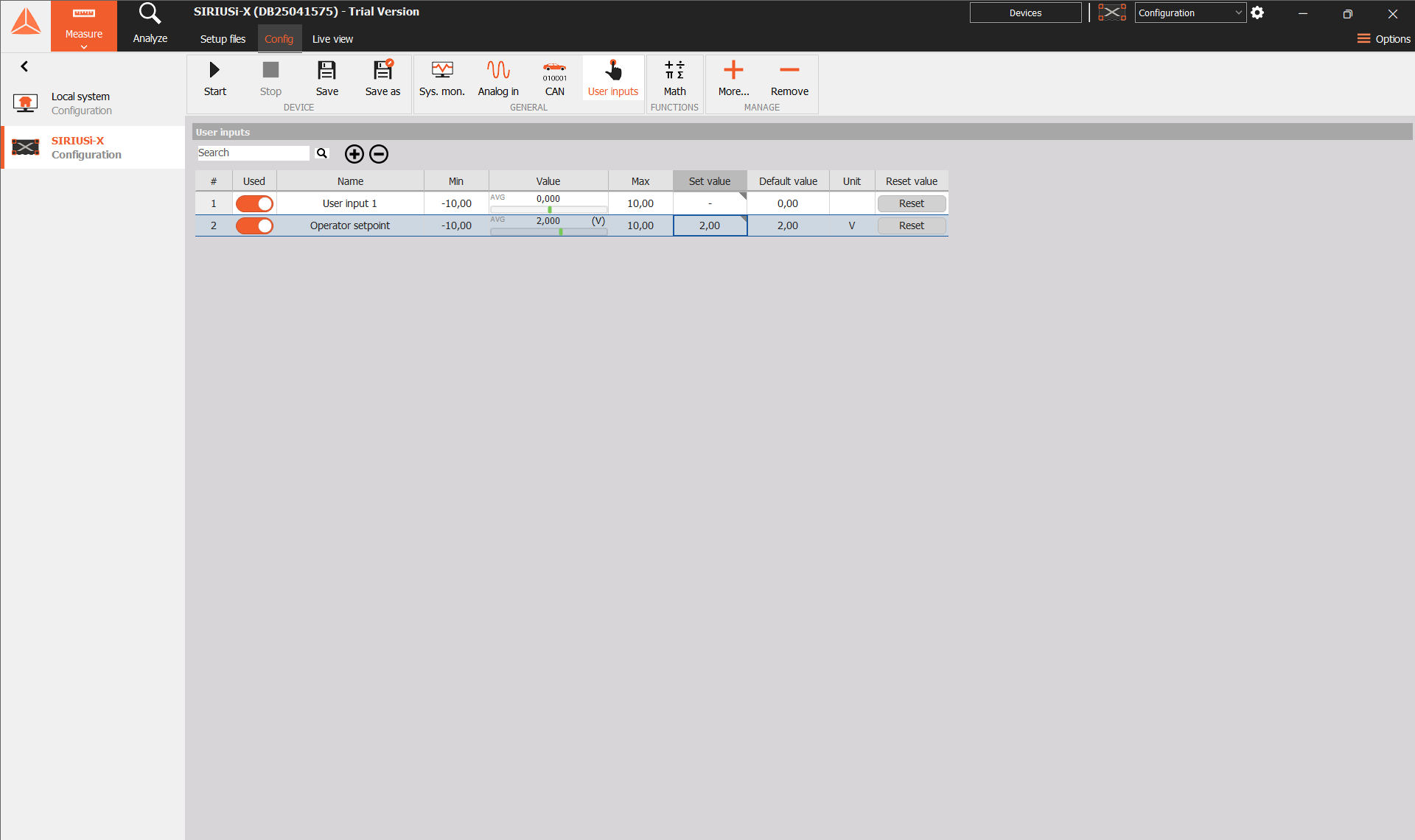
Figure 2. Operator setpoint after Reset. Value and Set value show 2 V, matching the configured default.
Reset acts on the channel in its own row. Check the channel name before applying it when several User Input channels are present.
5. Display and record User Input values
Enable the required channels before selecting them for a display. Open Live view, select the display widget, and choose the User Input channel from the channel list. A numeric display suits the latest manually entered value; a recorder helps show changes over time.
Use a descriptive name when selecting the channel elsewhere. The setup grid can use an automatically numbered name while another channel list shows the underlying signal as User input.
Used and recording selection are separate. Enabling a channel does not confirm that it is being recorded. Check the intended recorder’s channel list and storing status.
For on-device DXD recording, follow the Storing DXD RT manual and confirm that the required User Input signal is offered and selected by the device’s storing engine. Check a recording containing a deliberate value change before relying on it for a deployment.