Input Control 
With the Input control widget, you can either control DewesoftX actions (e.g. start and stop) or directly influence control channels (e.g. function generator, some digital outputs).
There are three basic modes of operation:
- Dewesoft action - control DewesoftX
- Control channel - control a channel manually
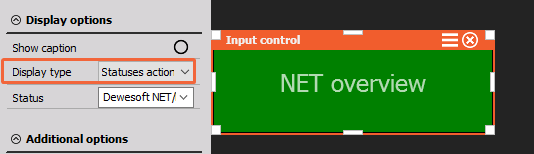
- Statuses actions - will behave like the functional statuses buttons (such as OVL, RT) in the top right corner
When you select the Input control widget, the following sections will appear in the Widgets tab on the left side of the screen:
- Input control Control properties - applicable to all widgets, please refer to the dedicated section of the manual
- Display options - select a mode of operation and a specific action or input type
- Additional options - customize appearance, depend on the display type and action selected. You can add a custom image, choose colors, set min./max. values (e.g. for a slider),…
The Channel selector will be to the right of the screen.
Display Options
Display Types
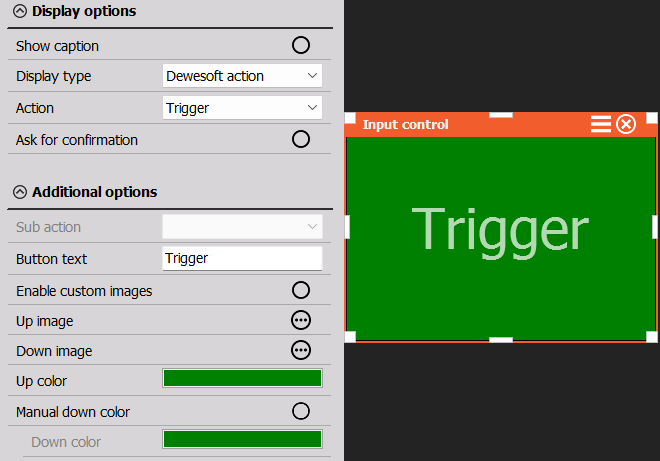
Dewesoft Action Mode
The following actions are possible:
- Start - starts the measurement from Stop mode
- Stop - stops the measurement and storing
- Pause - pause/resume recording
- Freeze - enters Freeze mode
- Store - starts storing
- Trigger - issues a manual trigger for storing
- Screen select - selects the screen named the same as Button text in Additional options
- Keyboard event - makes a Keyboard event
- Set channel - sets channel
- Filename - shows file name
- Sample rate - shows sample rate
- Exit Dewesoft - exits DewesoftX
Control Channel
The following actions are possible:
- Input field - to manually enter a new control value
- Push button - allow a short on/off event
- Switch - switch between two or more states (could be defined by the control channel)
- Turn knob - to allow smooth transition between values defined by min and max
- Horizontal / vertical slider - same as turn knob, but linear
- Check box
- Drop-down list
- Up down button
- Next prev button
In Analyse mode, this widget has no function.
Statuses Action
When using Statuses action, we can use the following options:
- Setup statuses - opens the setup status screen
- Error - opens Error window
- Overload/Clear OVL/limit statuses - clears OVL or limit status
- Overload/Show overload display - opens OVL display
- Device status
- Calibrate
- Dewesoft NET - multiple NET options, that are accessable over NET overview window, such as show status, connect to MU.
- Alarm - manually clear the Alarm status.
- Licensing
- Operation mode status/Store all
- Operation mode status/Stop all