Channel Selector
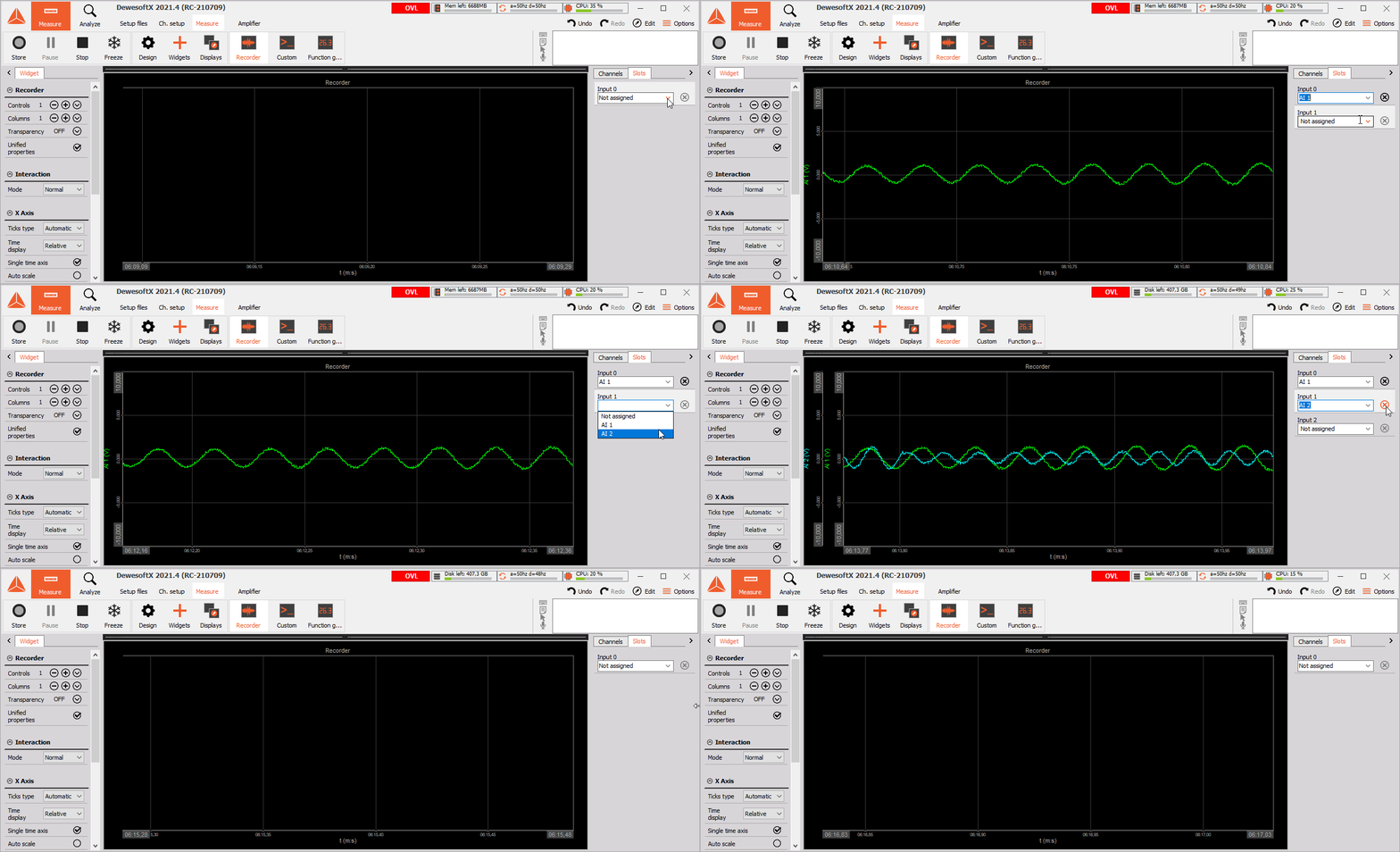
The channel selector lists all available channels within Dewesoft which you can assign to different display widgets. It can either display all available channels with different filters or only slots related to the currently selected display widgets.
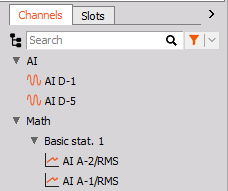
Channels tab with channel groups:
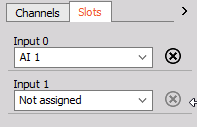
Slots tab:
Select Channels
Channels can be assigned to the currently selected display widget by clicking on them in the Channels tab. If a channel is already assigned to the widget, it will be highlighted and clicking on it will remove it from the widget.
There are other ways to assign channels to a display widget. You can drag and drop the channel to the widget. When you click and hold the left mouse button, the channel will be selected and you can drag it over to any display widget. You can drop it to any place which will add the channel to the display or you can drop it on the display’s channel list to replace the channel. In the example below, Ch1 will be replaced with the U_rms_L1 channel.
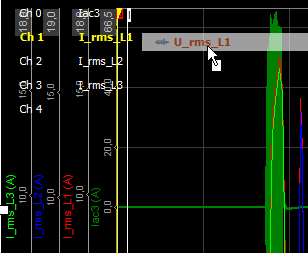
In Design mode, you can drag and drop a channel to an empty space on the display which will add a new digital meter with the selected channel assigned automatically. .
Assign Next Available Channel
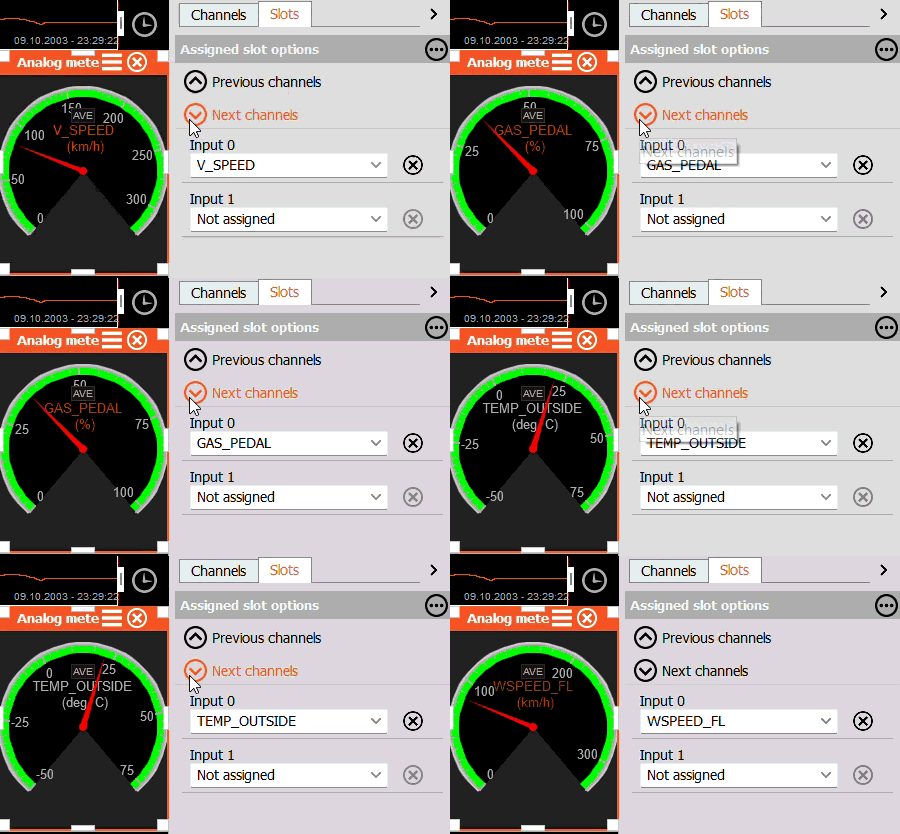
You can assign the next channel on the Channels list to a selected widget by pressing the “Next Channels” (or “Previous Channels”) button in the Slots tab on the right side.
Channels View
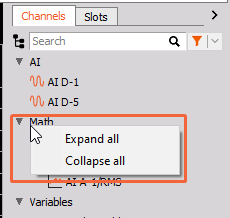
In the channels list, the channels will be grouped according to their source by default, such as analog input (AI), CAN, Math and others. You can see the channels by clicking on the group to expand it. To expand or collapse all grouped channels you need to right-click on the group property - and additional settings will appear.
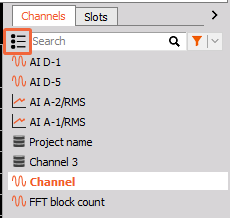
If you want to show channels in a flat list, press its icon next to the search bar.
Searching for Channels
To find channels faster, you can search for them by name. If you enter a keyword in the Search field, Dewesoft will look for channels with that keyword in the name (in any place). You can cancel the search by pressing the X button on the right side of the search bar.
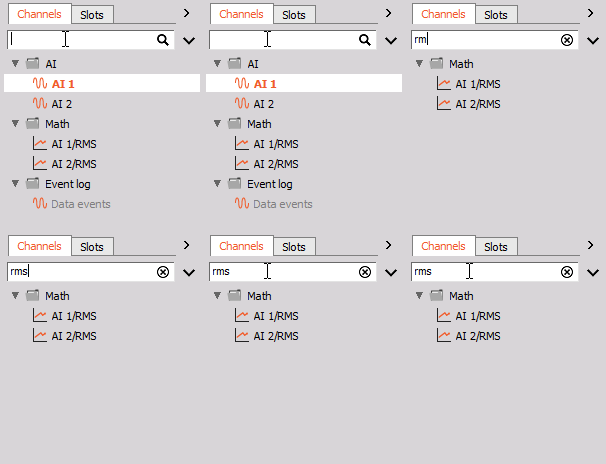
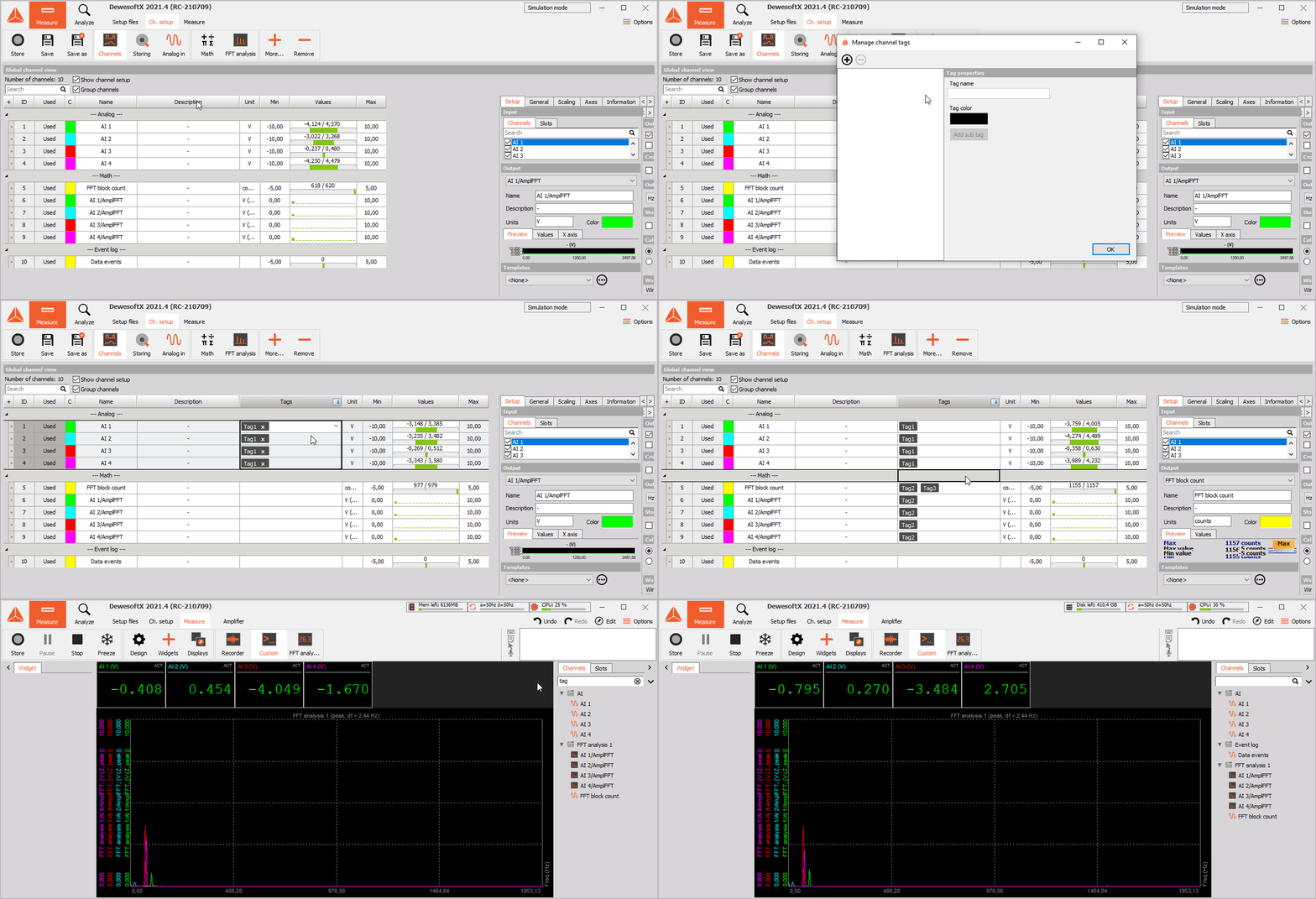
Custom tags can be added to channels in the Channels module. Multiple channels can then be searched/filtered in the channel list by their tag name. For more information about channel tags, please refer to the chapter Channel tags.
Hiding Channels in the Channel List
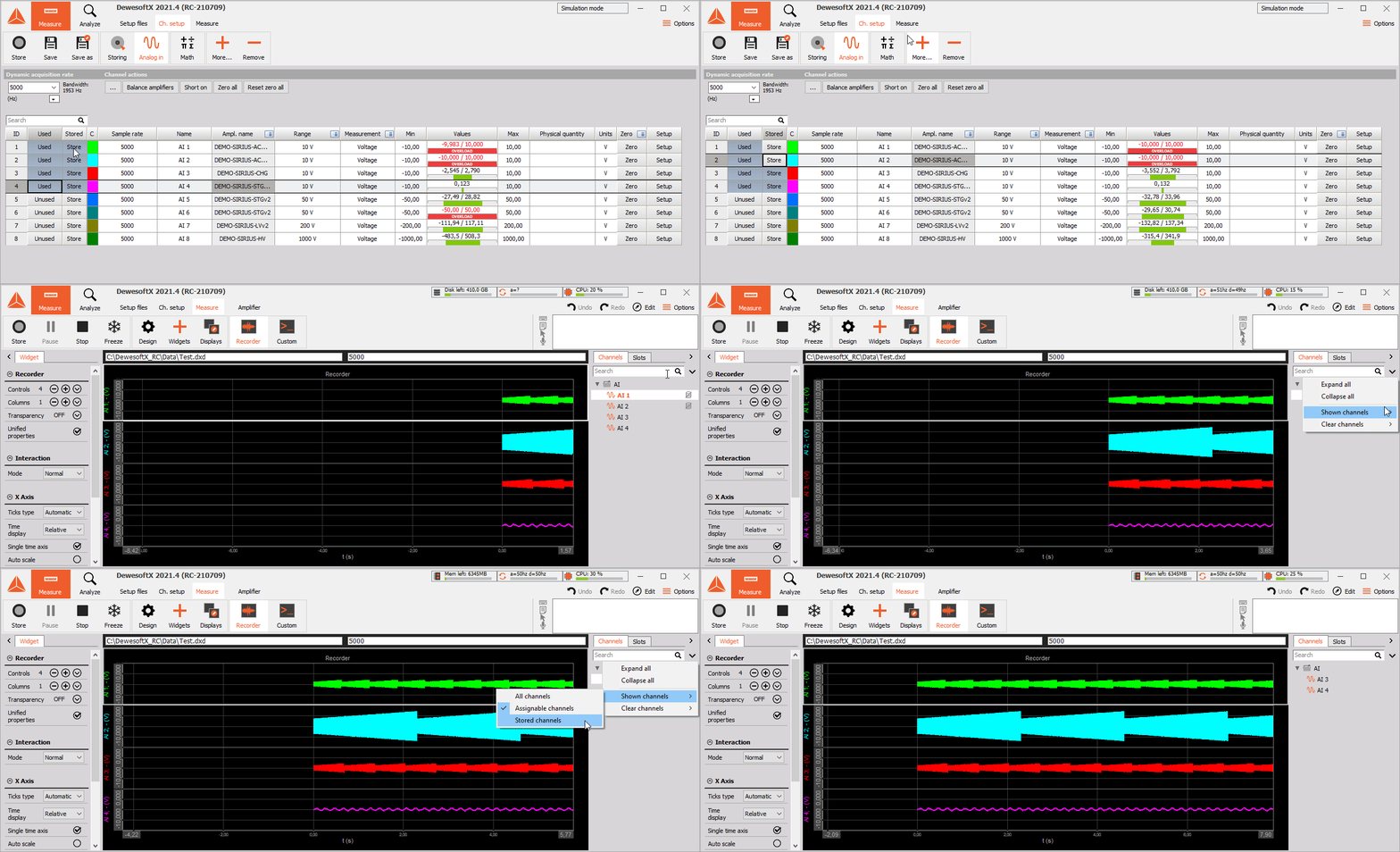
Channels that are not stored can be hidden from the channel list. There is also an option to show all channels or only channels that can be assigned to the currently selected display widget.
Clearing Channels from Widgets
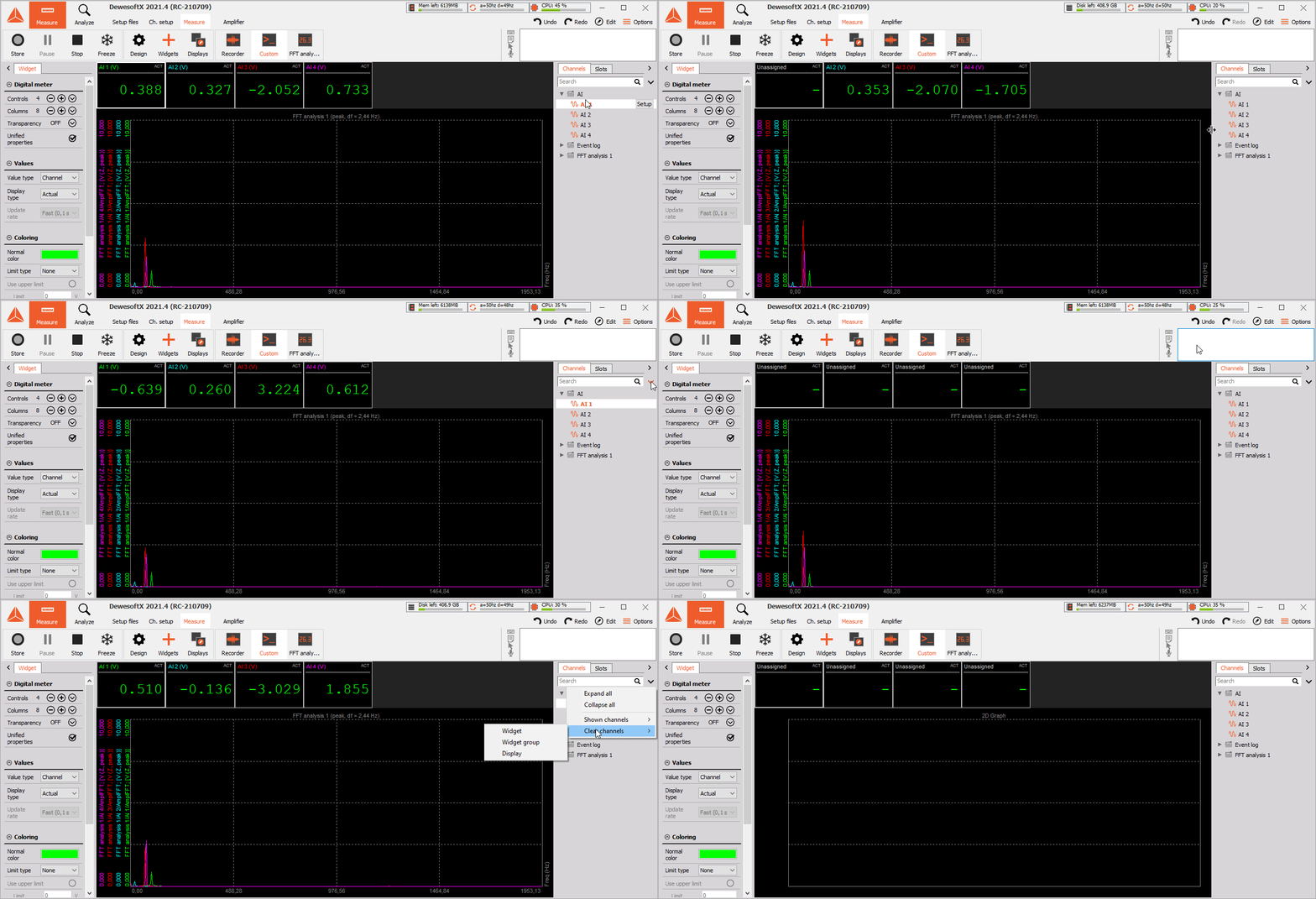
Channels can be cleared from a widget (slot or group) or from the entire display.
Overload Indicator
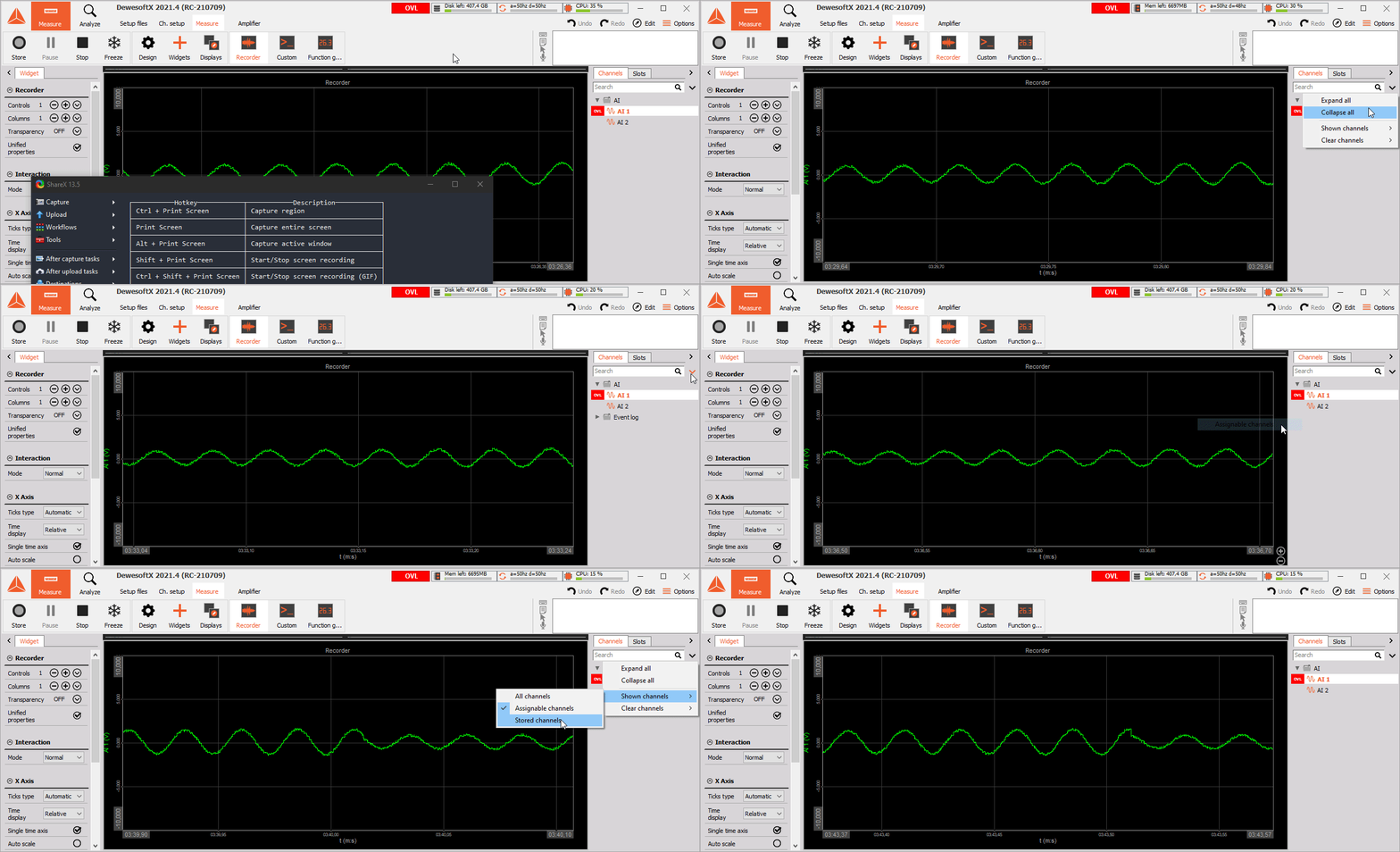
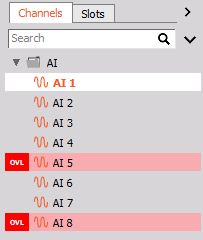
Channels in overload are highlighted in red. Additionally, if channel limits are assigned to a channel, the channel can have a warning/critical high/low status, which will also be displayed in the channel list.
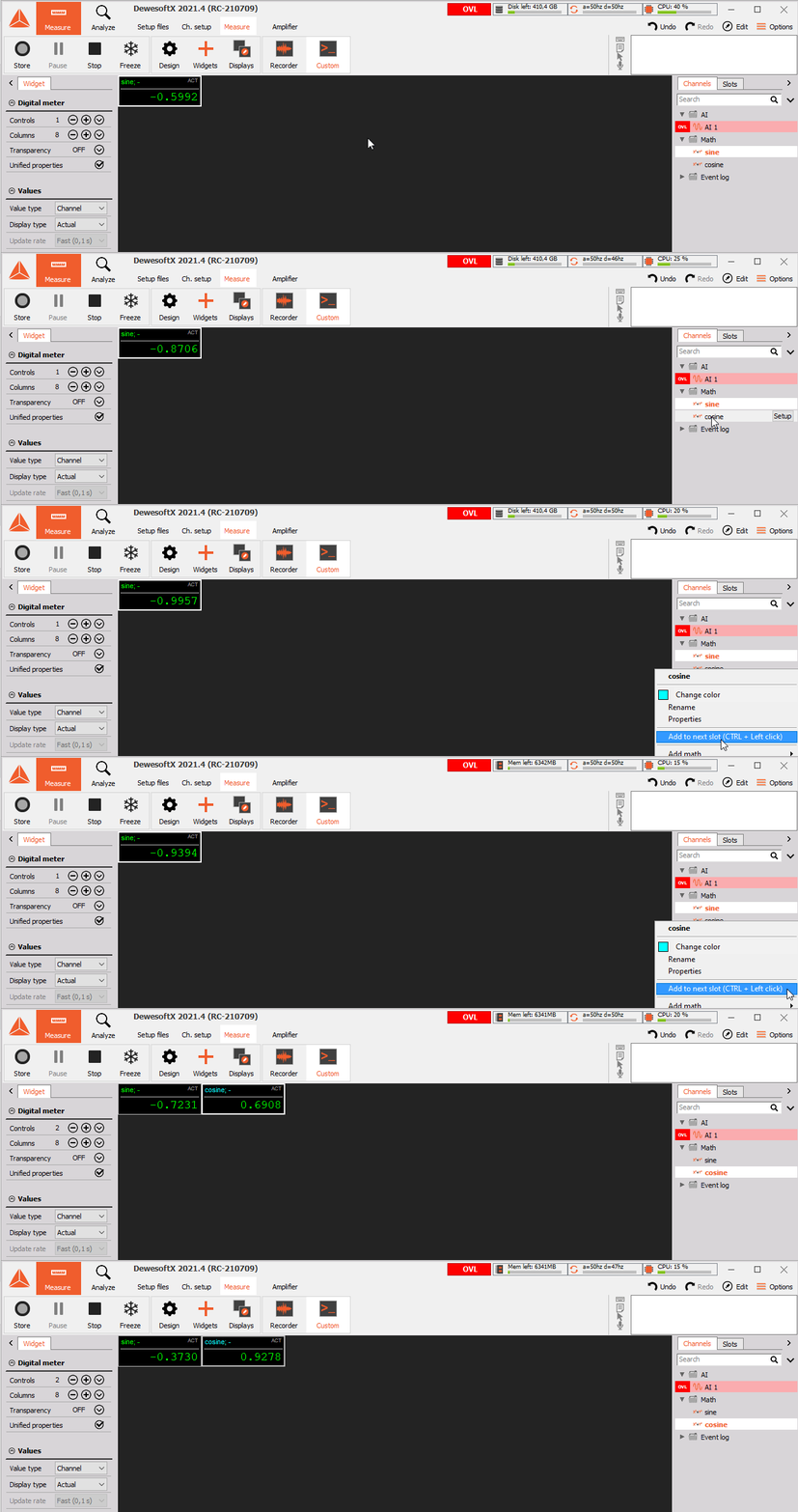
Multi-Channel Selection in Measure Mode
Automatically adding another channel to the next widget slot is possible with a CTRL-left click on the channel you want to assign.
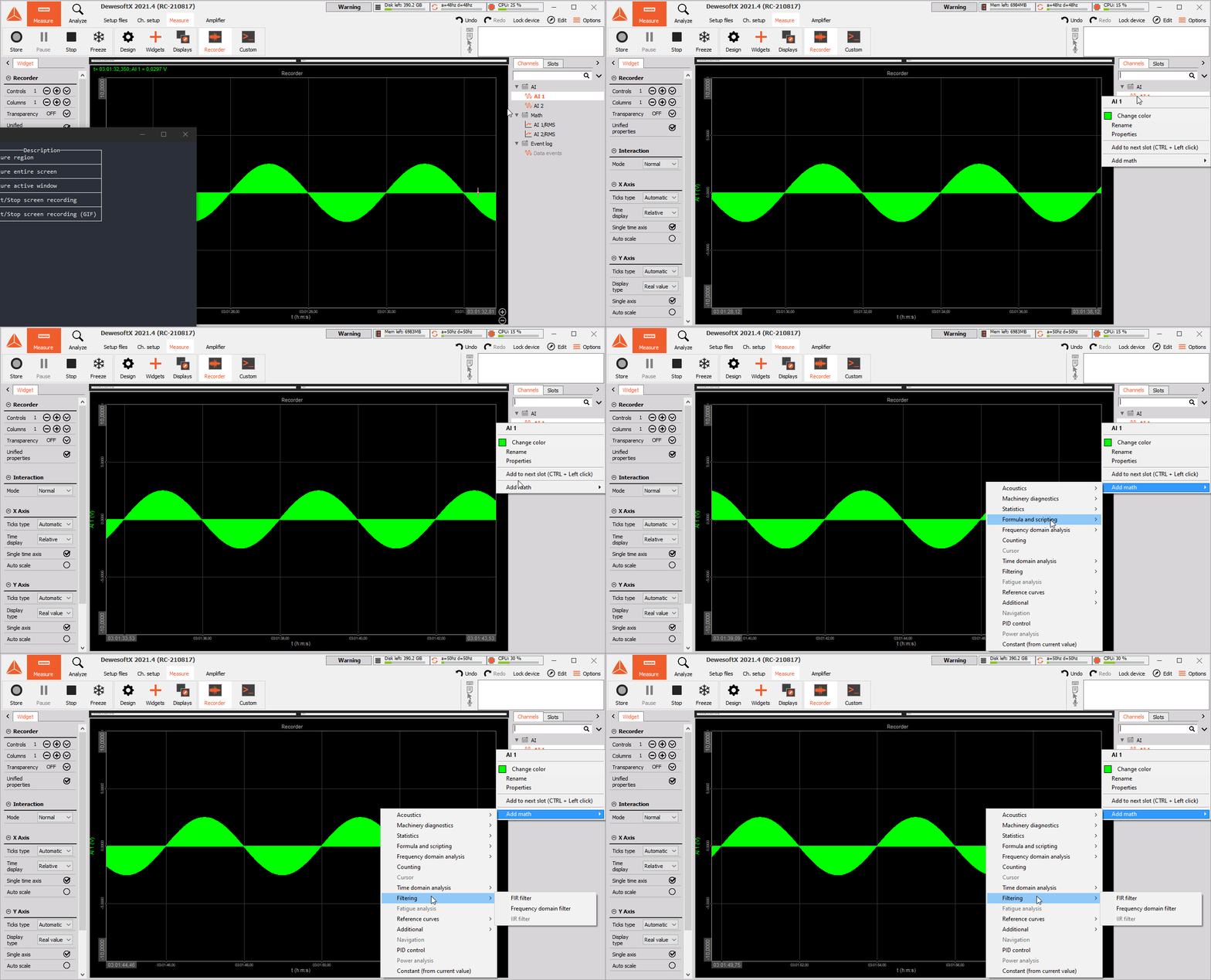
Additional Settings
We can add any math from the channel selector in the channel list. For example, when we want to add a filter to a channel, right click on the channel and select Add Math -> Filtering. The filter window will be opened and the channel which was selected will be automatically chosen as the input.
If you have selected a math channel, you will see two additional options allowing you to edit the math function or to delete it.
Slots View
The slots view shows to which function each input is assigned to. It is especially useful for complex display widgets such as the Map, XYRecorder, Compas, AHRS, HSI and VSI widgets, where multiple channels with a different function need to be assigned to the widget for it to display data correctly.
This view is also useful because it only shows the currently selected input channels, which can then be easily removed or replaced. Removing a specific channel from a slot can be done with the delete button.