Analog In
Use Analog in to enable analog input channels and set them up for your sensors or voltage signals.
Enable an input
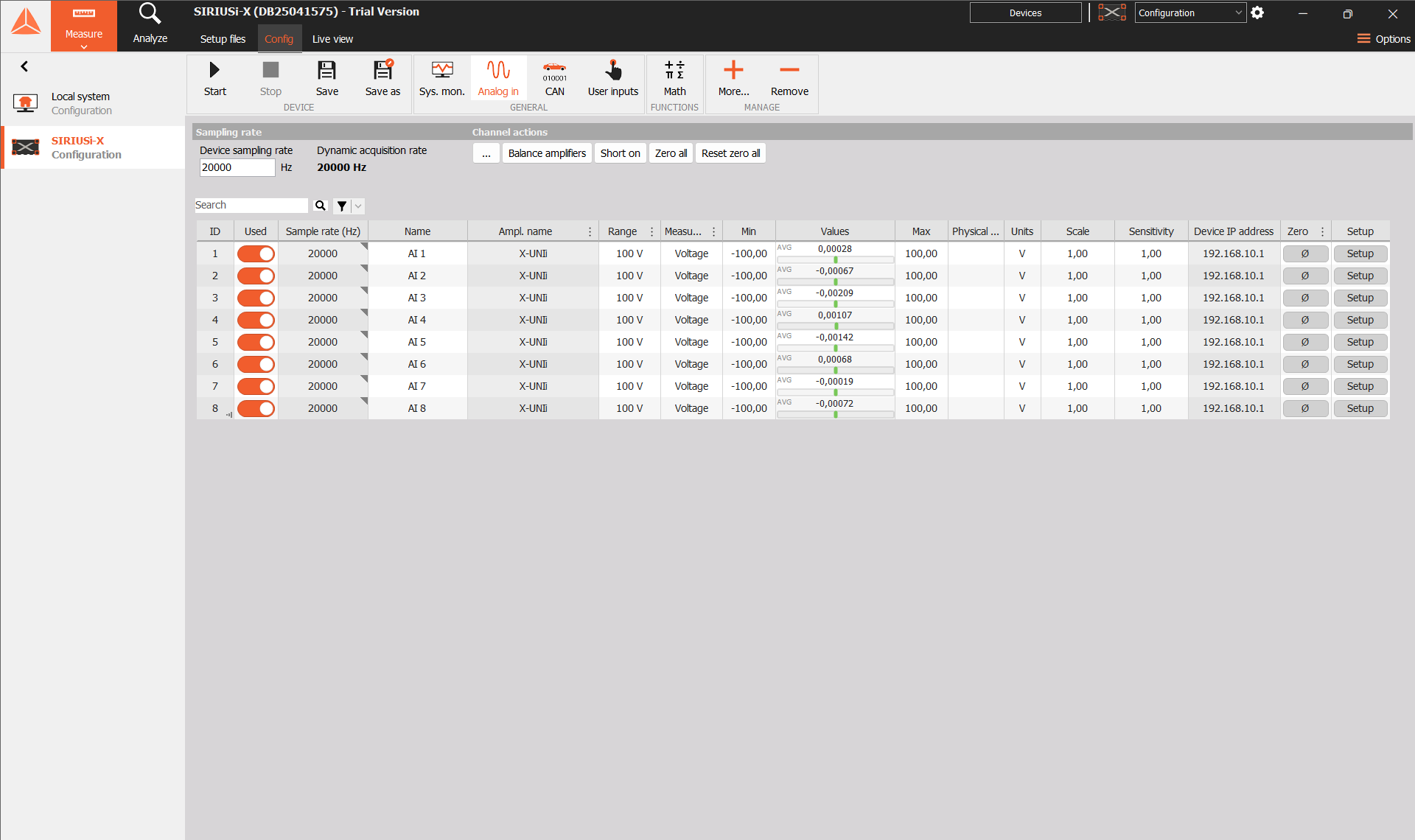
- Select your device in the sidebar and open Config → Analog in.
- Find the input you want to measure and turn on its Used switch. The switch turns orange when the channel is enabled.
- Edit the Name to make the input easy to identify, for example Supply voltage.
- Check the Values column to preview the input signal.
Use Search to find a channel. If a channel is missing, clear any search or filters.
Show more channel columns
More channel information is available than may be visible in the grid. Right-click a column heading and choose Edit columns. Select a column and use Show or Hide to choose what appears, or Move up and Move down to change the order. Click OK to apply the layout.
For example, you can show Measurement, Range, Physical quantity, Units, Scale, Sensitivity, and Device IP address. The available columns and editable settings depend on your device.
Set the sampling rate
Choose the Device sampling rate above the grid. This sets how often the device measures the inputs. The Sample rate (Hz) column shows the rate for each channel. Available rates depend on your hardware.
Configure an input
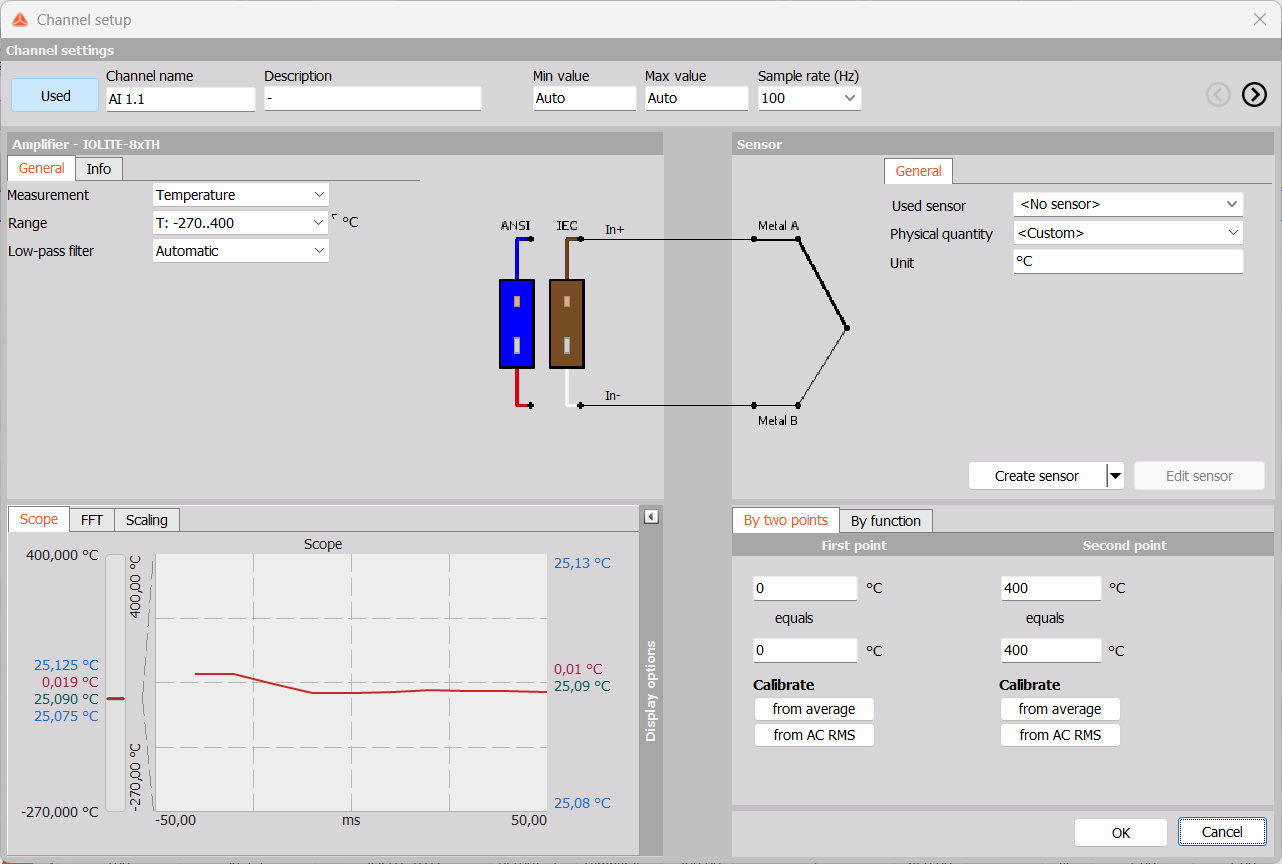
Click Setup in the input’s row. Choose the Measurement type and Range to match the connected signal or sensor.
Depending on the amplifier, you can also set the Low-pass filter, Coupling, Input type, and Excitation. Use the Connector tab to check the connection details.
Click OK to apply your changes.
Set the units and scaling
Use Scaling to convert the sensor’s electrical signal into the quantity you want to measure, such as pressure or force. Set the output quantity and unit to match your sensor.
- By two points: enter two electrical input values and their corresponding measured values from the sensor’s calibration.
- By function: define the conversion using a function.
Check the displayed value with a known input after applying the scaling.
The available settings depend on your device and amplifier. Enabling an input makes it available for measurement; select it separately in the device’s storing module if you want to record it.