Channels
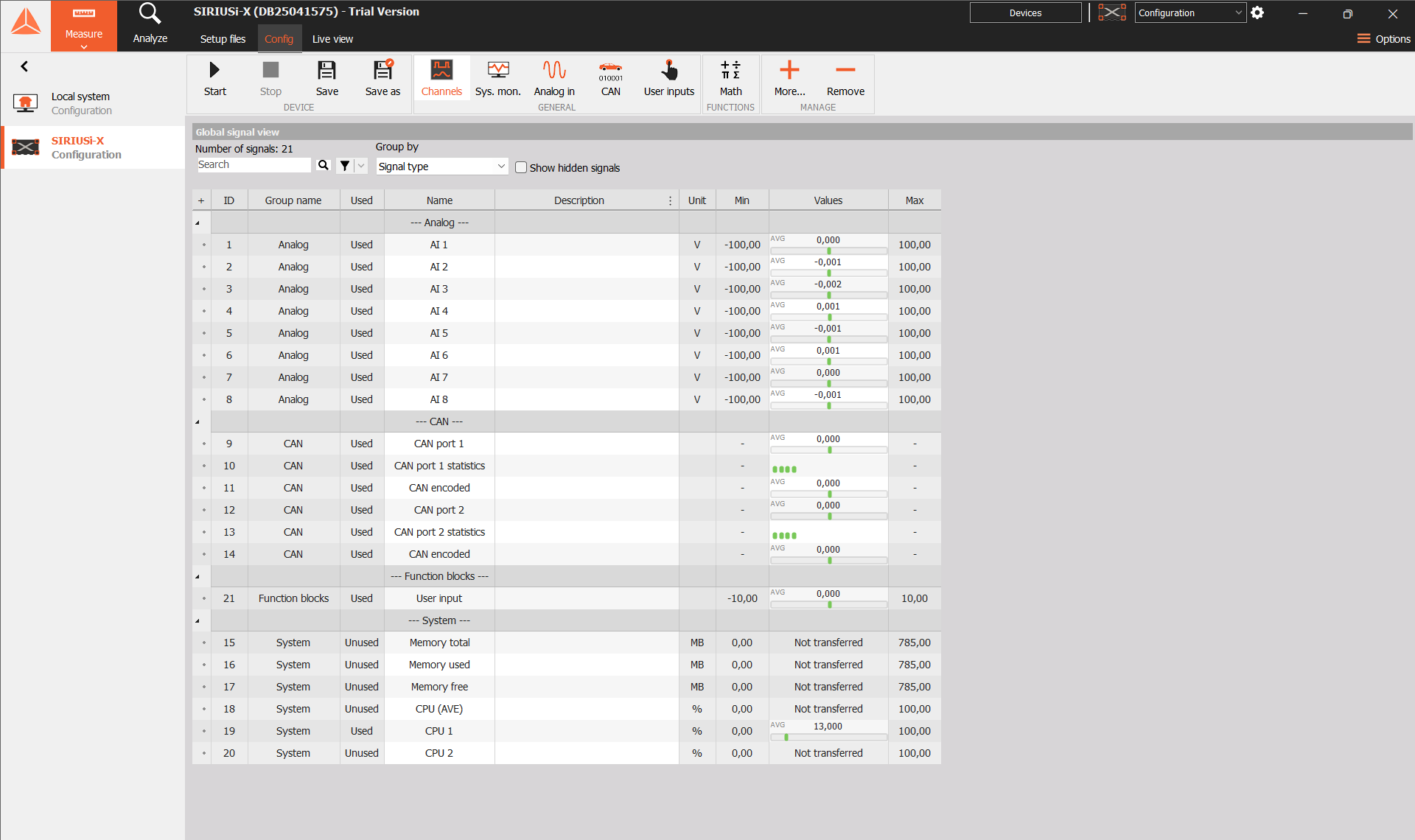
Use Channels to see your device’s signals together in one list, check their current values, and edit their names and descriptions.
Open the channel list
Select your device in the sidebar and open Config → Channels. If Channels is not on the toolbar, open More… and select Channels under General.
The list includes signals from the device’s input modules, function blocks, and system monitoring.
Find a signal
- Enter a channel name in Search, or use Add filter to narrow the list.
- Use Group by to organize signals by Signal type or Device. Choose None for an ungrouped list.
- Expand a group using the arrow on the left to see its signals.
- Select Show hidden signals to include signals normally hidden from the list.
If you cannot find a signal, clear the search and filters, then check that it is available in its source module.
Check and name your signals
The Values column shows each signal’s current value. Not transferred means a value is not available in this view; it does not mean the measured value is zero.
Edit Name to make a signal easy to identify, for example Supply voltage. Use Description for extra details such as the sensor location.
The Unit, Min, and Max columns describe the signal’s unit and configured range. Min and Max are not the lowest and highest values measured during a test.
To enable a signal or change its measurement settings, open its source module. For example, configure an analog input in Analog in.
Choose which columns to show
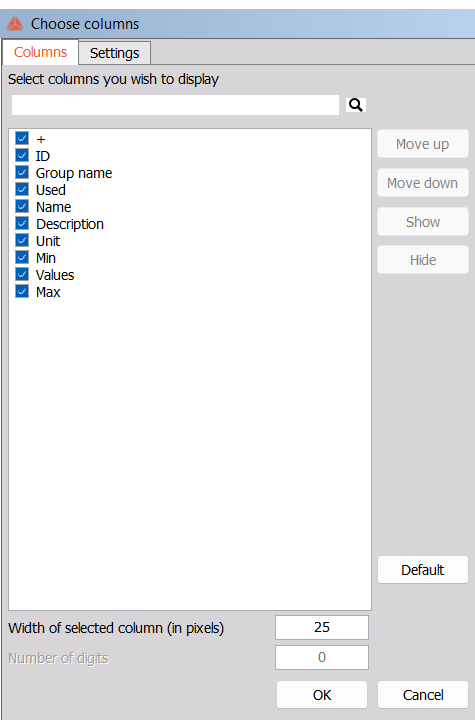
Right-click a column heading and select Edit columns. Choose a column and use Show, Hide, Move up, or Move down to adjust the list. Click OK to apply the layout.
A signal appearing in Channels does not mean it is being recorded. Select the signals you want to record in the device’s storing module.