Digital Out / Analog Out
Use A/D out to configure and enable your device’s digital output (DO) and analog output (AO) channels.
Configure and enable an output
- Select your device in the sidebar and open Config → A/D out.
- Find the output you want to use and click Setup in its row. Check the channel name to make sure you are configuring the correct output.
- Choose how the output value is supplied and configure the digital or analog settings described below. You can also edit the channel name and description.
- Click OK to apply the settings, then turn on the output’s Used switch in the grid. The switch turns orange when the output is enabled.
Choose the output source
Under Value type, choose:
- Manual for direct manual control from DewesoftX. This mode requires a connection to DewesoftX.
- From channel to use a signal as the output source. This can be a measurement signal or a device User Input channel. Select it in Channel.
Control a digital output with User Input
To change the output by entering a value yourself:
- Add and enable a channel in the device’s User inputs module.
- Open Setup for the required DO channel.
- Set Value type to From channel and select the User input channel.
- Confirm the settings and enable the DO channel. Change the value in User inputs to control the output.
You enter the value manually in User inputs, while the DO stays set to From channel. The device User Input assignment shows Works in standalone mode.
The example below uses AI 1.1 as the source. Select your User input channel in the same field when you want to enter the value yourself.
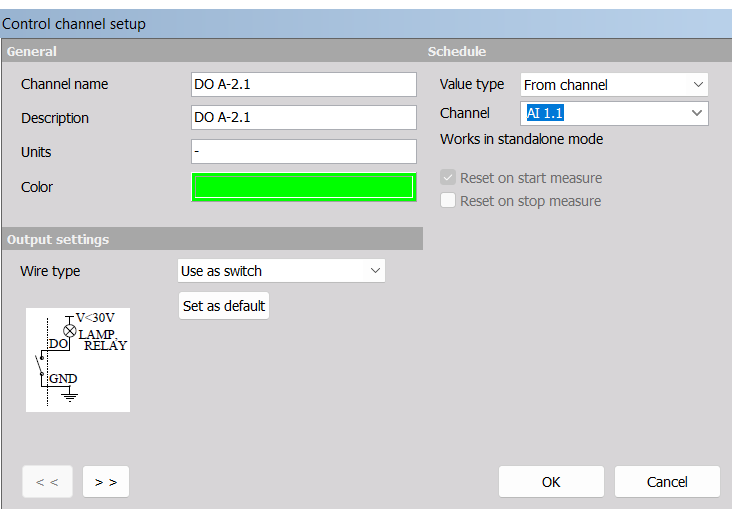
Digital output settings
Choose Use as switch or Use as digital output under Wire type, depending on how you want to connect the output. Follow the wiring diagram shown for your selection and the electrical limits in your device’s hardware manual.
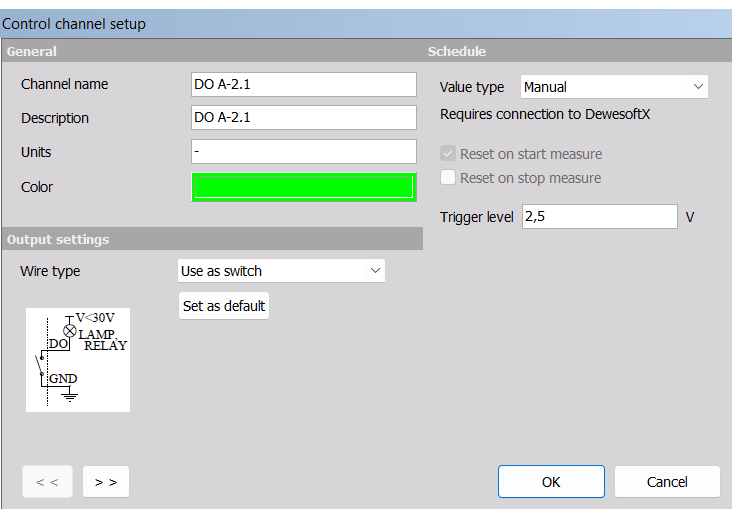
Analog output settings
Use Scaling type to set how the source value is converted to the analog output:
- Linear: enter a Scale and Offset.
- Two point: enter the source values corresponding to the two output endpoints shown.
- From range: use the source channel’s range for scaling.
The example below uses Linear scaling with a scale of 1 and an offset of 0.
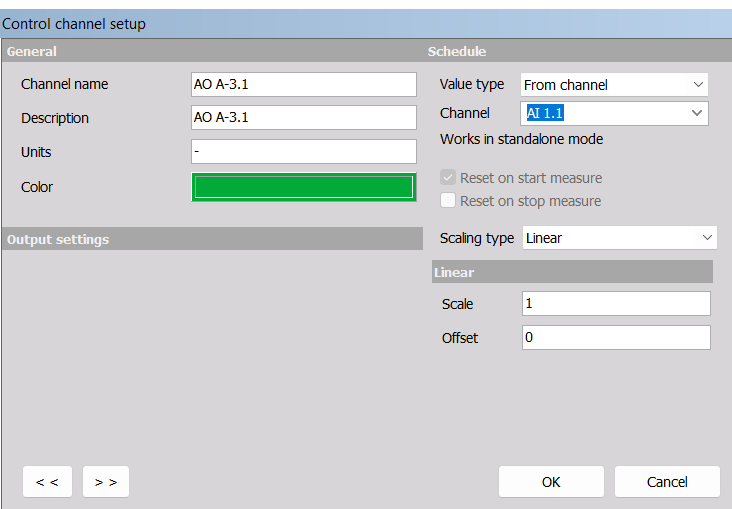
The available outputs and settings depend on your device. Check the wiring, selected source, and scaling before enabling a physical output.