Classification
The on-device Classification module groups input samples into classes and produces a histogram on the measurement system. It shows how the input values are distributed across a selected range.
For background information, see the DewesoftX Classification page. The controls described below are those available in the on-device module.
Input and output
Select the input channel in the Input section. Use Search to find a channel in a longer list. Available inputs depend on the connected measurement system and its configuration.
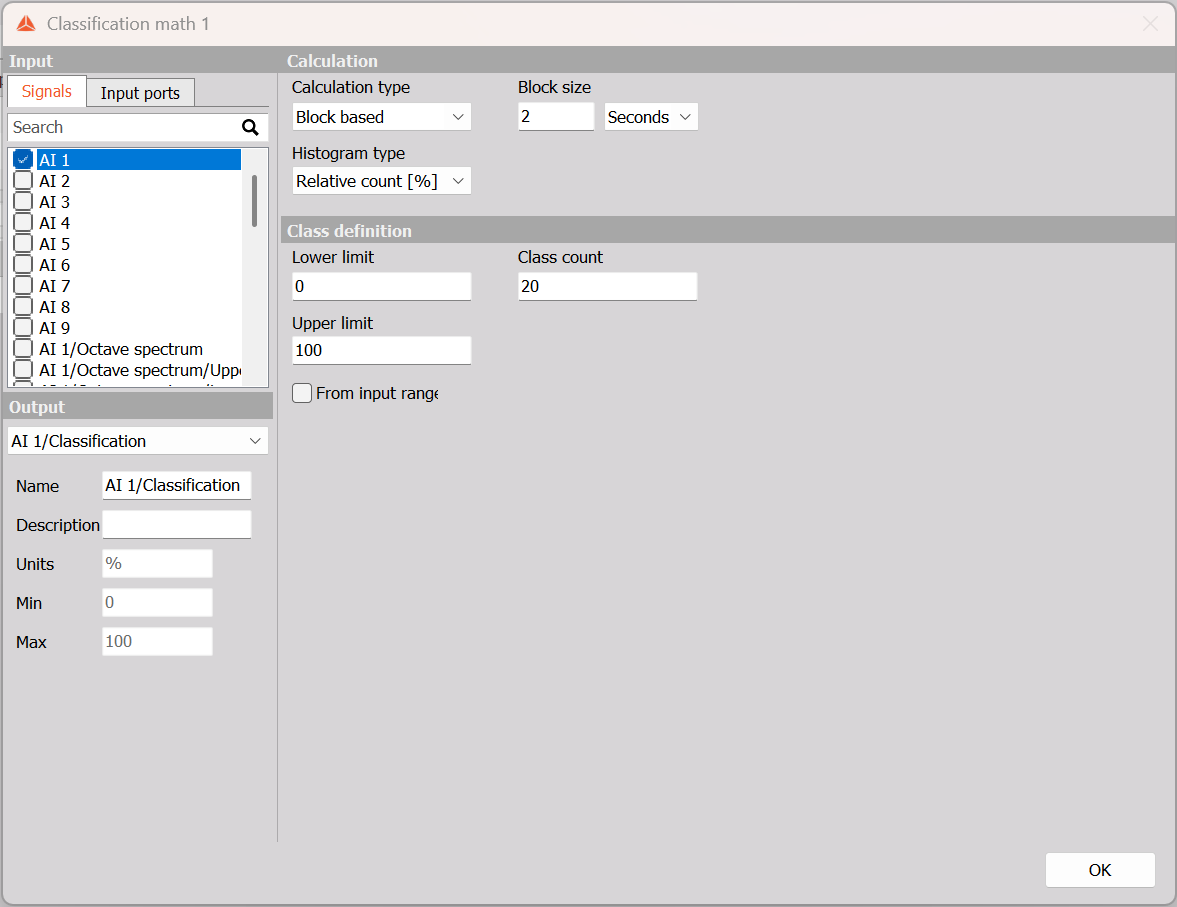
The Output selector lists the classification result, for example AI 1/Classification. This is a vector channel containing the class values. Select it to edit its Name and Description. Units, Min, and Max are read-only information; the histogram type determines the result’s representation.
Calculation
Calculation type
| Calculation type | Result |
|---|---|
| Overall | Accumulates a histogram over the measurement. |
| Block based | Produces a histogram for each block. |
With Block based selected, set Block size and choose its unit:
- Seconds defines the duration of each block.
- Samples defines the number of input samples in each block.
For example, a block size of 2 Seconds calculates a separate histogram for each two-second block. The block-size controls are hidden in Overall mode.
Histogram type
Choose how each class value is represented:
| Histogram type | Class value |
|---|---|
| Absolute count | Number of samples in the class. |
| Relative count | Fraction of counted samples in the class. |
| Relative count [%] | Relative count expressed as a percentage. |
| Density | Relative count divided by class width. |
| Density [%] | Density multiplied by 100. |
| Distribution | Cumulative relative count up to the class. |
| Distribution [%] | Cumulative relative count expressed as a percentage. |
Use a relative-count histogram to compare the proportions of samples in different classes. Use a distribution histogram to examine the cumulative result. Density and relative count have different normalizations, so their class values should not be interpreted interchangeably.
Class definition
| Setting | Description |
|---|---|
| Lower limit | Lower end of the class range, in the input signal’s unit. |
| Upper limit | Upper end of the class range, in the input signal’s unit. |
| Class count | Number of classes in the output vector. |
| From input range | Uses the input channel’s configured range and disables the manual limit fields. |
To enter a range manually, clear From input range and set the lower and upper limits. Choose a range and class count suitable for the signal and the detail required. When using From input range, check the input channel’s configured range rather than treating it as the observed minimum and maximum of the measured data.
Example configuration
The illustrated configuration selects AI 1, uses Block based calculation with 2 Seconds, and selects Relative count [%]. From input range is cleared, with manual limits of 0 and 100 and 20 classes.
The result is a 20-element percentage histogram for each block. The range is expressed in the input channel’s unit; adjust it for the signal being measured. These settings are an example, not a statement of the module’s defaults.
The output vector can be displayed in a 2D graph using a histogram presentation. For further general guidance on displaying vector channels, see the 2D graph page.