Notifier
Use notifier to send notifications using either emails or HTTP POST requests. You can choose one or multiple events linked to any number of alarms that will trigger a notification, as well as customize the message that will be sent.
Email Notifications
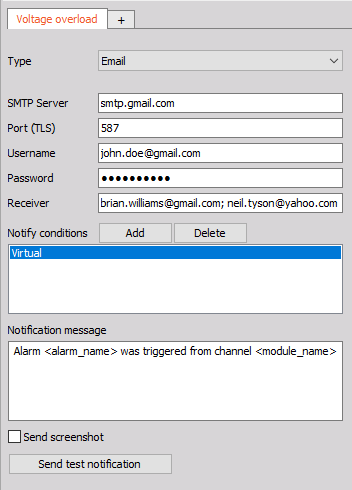
When using email notifications, an email will be sent out to the reciever(s) whenever the selected conditions are met. The following parameters are required to set up email notifications:
- SMTP Server - The SMTP server’s address
- Port (TLS) - The SMTP server’s port number
- Username - The sender’s email address
- Password - The sender’s password
- Receiver(s) - The email addresses of the receiver(s). If there are multiple receivers, separate their addresses with a semicolon ;
NOTE: Your email server needs to allow access to third-party applications. The computer used to set up the notifier has to be connected to the World Wide Web for the TLS certificate to be checked. A closed internet network is insufficient.
NOTE: If you have a SendMail license, you can use the Notifier with it.
Gmail
WARNING: You will need to set two-factor authentication up for your Google account before following the steps in this section.
To continue using the Other SMTP mailer in WP Mail SMTP, you will need an app password in your Google account. An app password is an alternate password - it can only be used by the applications you share it with, so it’s more secure than sharing your primary password.
NOTE: Any time you change your main Google account password, your app passwords will be deactivated. If you change your password frequently, this may not be the best workaround.
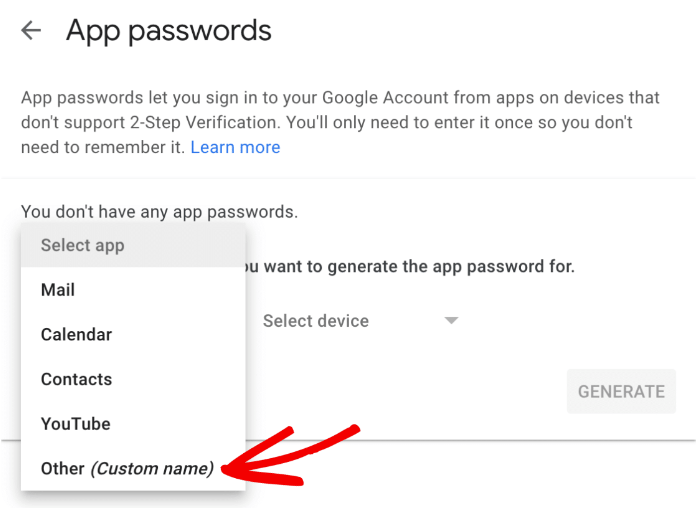
You can create an app-specific password for WP Mail SMTP in the security settings of your Google account. To do so, select Other (Custom name) as the app on the App passwords screen.
Type in WP Mail SMTP or another name that will help you identify this password in the space provided.
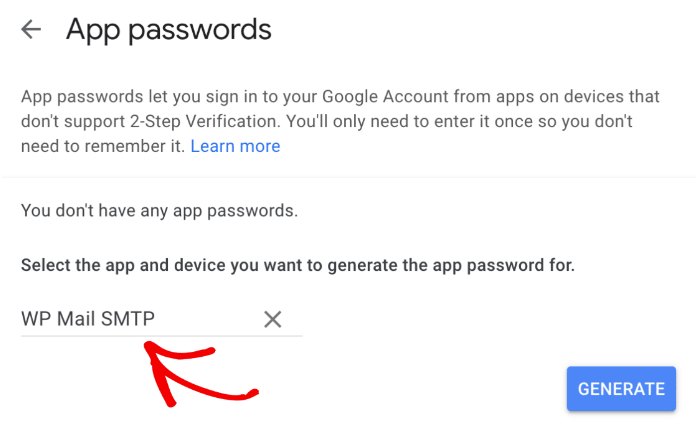
After that, click the Generate button to create your password.
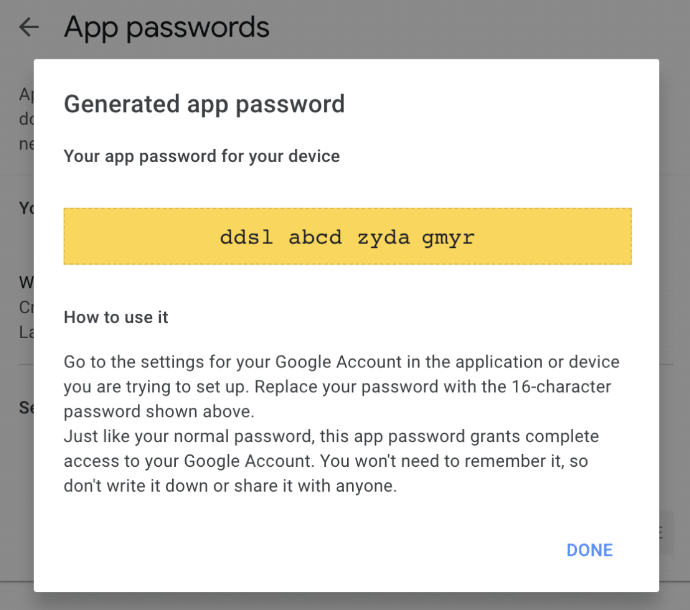
For more details and step-by-step instructions: How to set up the Other SMTP mailer in WP Mail SMTP.
HTTP POST Requests
The following information is required to set up HTTP POST:
- URL - The address of the web server that accepts POST requests.
- Content type - Format of the request that you would like to send.
- Headers - Use the following format: key: value. Multiple headers should be separated with newlines.
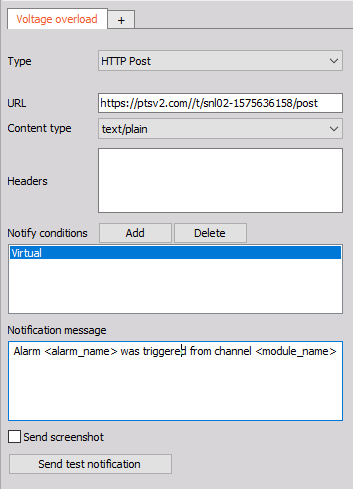
NOTE: For testing HTTP POST notifications, you can use PostTestServer.dev.
Conditions and Message
This section is the same for both types of notifications.
Use the Add button to choose which alarm(s) will trigger a notification.
Below, you can edit the Notification message. Tags can be used to give the recepient additional information about the alarm itself.
Available tags:
<alarm_name>- Name of the triggered alarm.<module_name>- Name of the module.<channel_name>- Name of the channel that triggered the alarm.
Select the Send screenshot checkbox to include a picture of the display when the alarm is triggered.
Use the Send test notification button to verify that you have correctly configured the module and the notification server.