FIR Filters
The on-device FIR filter module filters selected input signals in the measurement system. FIR stands for finite impulse response: the output is calculated using a finite set of filter coefficients, also called taps.
Use this module to pass or attenuate selected frequency ranges. You can design a filter using a window method or enter custom coefficients. For background information, see the DewesoftX FIR Filter manual.
Add the FIR filter module
- In Config, select the Measurement system in the device tree.
- Open Math and click Add math.
- Under Filtering, select FIR filter.
- Select the input signals and configure the filter in its setup window. To reopen the window later, click Setup on the FIR filter row.
Input and output signals
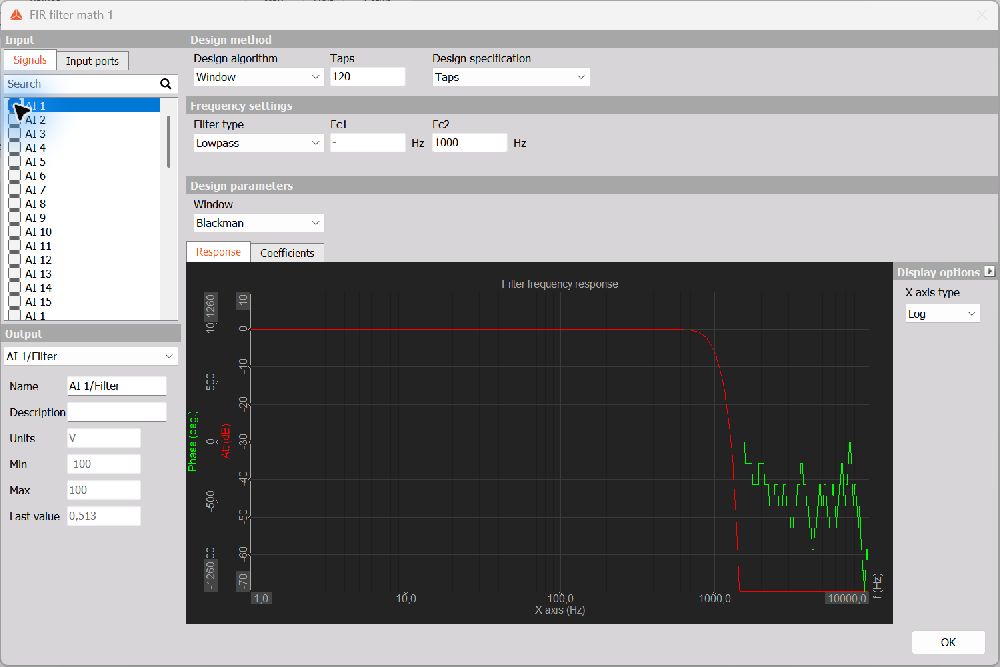
On the Signals tab, select the checkboxes beside the signals to filter. Use the search field to find a signal. The module can filter multiple input signals using the same filter settings.
The Output selector lets you choose which filtered signal to inspect. You can edit its Name and Description. Units, Min, Max, and Last value are displayed for reference and are read-only in this setup window.
Design method
Design algorithm
Choose between Window and Custom:
- Window calculates the filter coefficients from the selected filter type, cutoff frequencies, window, and design specification.
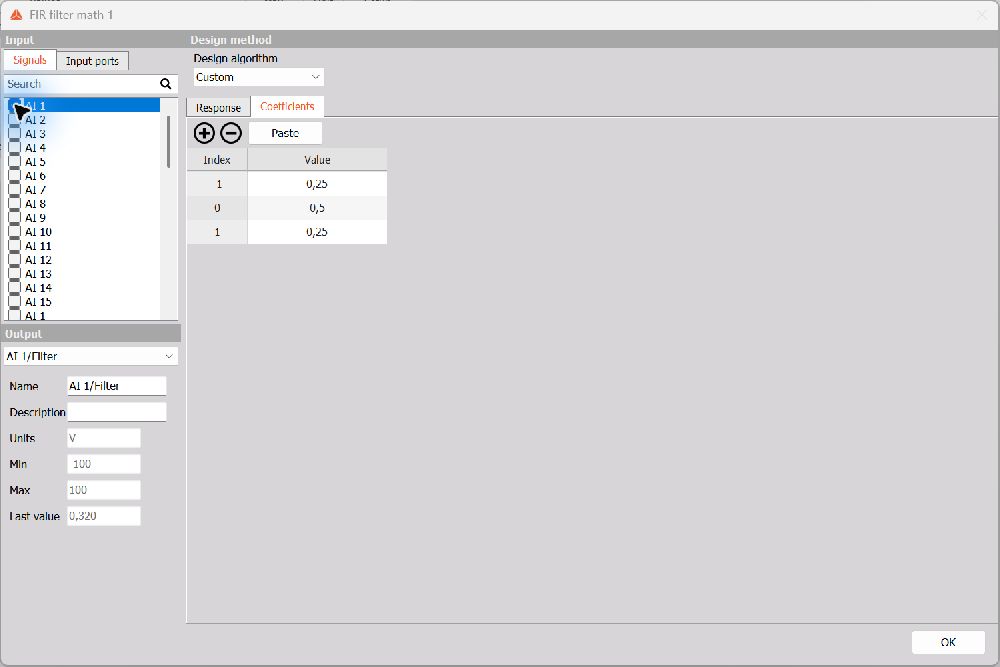
- Custom lets you enter your own filter coefficients on the Coefficients tab. The window-design and frequency-setting fields are hidden in this mode.
Design specification
With Window selected, choose how to specify the filter:
- Taps: enter the number of coefficients in the Taps field. Increasing the number of taps generally allows a sharper transition between passband and stopband, while increasing the calculation effort.
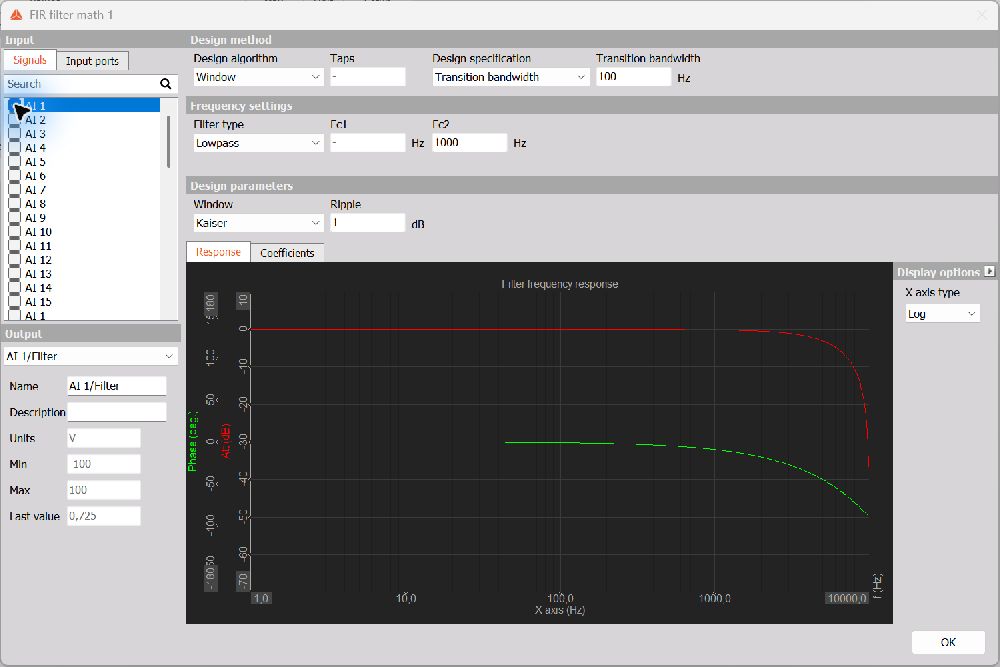
- Transition bandwidth: enter the desired width of the transition region in Hz. In this mode, the Taps field is disabled. A narrower transition generally requires more coefficients.
The transition band is the frequency range over which the response changes between the passband and stopband. Inspect the response preview when changing the design specification.
Frequency settings
With the Window algorithm selected, choose a Filter type and enter the enabled cutoff frequencies in Hz:
| Filter type | Function | Active cutoff fields |
|---|---|---|
| Lowpass | Passes lower frequencies and attenuates higher frequencies. | Fc2: upper cutoff |
| Highpass | Attenuates DC and lower frequencies and passes higher frequencies. | Fc1: lower cutoff |
| Bandpass | Passes the frequency band between the two cutoffs. | Fc1: lower cutoff; Fc2: upper cutoff |
| Bandstop | Attenuates the frequency band between the two cutoffs. | Fc1: lower cutoff; Fc2: upper cutoff |
For Bandpass and Bandstop, set Fc1 lower than Fc2. Choose frequencies within the range supported by the input sample rate; the Nyquist frequency is half the sample rate. The response changes over a transition region rather than at an ideal vertical boundary.
Design parameters
Window
The Window selection controls the trade-off between transition width and ripple in the filter response. Available windows are:
- Blackman
- Rectangle
- Hamming
- Hanning
- Kaiser
- Flat top
Blackman is a useful starting point when low sidelobes are important. Compare the response preview when selecting a different window.
Kaiser ripple
Selecting Kaiser reveals the Ripple field, expressed in dB. It controls the ripple setting used for the Kaiser design. Adjust it together with the taps or transition bandwidth, and inspect the resulting response.
Response and coefficients
Response
The Response tab previews the filter frequency response. The red curve shows amplitude response in dB and the green curve shows phase in degrees. Under Display options, set X axis type to Log or Lin to change the frequency-axis display.
Use this preview to inspect the passband, transition region, and stopband. Phase in a strongly attenuated stopband is less useful for assessing the passed signal.
Coefficients
The Coefficients tab lists the coefficient Index and Value. With the Window algorithm, use it to inspect the calculated coefficients.
With Custom selected, edit the coefficient values in the table. Use + to add a coefficient, − to remove a coefficient, or Paste to insert coefficient data from the clipboard. Switch to Response to inspect the resulting filter.