IIR Filters
The on-device IIR filter module filters selected input signals in the measurement system. IIR stands for infinite impulse response: each output value depends on current and previous input values as well as previous output values.
Use this module to pass or attenuate selected frequency ranges. Choose a filter prototype, order, and cutoff frequencies, then inspect the amplitude and phase response in the setup window. For background information, see the DewesoftX IIR Filter manual.
Add the IIR filter module
- In Config, select the Measurement system in the device tree.
- Open Math and click Add math.
- Under Filtering, select IIR filter.
- Select the input signals and configure the filter in its setup window. To reopen the window later, click Setup on the IIR filter row.
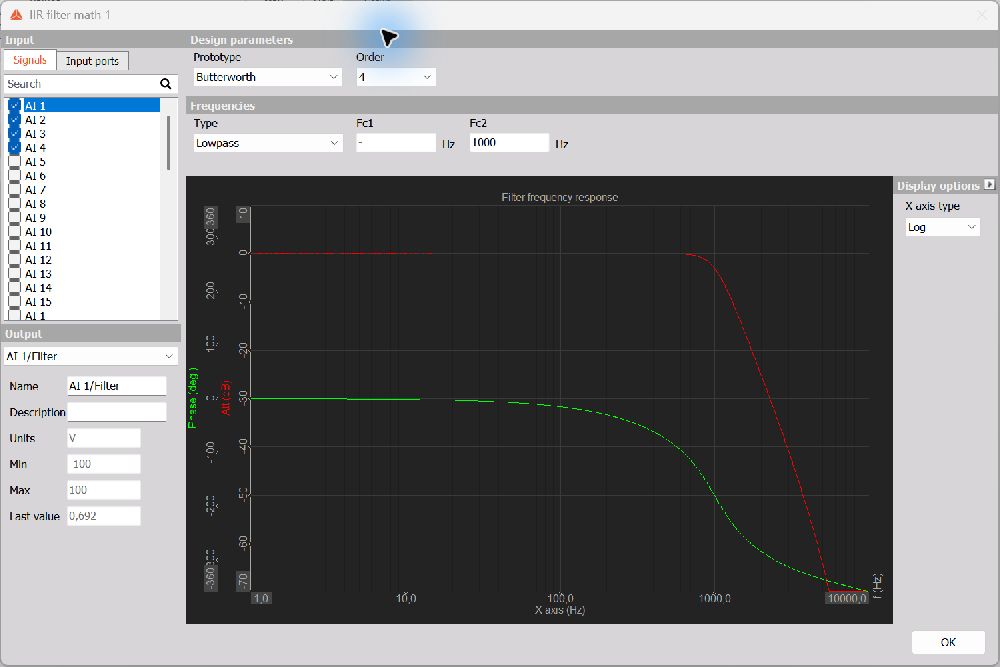
Input and output signals
On the Signals tab, select the checkboxes beside the signals to filter. Use the search field to find a signal. The module can filter multiple input signals using the same filter settings.
The Output selector lets you choose which filtered signal to inspect. You can edit its Name and Description. Units, Min, Max, and Last value are displayed for reference and are read-only in this setup window.
Design parameters
Prototype
Choose one of the following filter prototypes:
| Prototype | Characteristics |
|---|---|
| Butterworth | Has a maximally flat magnitude response in the passband, without passband ripple. A useful choice when amplitude flatness is important. |
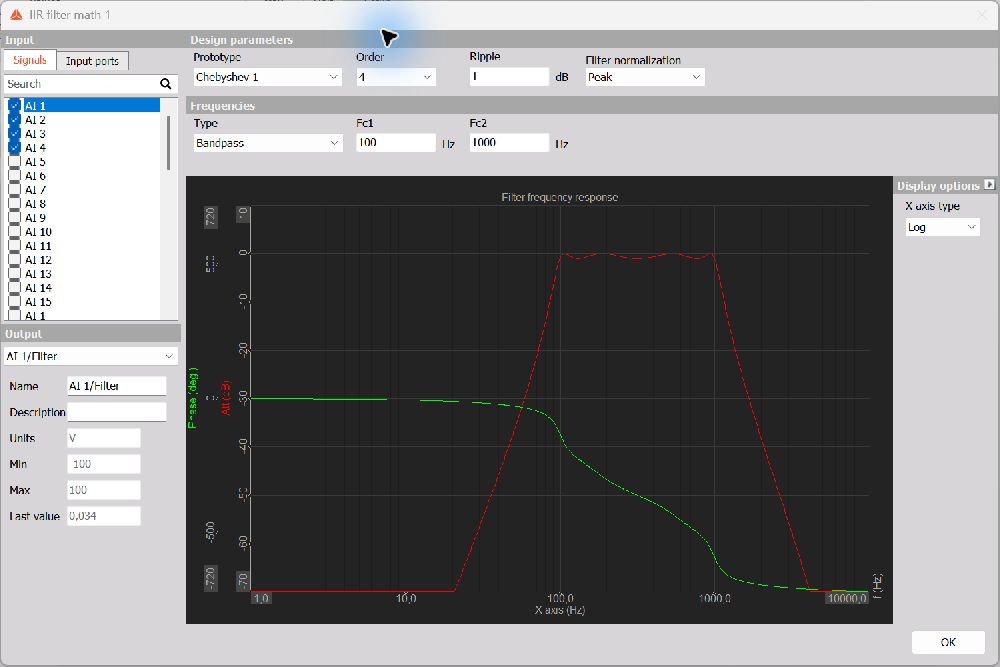
| Chebyshev 1 | Provides a sharper transition than Butterworth for a comparable order, at the cost of ripple in the passband. Selecting this prototype reveals Ripple and Filter normalization settings. |
| Bessel | Prioritizes a flat group delay and a more nearly linear phase response in the passband. Its transition is more gradual than the other prototypes for a comparable order. |
Changing the prototype changes both the amplitude and phase characteristics. Inspect the response preview when comparing designs.
Order
Select the filter Order from 1 to 12. Increasing the order generally increases the steepness of the transition between the passband and stopband and requires more calculation effort.
The resulting response also depends on the selected prototype, filter type, and cutoff frequencies. Use the preview to judge the complete design rather than comparing order alone.
Ripple
With Chebyshev 1 selected, enter the permitted passband Ripple in dB. A larger ripple setting allows greater variation in the passband and can produce a sharper transition for the same order.
Filter normalization
With Chebyshev 1 selected, choose Pass band or Peak as the gain-normalization reference. This setting controls how the filter gain is normalized. Compare the amplitude response in the preview when changing the normalization, particularly when the passband level matters to the measurement.
Frequencies
Select a filter Type and enter the enabled cutoff frequencies in Hz:
| Type | Function | Active cutoff fields |
|---|---|---|
| Lowpass | Passes lower frequencies and attenuates higher frequencies. | Fc2: upper cutoff |
| Highpass | Attenuates DC and lower frequencies and passes higher frequencies. | Fc1: lower cutoff |
| Bandpass | Passes the frequency band between the two cutoffs and attenuates frequencies outside it. | Fc1: lower cutoff; Fc2: upper cutoff |
| Bandstop | Attenuates the frequency band between the two cutoffs and passes frequencies outside it. | Fc1: lower cutoff; Fc2: upper cutoff |
For Bandpass and Bandstop, set Fc1 lower than Fc2. Choose frequencies within the range supported by the input sample rate; the Nyquist frequency is half the sample rate.
The transition between passed and attenuated frequencies is gradual. Its shape depends on the prototype and order, so inspect the response around the cutoff frequencies after changing the settings.
Response preview
The response graph shows the filter’s amplitude and phase characteristics:
- The red curve shows the amplitude response in dB.
- The green curve shows the phase response in degrees.
Under Display options, set X axis type to Log or Lin to change the frequency-axis display. This changes the graph display, not the filter configuration.
IIR filtering changes the phase of the signal as well as its amplitude. Compare both curves when selecting a design, especially when the relative phase of measured signals is important.
The screenshots illustrate example configurations: a Butterworth lowpass filter and a Chebyshev 1 bandpass filter. They are not prescribed settings for every measurement.