Vector reference curves
The on-device Vector reference curve module defines upper and lower reference curves for vector signals and can generate status outputs for signal-bound checks. An input can be a spectrum, such as an octave spectrum.
For background information, see the DewesoftX Vector reference curve page. The settings below describe the on-device module.
Input and output
In Input, select the vector channel to compare with the reference curves. Use Search to locate it if required. For example, AI 1/Octave spectrum provides frequency-band values from the on-device Octave analysis module.
The Output selector lists the enabled reference curves and comparison outputs. Select an output to edit its Name and Description. Units, Min, and Max are read-only information in this setup.
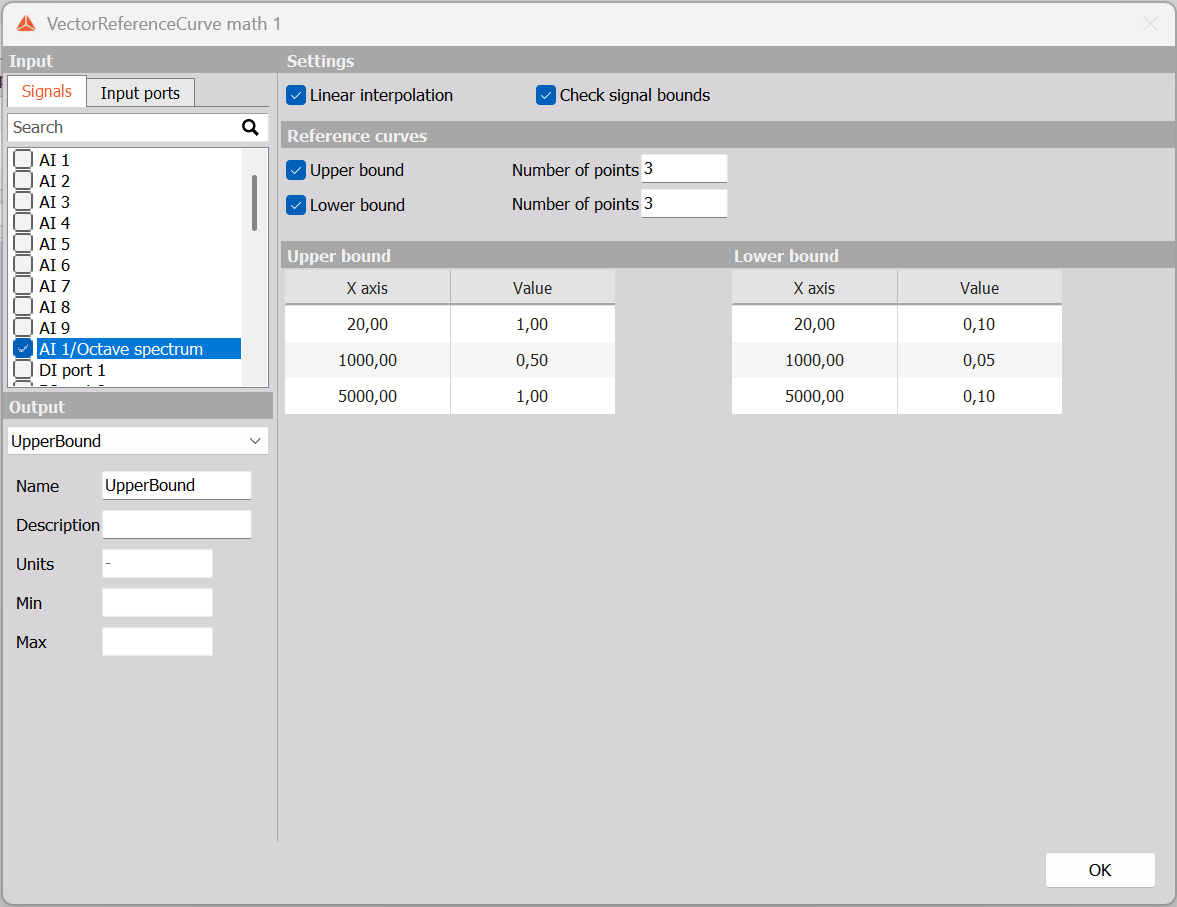
Reference curves
Enable Upper bound, Lower bound, or both. Each enabled bound has its own Number of points and table, so the upper and lower curves can be defined separately.
| Setting | Description |
|---|---|
| Upper bound | Enables the upper reference curve and its point table. |
| Lower bound | Enables the lower reference curve and its point table. |
| Number of points | Sets the number of rows in the corresponding bound’s table. |
Each table has two columns:
- X axis is the point’s coordinate on the input vector’s horizontal scale. For an octave spectrum, this coordinate is frequency in Hz.
- Value is the reference level at that coordinate. Enter levels appropriate for the amplitude scale of the input vector.
Set the point count, then enter the coordinates and values in each table. Keep the X coordinates in increasing order and the upper and lower levels consistent with the limits you intend to check. The reference-curve range must overlap the input data; the setup reports an error if the range is too small to provide data for comparison.
Settings
Linear interpolation
Enable Linear interpolation to connect neighboring reference points with straight-line segments. This defines intermediate reference levels between the entered points.
For example, with an upper level of 1 at 20 Hz and 0.5 at 1000 Hz, interpolation produces a sloping reference line between those two points.
Check signal bounds
Enable Check signal bounds to add comparison status channels for the selected input. With both bounds enabled, the example produces:
| Output | Purpose |
|---|---|
| UpperBound | Vector containing the configured upper reference-curve values. |
| LowerBound | Vector containing the configured lower reference-curve values. |
| AI 1/Octave spectrum/UpperBoundStatus | Scalar result of the upper-bound check for the selected input. |
| AI 1/Octave spectrum/LowerBoundStatus | Scalar result of the lower-bound check for the selected input. |
Clearing Check signal bounds removes the comparison status outputs while retaining the enabled reference-curve outputs. Output names depend on the selected input and any names edited in the output settings.
Example configuration
The screenshot uses the octave spectrum as input, enables both bounds, and defines three points for each curve:
| X axis (Hz) | Upper bound value | Lower bound value |
|---|---|---|
| 20 | 1 | 0.1 |
| 1000 | 0.5 | 0.05 |
| 5000 | 1 | 0.1 |
Linear interpolation and Check signal bounds are enabled. These values illustrate the setup procedure; choose reference levels and X coordinates for your own signal and acceptance criteria.
Select OK to return to the Math overview. The generated reference curves can be displayed with the input vector in a 2D graph. The status channels are separate scalar outputs for evaluating the configured bounds.