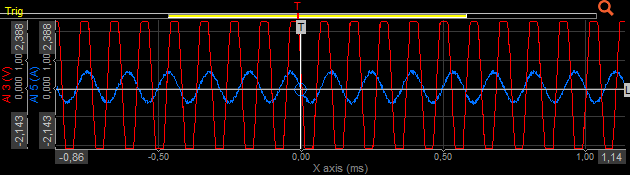
Scope 
The Scope widget is used for displaying fast and short events. Just like with a traditional scope, you can define trigger conditions. Up to 16 inputs can be displayed at once on each graph.
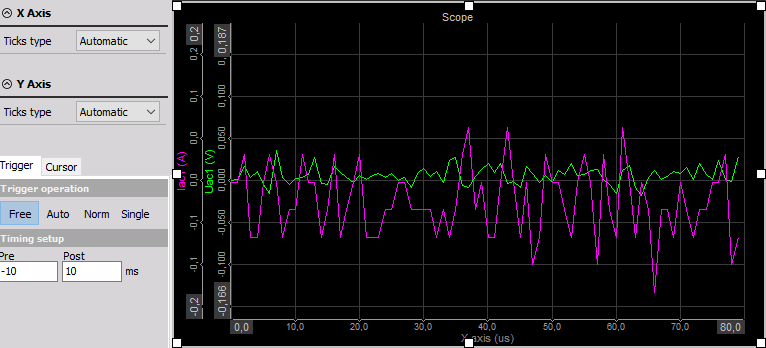
When you select the Scope widget, the following settings will appear:
- Scope Control properties - applicable to all widgets, please consult the linked section of the manual.
- X Axis (Time)
- Y Axis (Value)
- Drawing options
- Trigger
- Cursor
- History
- Channel selector - on the right
For detailed information about widget positioning, size, and transparency, please see the Screen Editing page of the manual.
For additional information about using triggers, please see Start / Stop Recording.
X Axis (Time)
You can change the Ticks type (Graph Settings) of the x-axis, meaning that you can modify the graph grid. These settings apply to both axes and are independent from each other.
Y Axis (Value)
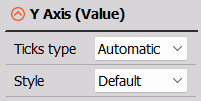
The following settings are available:
- Ticks type (Graph Settings) - Modify the graph grid. These settings apply to both axes and are independent from each other.
- Display Type - Set the data presentation status.
- Real value
- Average - For noisy DC signals, selecting Average can clean up the display.
- RMS - Useful when monitoring AC signals which are going to look like a solid band when a long duration is shown.
- Max
- Min
Drawing Options
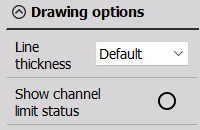
The Drawing options allow you to further customize the appearance of the widget by changing:
- Line thickness
- Show channel limit status
Trigger
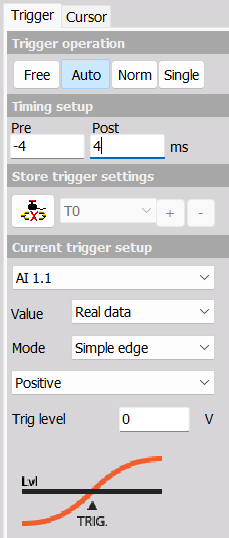
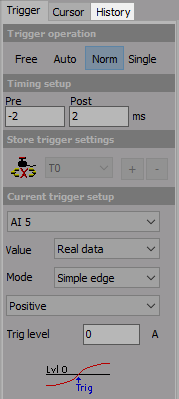
Four types of trigger operation (triggered acquisition) are possible:
Trigger Types
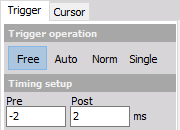
Free
All values are displayed, no trigger active. The only additional setting is Timing setup.
Auto
If the trigger condition is true, those values will be displayed. If there is no trigger for some time, the current value will be displayed despite not fulfilling the trigger condition.
The following additional settings are available:
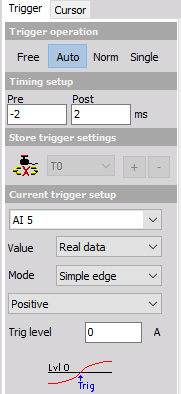
Norm
The normal trigger displays values only if the trigger condition is true. The additional settings are the same as for the Auto trigger:
When this trigger is selected, the History tab will appear.
Single
This type of trigger is used to acquire one-time events. After pressing this button, it will be renamed to Rearm. Press it to acquire another one-time event.
Trigger Settings
Timing Setup
The Timing setup can be used to define the displayed the Pre and Post trigger time in milliseconds.
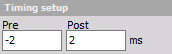
NOTE: Like the trigger level, the trigger position can be changed in the displayed time window by moving the white vertical line. Click on the line and drag it to the desired position.
The time window can also be changed using the buttons in the bottom right corner of each graph.


Store Trigger Settings
This is a very nice function to define the storing options directly within the scope.
Any changes done here can be automatically copied to the system trigger and vice versa. To activate this function, press the Link store trigger button on the left.
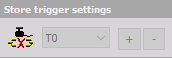
The dropdown list next to the button shows a new trigger condition T0 and, if available, existing triggers conditions.
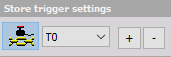
The + button can be used to define additional conditions, which will appear the dropdown list and changed according to your requirements.
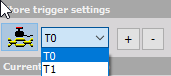
The - button can be used to delete selected additional conditions.
Current Trigger Setup
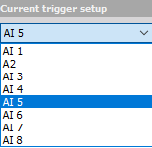
Select the desired channel from the dropdown list of all available channels.
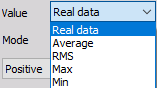
Pick a Value type. You can choose between Real data, Average, RMS, Max or Min.
Select the Mode (trigger type):
- Simple edge
- Filtered edge
- Window
- Pulsewidth
- Window and pulsewidth
- Slope
- Delta amplitude
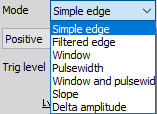
Additional settings that will appear below (e.g. Slope, Trigger level, Rearm level, Pulse time,…) depend on selected trigger type in Mode field.
HINT: The trigger level can also be changed by moving the white vertical line in the scope graph. Simply click on the line and drag it to the desired position.
Cursor
Cursor Measurements
The Cursor tab shows the cursor readouts for each channel assigned to the Scope. Select this tab to activate cursor measurement:
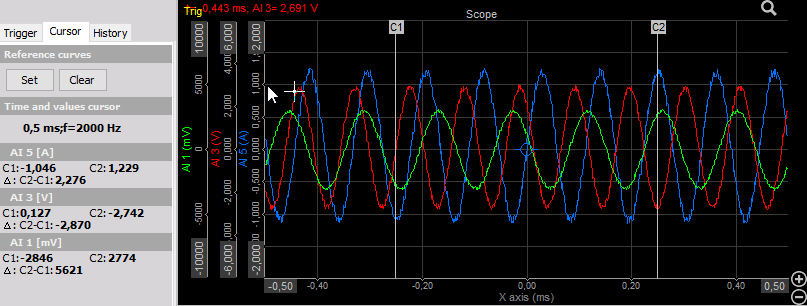
The two measurement cursors for the active graph can be positioned in two ways:
Move the mouse cursor to the first position of interest. Left-click and cursor C1 will appear. Move the mouse cursor to the second position of interest and right-click to position cursor C2. This can be repeated at any other desired position.
Drag the first cursor from the left side of the graph to the position of interest and the second cursor from the right side of the graph.
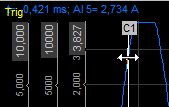
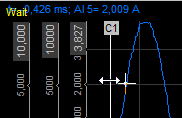
The Cursor tab on the left will now display:
- The cursor readouts for each channel within the selected scope - values at C1, C2 and difference C2-C1
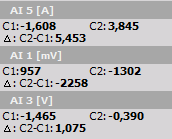
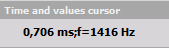
- Time and values cursor between C1 and C2
WARNING: The freeze function does not work with the Scope widget!
Reference Curves
To activate reference curves, press the Set button in the Reference curves section of the Cursor tab.
This will copy the data of all currently displayed channels onto a reference curve. It will now be displayed in white:
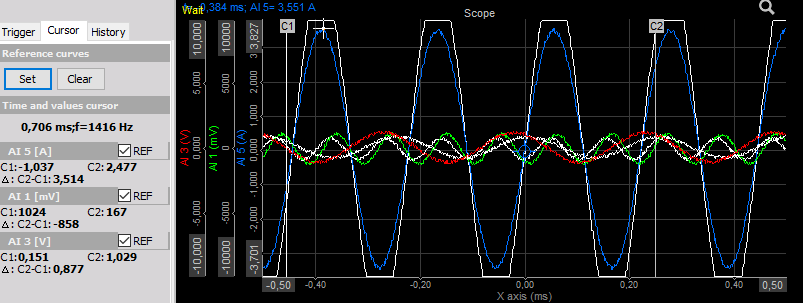
In the cursor readouts for each channel, the REF checkbox will appear:
To hide the reference curve, uncheck the REF checkbox for the desired channel(s). This will not erase the reference curve from memory, but simply hide it.
Press the Set button at any time to update the reference curve to the current triggered data.
To remove the reference curve permanently, press the Clear button. This will remove the reference curve data from memory.
A dashed horizontal line indicates the current offset setting of each channel. It has the same color than the channel itself. You can use this line and drag it to change the channel offset.
Example
- Scale view after scale down Power channel:
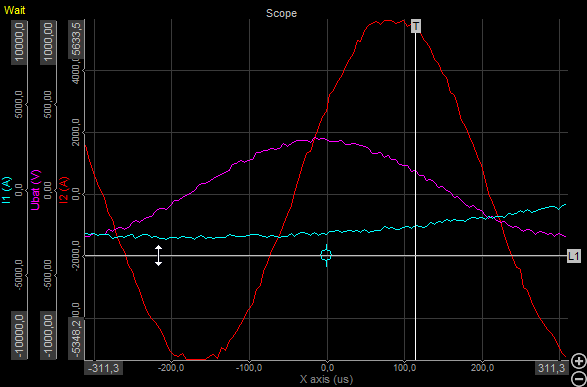
- Negative offset for Power channel:
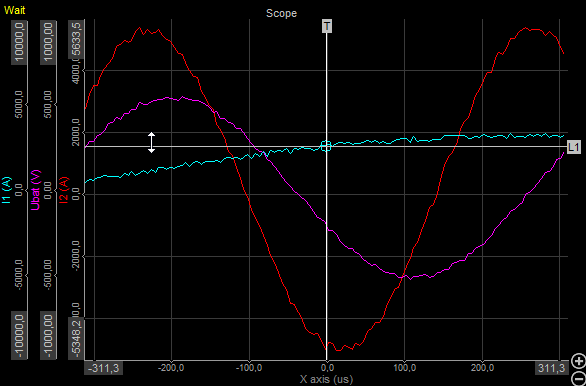
History
When the Norm or Single trigger is selected, another tab appears: History. You can choose one of the following display modes:
- Actual trigger - The latest trigger event is displayed. When you press the Stop button, you can browse through the last recorded trigger events.
- Persistence mode - Several events will be displayed in an overlay technique - the older the event, the brighter the color.
- Moving average - For repetitive signals; you can increase accuracy and reduce noise.
- Envelope - The envelope mode displays two graphs showing the minimum and maximum value of several events.
- 3D view - Displays the trigger events in a waterfall-like type. Helps show signal abnormalities or changes.
The following screen shows all five history types:
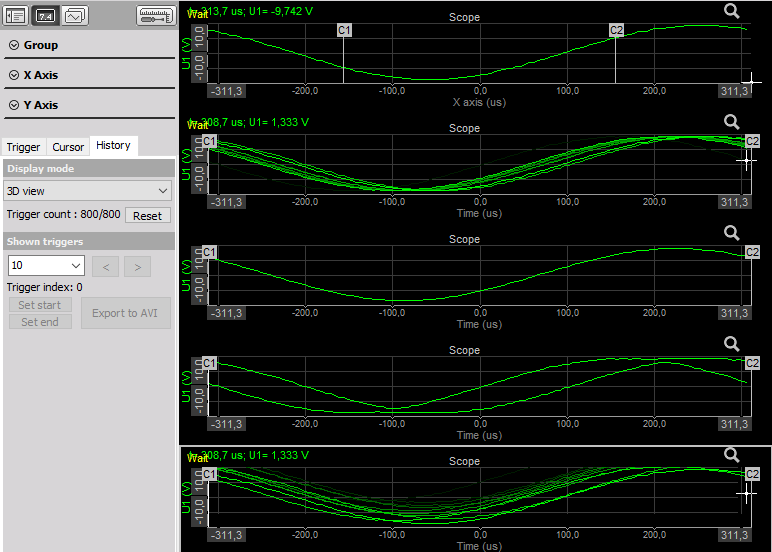
The Trigger count displays the ratio between the number of triggers currently in memory and the maximum number of trigger able to be stored. This value depends on the displayed time. The memory is of FIFO (first in, first out) type. If you want to clear the memory manually, press the Reset button.
In the section Shown triggers, you can select how many trigger events will be used. If you are in stopped conditions (Stop button on tool bar), you can use the arrow buttons to browse through the trigger events.
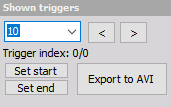
The Trigger index will show you your current position within the available events.
It’s also possible to export the acquired data by pressing the Export to AVI or Save to file button when in stopped conditions.
When Export to AVI is selected, Scope AVI export window appears. You will be able to set File name, Resolution, Frame rate, Video compression and Export triggers field, in which you can reduce the amount of data by saving only interesting events.
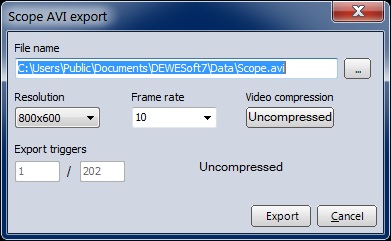
For information about this settings see -> Export instrument display to Video.
Select Export button to export ‘avi’ data or Cancel button to cancel exporting.
With Save to file button we call Save Scope Pictures window to save acquired data from history memory in to Dewesoft *.dsd (Dewesoft data) file:
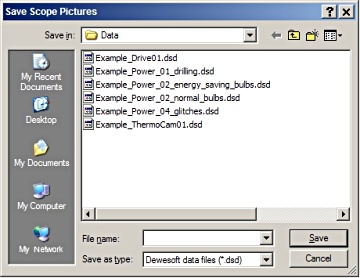
Choose existing file from list or enter new file name (recommended) and then select Save button to save data or Cancel button to cancel saving.
To reduce the amount of data you can select a certain range within the triggered events by using the Set start and Set end buttons.
Run Mode Zoom
In the upper right corner above a Scope in Norm or Single Trigger mode, there is a small magnifying glass icon. Pressing it enables/disables zoom view during acquisition. A scroll bar indicating the current position within the whole acquired signal will appear. You can change the current position and scroll through acquired data of the current trigger shot by clicking on and dragging the bar. You can use the + and - buttons in the bottom right corner to zoom.