C++ Script
Project
When you add a C++ script module, the C++ script setup menu window will open:
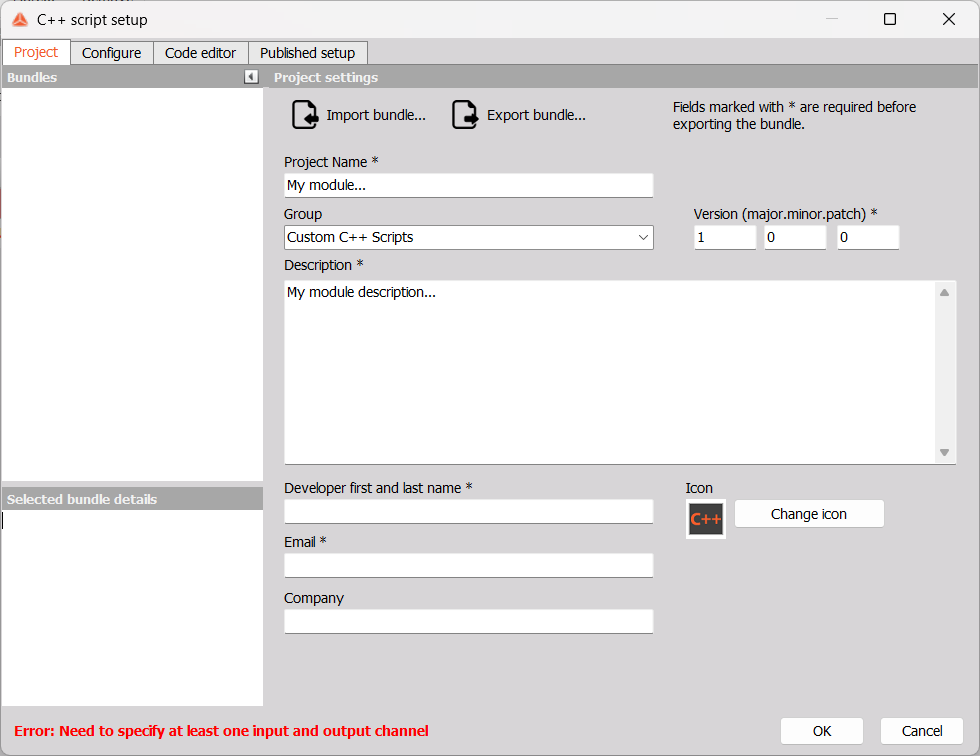
You will be able to edit the Name and Description, Version, and your details - First and last name, Email, and Company. You can also choose which math module Group your script wil appear in once its created, as well as its Icon.
In order to Export bundle, all fields with an asterisk * need to be filled out. You can also Import bundles.
Bundles
If you want to take a look at our premade examples, you can download Useful C++ scripts from the Dewesoft Developer Downloads page. Each bundle contains a README file with a short description of its functionality.

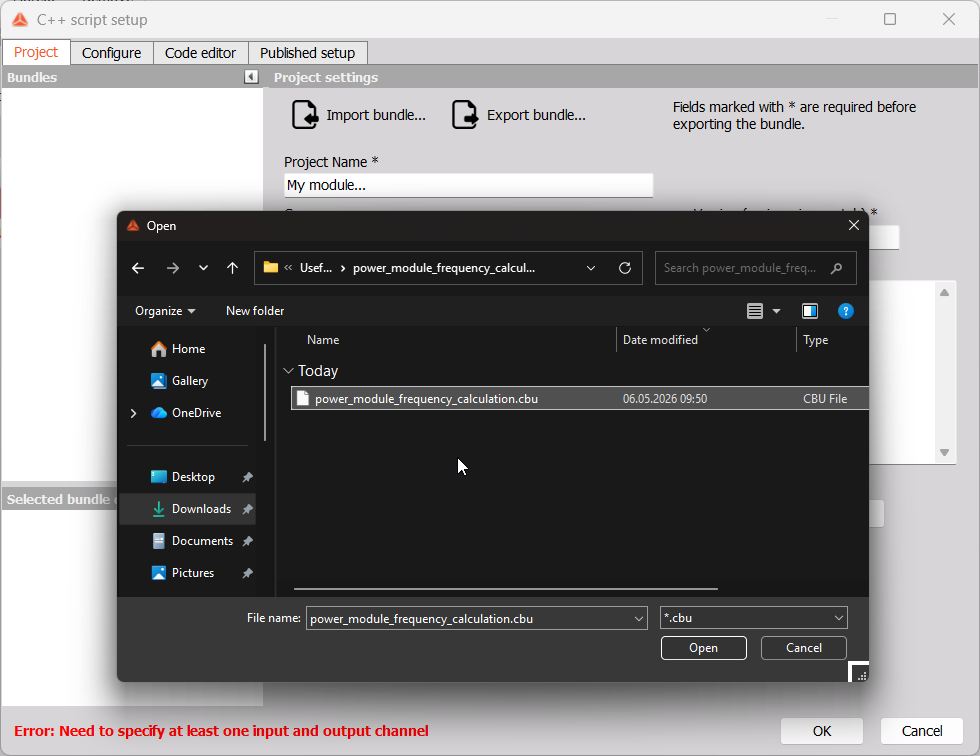
To open a bundle in the C++ script setup menu, unzip the archive you have downloaded. Click Import bundle… in the menu, navigate to the desired script’s folder and select the *.cbu file. Opening the bundle will erase your existing project.
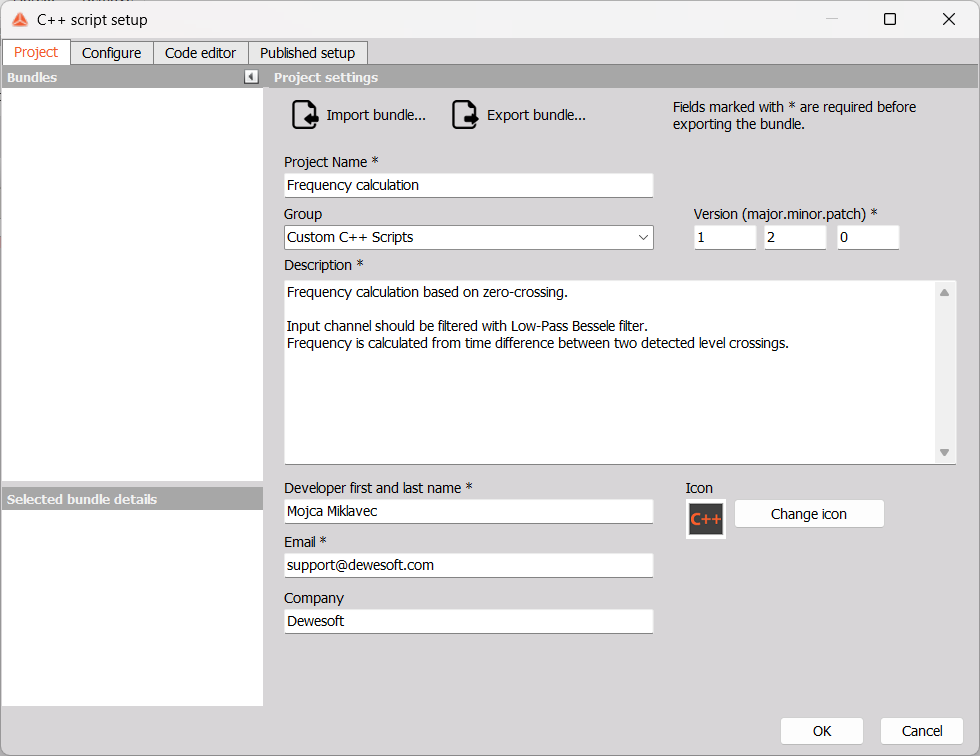
If you wish to reuse a bundle, copy its *.cbu file to Dewesoft\System\Scripts\Cpp. The bundles in that folder will be visible in the Bundles list on the left side of the menu. You can sort the bundles into folders or leave them in the Cpp folder.
You can also place the bundle in Dewesoft’s \bin\Addons directory in order to access it from the Add math menu.