Start/Stop Storing
With Dewesoft, you can activate/deactivate storing in three ways:
- Manually - using the Store, Pause/Resume and Stop buttons on the screen.
- Triggered - by setting any channel(s) to start and stop the recording according to certain triggers (things that happen with the signal).
- Automatically - start storing automatically.
Manual Start/Stop
Buttons
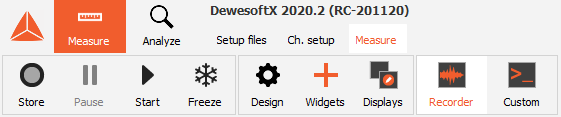
Press the Store button on the main toolbar or F5 on your keyboard. The button will change color.


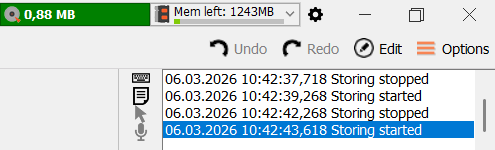
If using a time-based graph, a red vertical line will indicate when recording began. You will see the currently available space on your hard disk and the current file size in the top right part of the screen, as well as the event box.
If you want to stop recording temporarily, use the Pause/Resume button. You can also cancel recording completely by selecting the Stop button or pressing F7. Use the Freeze button for quick data analysis during measurement.
Overwrite or Change File Name
If a file already exists with the same name as the one that you wish to record, the following Warning window will appear:
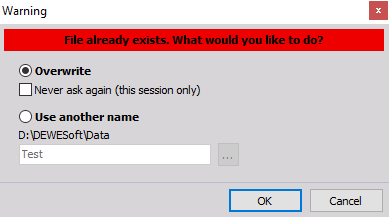
You can:
- Overwrite the existing file with the Overwrite option;
- Never ask again - always override the file without asking; this window will not appear again until DewesoftX is restarted
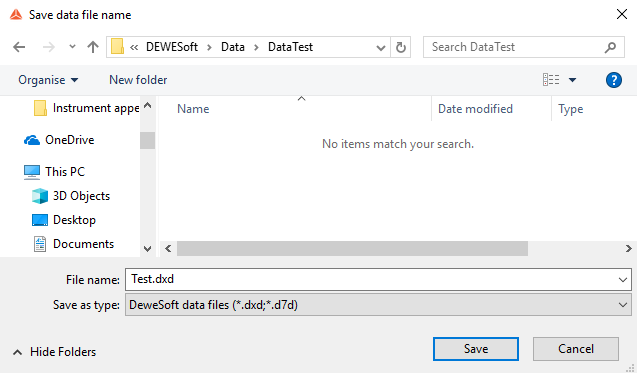
- Use another name - enter the new name or select the … button to open the Save data file name window to help you select a new name
Triggered Start/Stop
You can select two different types of trigger activated storing:
- fast on trigger
- fast on trigger, slow otherwise
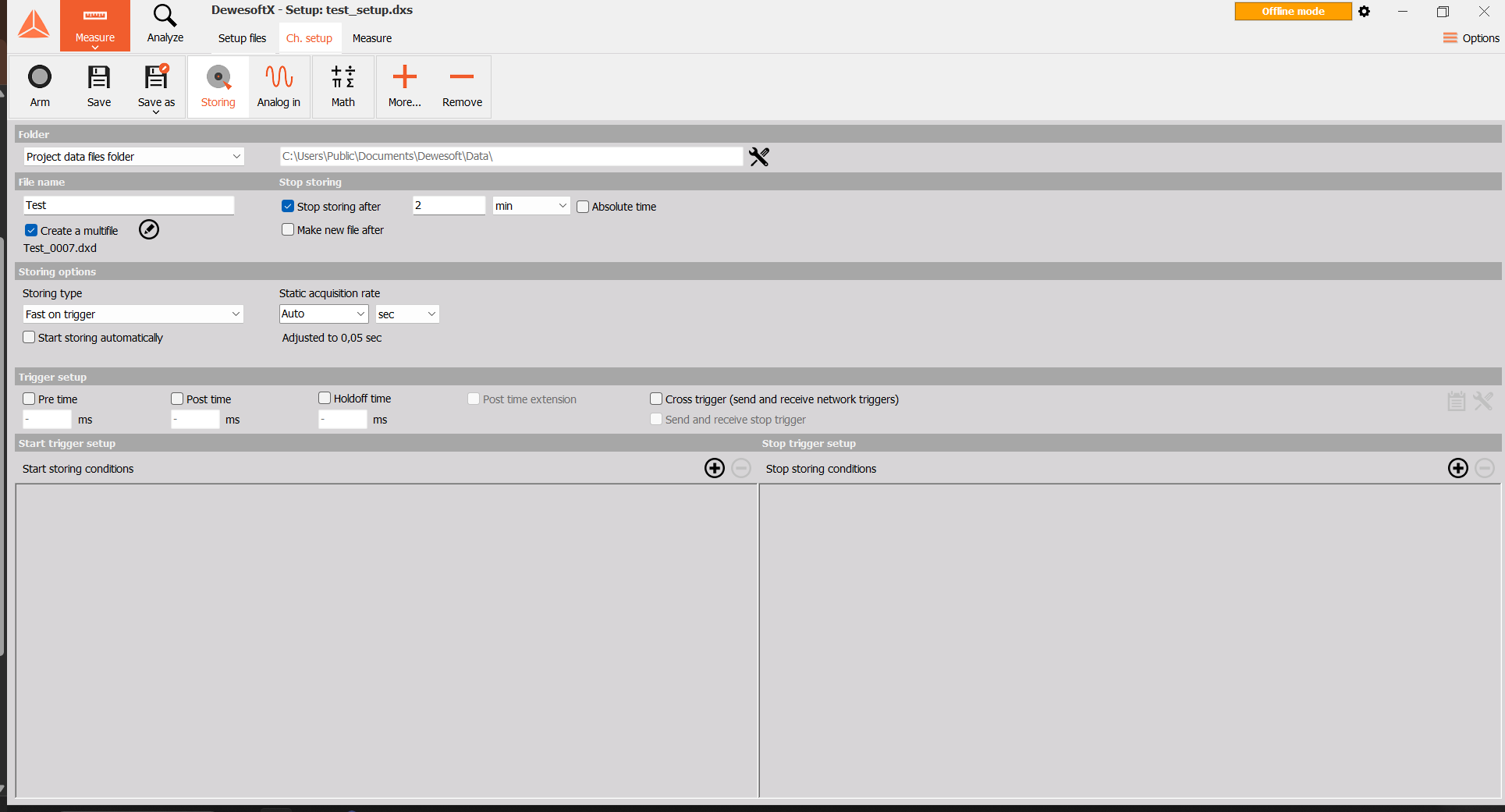
Trigger setup uptions will appear in the Storing module. You can now define Start storing conditions, “Don’t store” conditions, and Stop storing conditions. You can also customize timing, i.e. how long before and/or after the trigger data will be stored for. If the post trigger storing time is not defined, data will be stored until you press the Stop button or the Stop storing condition occurs.
For detailed information on Trigger setup, please refer to the linked section of the manual.
The Store button is renamed to Arm. There will also be an additional Trig button which you can use to manually trigger storing, regardless if trigger condition(s) have been met. You can also press F6.

Automatic Start/Stop
If you select the Start storing automatically checkbox, storage will be started as soon as you change to any online display (scope, recorder,… ).
You can also set when Dewesoft will stop storing or make a new data file, as described in the Storing module section.
This function can be used together with the auto-load function of Dewesoft for higher automation.