Formula
The Formula math module calculates a new channel from an expression you write. The expression can use any channel in the setup (analog inputs, CAN, GPS, counters, other math channels) along with numbers, operators and built-in functions. Channels with different sample rates can be mixed in one formula, and one formula can use the output of another.
Adding a formula
Go to Config → Math and click Formula in the toolbar. If it isn’t there, open Add math and pick Formula from the Formula and scripting group.
To add several formulas at once, open Add math, right-click Formula and choose Add multiple, then enter how many you want.
The Formula setup window
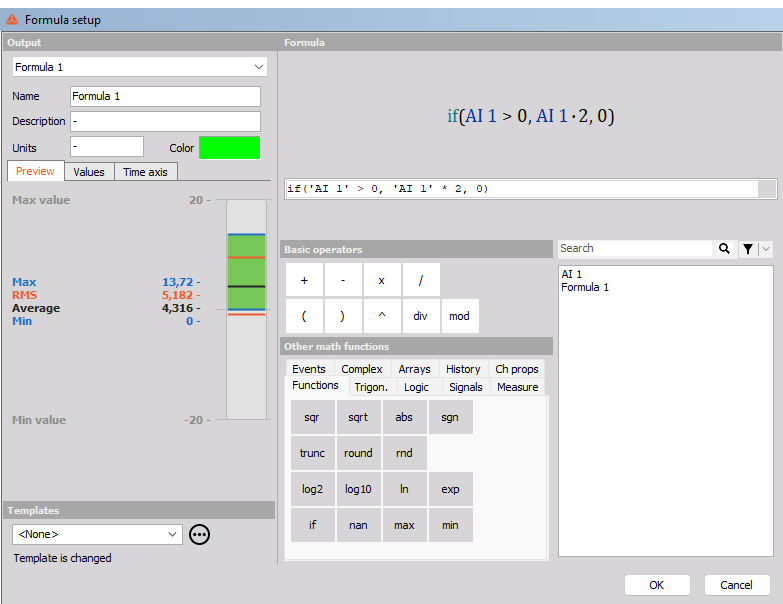
The left side defines the output channel:
- Name, Description, Units and Color of the new channel.
- Preview shows the minimum, maximum, average and RMS of the result, calculated from live data while you type.
- Values sets the display range and number format.
- Time axis sets the timebase of the output (see Timebase).
The right side is the editor:
- The preview at the top shows the formula as a typeset equation.
- Below it is the text field where you type the formula.
- Basic operators and Other math functions are buttons that insert an operator or function at the cursor. Hover over a button to see its syntax and a short description.
- The channel list shows every channel you can use. Double-click a channel to insert it. Use the search box and filter button to narrow down a long list.
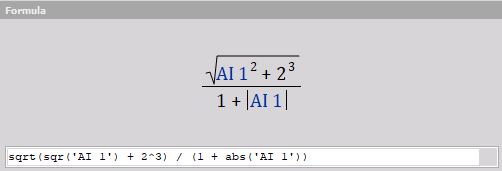
The preview makes long formulas easier to check, because fractions, roots, powers and absolute values are drawn the way they would be on paper:
Errors
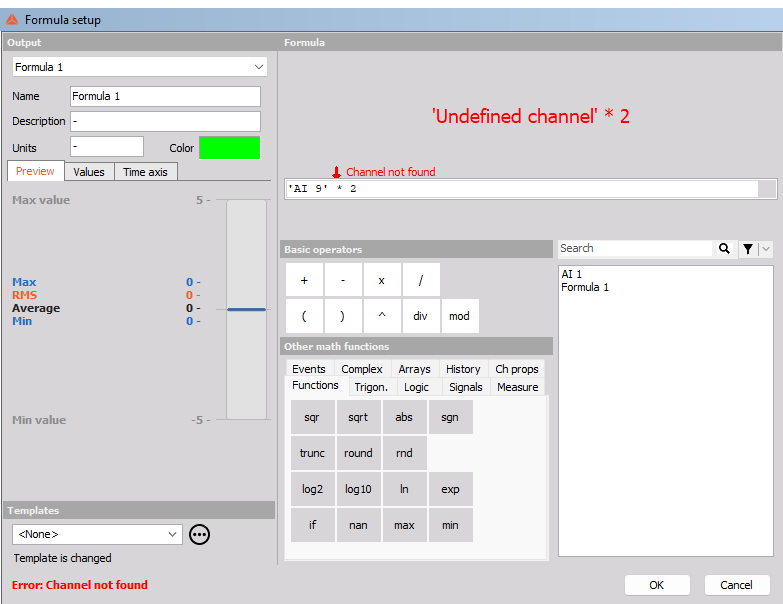
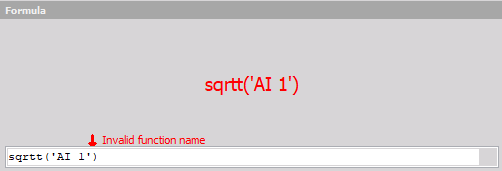
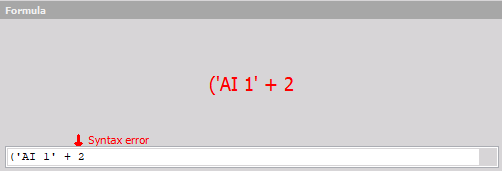
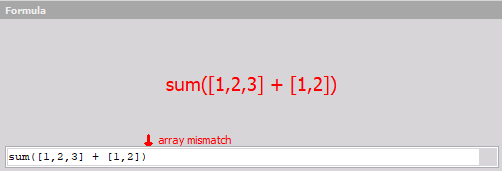
When the formula can’t be parsed, the preview turns red, an arrow marks where the problem is, and the error is shown at the bottom of the window. The most common errors are:
| Error | Usual cause |
|---|---|
| Channel not found | The name between the quotes doesn’t match a channel in the setup. |
| Invalid function name | A function name is misspelled, or the function doesn’t exist. |
| Syntax error | A missing bracket, a missing operator, or a stray character. |
| array mismatch | Two arrays of different length are combined. |
Click OK to add the channel. The formula is then listed in the Math grid.
Editing a formula in the grid
The Setup configuration column of the Math grid shows the formula text, and you can edit it there without opening the setup window. You can also edit it in the channel grid. This makes it easy to copy formulas between setups or paste them from a spreadsheet.

Timebase
The Time axis tab sets the timebase of the output channel:
- Auto picks the timebase from the inputs. A formula on a synchronous channel is synchronous with the same sample rate. A formula on asynchronous channels is asynchronous. With several inputs, the output follows the fastest one. A formula with no channels at all (for example
2 * pi) becomes a single value. - Sync forces a synchronous output. Choose the sample rate divider from the SRDiv list. Asynchronous inputs are interpolated to this rate before the formula is calculated, which gives a smoother result.
- Async makes the output follow the timing of one asynchronous channel, selected in the Channel list. Only asynchronous channels used in the formula appear there.
- Single value gives one value with no time stamp. Use it for results that summarize the whole measurement.
When a formula combines channels with different sample rates, the values of the slower channel are held until the next value arrives.
Writing formulas
- Put channel names in single quotes:
'AI 1'. Names are not case-sensitive, so'ai 1'also works. - Function names and operators are not case-sensitive either:
SIN,Sinandsinare the same. - Use a dot as the decimal separator (
0.5), regardless of your Windows regional settings. Scientific notation works too (1.5e-3). - Spaces and line breaks are ignored, so long formulas can be split over several lines.
- Add parentheses whenever the order of operations isn’t obvious.
Operators and functions
Basic operators
| Operator | Syntax | Result |
|---|---|---|
+ - * / |
a + b |
Addition, subtraction, multiplication, division |
^ |
a ^ b |
a raised to the power b |
( ) |
(a + b) * c |
Grouping |
div |
a div b |
Integer part of a / b |
mod |
a mod b |
Remainder of a / b |
mod is calculated as a - b * trunc(a / b), so the result has the sign of a:
| Expression | Result |
|---|---|
420 div 720 |
0 |
740 div 720 |
1 |
420 mod 720 |
420 |
740 mod 720 |
20 |
-8 mod 3 |
-2 |
8 mod -3 |
2 |
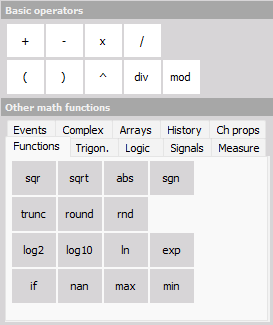
Functions
| Function | Result |
|---|---|
sqr(x) |
x² |
sqrt(x) |
Square root of x |
abs(x) |
Absolute value |
sgn(x) |
1 if x > 0, 0 if x = 0, -1 if x < 0 |
trunc(x) |
x with the decimals cut off: trunc(-1452.457) = -1452 |
round(x) |
x rounded to the nearest whole number |
rnd |
A random number between 0 and 1, new for every sample |
log2(x), log10(x), ln(x) |
Logarithm with base 2, base 10 and base e |
exp(x) |
eˣ |
if(cond, a, b) |
a when cond is not zero, otherwise b |
nan |
No value. Only useful in asynchronous output (see Caveats) |
max(a, b), min(a, b) |
The larger or smaller of two values |
To round to a step other than 1, scale before and after rounding: round('x' / 10) * 10 rounds to tens, round('x' * 10) / 10 rounds to one decimal.
max and min take two arguments. Nest them for more: max(max('p1', 'p2'), 'p3').
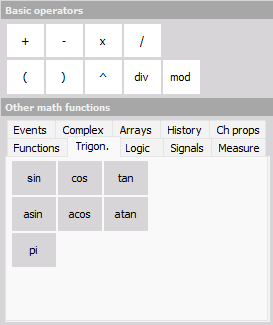
Trigonometry
| Function | Result |
|---|---|
sin(x), cos(x), tan(x) |
Sine, cosine, tangent. x is in radians |
cotan(x) |
Cotangent (not on the button panel) |
asin(x), acos(x), atan(x) |
Inverse functions, result in radians |
atan(y, x) |
Angle of the point (x, y), from -π to π |
pi |
π |
To convert degrees to radians, multiply by pi / 180.
Logic
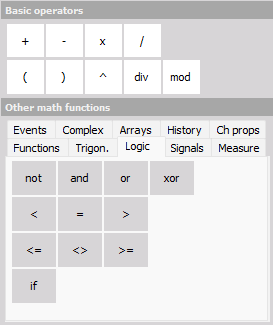
| Operator | Result |
|---|---|
< > <= >= = <> |
1 if the comparison is true, otherwise 0 |
not a |
1 if a is 0, otherwise 0 |
a and b |
1 if both are non-zero |
a or b |
1 if at least one is non-zero |
a xor b |
1 if exactly one is non-zero |
a eqv b |
1 if both are zero or both are non-zero (not on the button panel) |
a imp b |
Logical implication: 0 only when a is non-zero and b is zero (not on the button panel) |
if(cond, a, b) |
Same as on the Functions tab |
Because comparisons return 0 or 1, you can use them as multipliers. ('sine' > 0) * 'sine' keeps the positive half of a signal and sets the rest to 0.
Signals
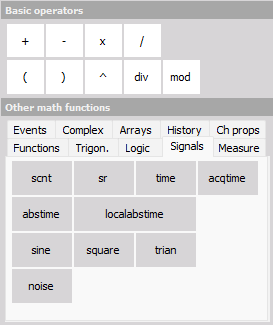
| Function | Result |
|---|---|
sr |
Sample rate of the formula channel |
scnt |
Number of samples since acquisition started; restarts when storing starts |
time |
Seconds since acquisition started; restarts when storing starts |
acqtime |
Seconds since acquisition started; does not restart when storing starts |
abstime |
Absolute UTC time, in days since 30 December 1899 |
localabstime |
Absolute local time, in days since 30 December 1899 |
sine(f [, ps]) |
Sine wave of frequency f [Hz] with optional phase shift ps [rad] |
square(f [, ps]) |
Square wave |
trian(f [, ps]) |
Triangle wave |
noise |
Random numbers between -1 and 1 |
gaussnoise |
Normally distributed random numbers (not on the button panel) |
omega |
2π · elapsed time, a ready-made phase for your own waveforms (not on the button panel) |
The resolution of time follows the sample rate of the channel: at 100 Hz it counts in steps of 0.01 s.
Generated signals work in math, displays and storage. They can’t drive an analog output. Use the function generator in Analog out for that.
Example, angle from an encoder clocked externally at 720 pulses per revolution: (scnt mod 720) * 0.5 gives the angle in degrees. A missed or extra pulse shifts the angle permanently, so if the encoder also has a zero (trigger) pulse, use a counter in angle mode instead.
Measure
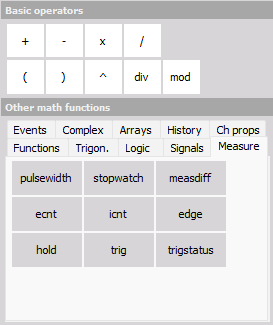
The measure functions react to edges, the moment a condition changes from 0 to 1. Write the condition as a comparison, like 'TTL' > 2.5. Passing a raw channel such as ecnt('TTL') treats every non-zero value as 1, which is rarely what you want for an analog signal.
| Function | Result |
|---|---|
edge(cond [, rearm]) |
1 on the sample where cond changes from 0 to 1, otherwise 0. With rearm, a new edge is only accepted after rearm has been true |
ecnt(cond) |
Number of edges of cond |
icnt(cond) |
Number of samples in which cond was 1 |
pulsewidth(cond [, rearm]) |
Time in seconds between two consecutive edges of cond |
stopwatch(cond1, cond2) |
Time in seconds from an edge of cond1 to an edge of cond2 |
measdiff(value, cond1, cond2) |
Change of value between an edge of cond1 and an edge of cond2 |
hold(value, cond [, rearm]) |
Holds value from the moment of an edge of cond until the next accepted edge |
trig |
1 when a storing trigger occurs |
trigstatus |
Trigger state: 0 not armed, 1 armed, 2 triggered |
The rearm condition filters out noise around the threshold. With hold('pressure', 'temp' > 30, 'temp' < 28), the pressure is held when the temperature rises above 30. If the temperature then dips to 29.8 and goes back over 30, nothing happens. A new value is only held after the temperature has first dropped below 28.
The resolution of the time-based functions is one sample, so a higher sample rate gives a more precise result. To measure the frequency of an analog sine wave, the Exact frequency math is a better choice than pulsewidth.
Example, braking time and braking distance from 60 km/h down to 2 km/h:
stopwatch('velocity' < 60, 'velocity' < 2)
measdiff('distance', 'velocity' < 60, 'velocity' < 2)
Events
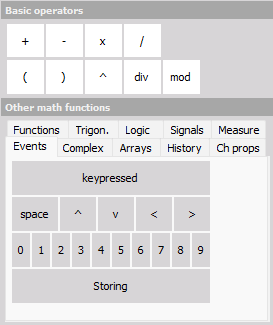
| Function | Result |
|---|---|
keypressed(code) |
1 for one sample when the key with this virtual key code is pressed |
storing |
1 while data is being stored, otherwise 0 |
The buttons for digits, arrows and space insert keypressed with the right code. For other keys, use the Windows virtual key code in decimal: 48 to 57 for the digits 0 to 9, 65 to 90 for the letters A to Z, 32 for space, 37/38/39/40 for left/up/right/down, and 13 for Enter.
Example, zeroing a channel at the press of a key: 'pressure' - hold('pressure', keypressed(49) > 0.5) subtracts the value the pressure had when 1 was last pressed.
Example, a counter that goes up with the right arrow and down with the left: ecnt(keypressed(39) > 0.5) - ecnt(keypressed(37) > 0.5).
Complex
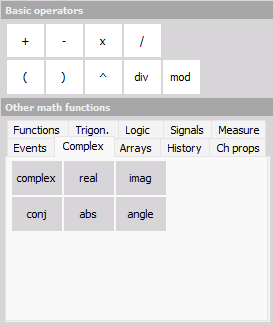
| Function | Result |
|---|---|
complex(re, im) |
Complex number re + im·i |
real(z), imag(z) |
Real and imaginary part |
abs(z) |
Magnitude, √(re² + im²) |
angle(z) |
Phase angle in radians |
conj(z) |
Complex conjugate, re - im·i |
Arrays
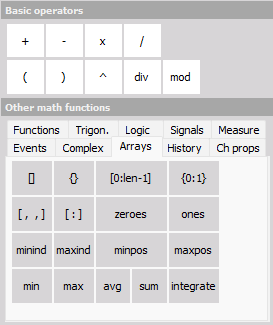
Array channels come from FFT, CPB, scope, classification, counting and other modules. You can also build arrays in the formula.
| Syntax | Result |
|---|---|
'ch'[i] |
Element at index i. The first element is 0 |
'ch'{p} |
Element at axis position p, for example the FFT line at 50 Hz: 'AI 1/AmplFFT'{50} |
'ch'[n:m] |
Elements from index n to m. len - 1 stands for the last element: 'ch'[10:len-1] |
'ch'{p1:p2} |
Elements between two axis positions |
[a, b, c] |
Array of the listed values |
[a:b] |
Array of the values from a to b |
ones(n), zeroes(n) |
Array of n ones or n zeros |
min(arr), max(arr) |
Smallest and largest element |
minind(arr), maxind(arr) |
Index of the smallest and largest element |
minpos(arr), maxpos(arr) |
Axis position of the smallest and largest element, for example the frequency of the highest FFT peak |
sum(arr), avg(arr) |
Sum and average of all elements |
integrate(arr) |
Running integral of the array |
Arithmetic works element by element. 'AI 0/AmplFFT' - 'AI 1/AmplFFT' subtracts the two spectra line by line, and 'AI 0/AmplFFT' + 2 adds 2 to every line. Both arrays must have the same length.
History
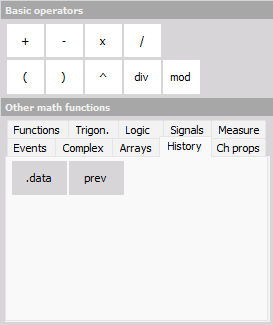
| Syntax | Result |
|---|---|
'ch'.data(n) |
One value of the channel at position n. n can be positive or negative |
prev |
The previous result of this formula. prev + 1 counts samples, prev + 'ch' / sr integrates a channel |
Channel properties
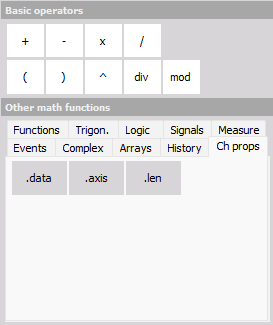
| Syntax | Result |
|---|---|
'ch'.data(n) |
Same as on the History tab |
'ch'.len |
Number of elements of an array channel |
'ch'.axis(n) |
Axis values of an array or matrix channel. 0 is the first axis, 1 the second |
Caveats
An invalid operation sets the whole result to 0
Division by zero, the square root of a negative number and the logarithm of a negative number don’t produce an error or NaN. The whole formula outputs 0 for that sample, not just the part that failed. sqrt('AI 1') + 5 outputs 0, not 5, for every sample where 'AI 1' is negative:
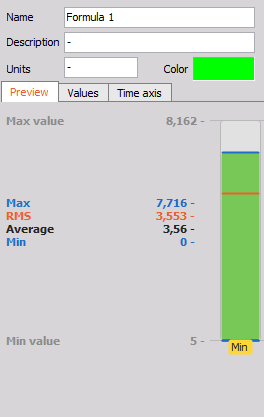
A 0 in the result can therefore mean “invalid input” as well as a real zero. If that matters, keep the input in range, for example sqrt(abs('x')) or ln(max('x', 1e-9)).
if calculates both branches
if evaluates both results before choosing one, so it can’t protect a division from a zero denominator. The formula below outputs 0 for every sample, not 5, because 1 / 0 is calculated even though that branch is never used:
if('b' <> 0, 1 / 'b', 5)
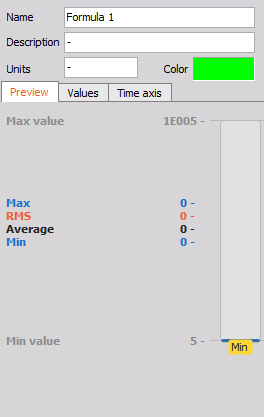
Guard the denominator itself instead:
'a' / if('b' <> 0, 'b', 1) * ('b' <> 0)
nan only works in asynchronous output
nan means “no value here” and leaves a gap in an asynchronous channel. In a synchronous channel every sample must have a value, so nan becomes 0. if('AI 1' > 0, 'AI 1', nan) with the default timebase shows 0 wherever the input is negative. To get gaps, set the timebase to Async, choose an asynchronous channel used in the formula, and turn interpolation off.
Logic treats any non-zero value as true
not, and, or, xor and the condition of if and the measure functions treat any non-zero value as 1. 'AI 1' and 1 is always 1, even when the signal is negative. Compare analog signals to a threshold first, for example ('speed' > 100) and ('rpm' > 2000).
Comparing analog values with = is also unreliable, since a measured value is almost never exactly equal to a number. Use a range instead: abs('x' - 5) < 0.01.
Angles are in radians
All trigonometric functions use radians. sin(90) is the sine of 90 radians, not of 90 degrees. Write sin(90 * pi / 180).
atan with two arguments
The tooltip describes atan(x, y) as the arctangent of x/y. In fact, atan(a, b) returns the angle of the point with coordinates (b, a): the first argument is the vertical component and the second the horizontal one, and the result covers the full circle from -π to π. atan(1, -1) is 2.356 (135°), whereas atan(1 / -1) is -0.785 (-45°).
zeroes, not zeros
The tooltip on the zeroes button says ZEROS(COUNT), but the function is called zeroes. Typing zeros gives Invalid function name.
Counters restart when storing starts
scnt and time restart from 0 when storing starts, so values calculated during the preview differ from those in the data file. Use acqtime if you need a time that doesn’t restart.
Use a fixed number for the key code
Always pass a plain number to keypressed, like keypressed(49). Don’t calculate the key code from a channel or another expression.
Generated signals don’t reach outputs
sine, square, trian, noise and the other generators exist only inside Dewesoft. They can be displayed, stored and used in other math, but can’t be sent to an analog output.