Legend 
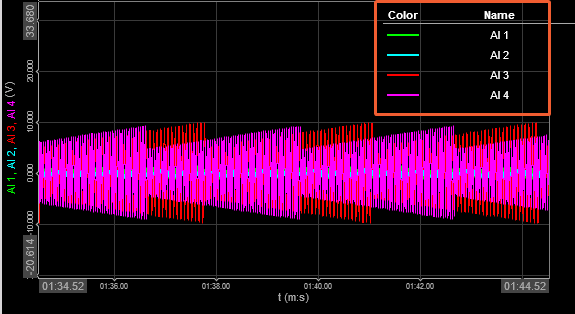
The Legend widget contains a list of channels with additional information. You can add it on its own and assign channels to it or you can directly link it to another widget.
Example - Recorder with a Legend:
When you select the Legend widget, the following settings will appear: * Legend Control properties - applicable to all widgets, please consult the linked section of the manual. * Shown channels * Display options * Drawing options
Shown Channels
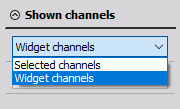
When Selected channels option is choosen, the channels can be added to the widget in the same manner as for any other widget. For more information on assigning channels to a widget, please visit the Channel selector page of the manual.
When Widget channels option is choosen, all channel from the widget chosen in the dropdown menu below are added to the Legend widget.
Display Options
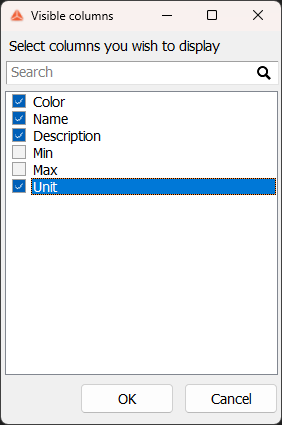
After clicking on Edit columns, the Visible columns window will appear. Select the columns you wish to display by using checkboxes.
Different parameters can be shown inside the Legend widget, such as Color, Name, Description, Min, Max and Unit.
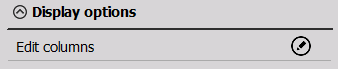
Click on a column’s title and the assigned channels will be ordered according to that parameter. Click once for descending and twice for ascending order.
Drawing Options
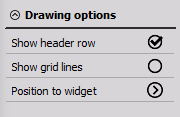
You can choose Show header row and Show grid lines to show the names of columns and add grid lines to the widget, respectively.
Position to widget is only available when the Legend widget is assigned to another widget. Pressing the arrow button will move the Legend widget inside the assigned widget.