Overload indicator 
The Overload indicator widget will indicate if the device amplifier of any channel is in overload. It can also display channel limits, units and sample rate.

When you select the Overload indicator widget, the following settings will appear in the Widget tab on the left side of the screen:
- Overload indicator Control properties - please visit the Control properties section of the manual for more information
- Values
- Display options
Values
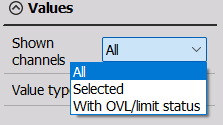
The Shown channels dropdown menu offers three possibilities: * All - show all channels * Select channels - pick which channel you want to see in the widget via the Channel selector * With OVL/limit status - will display only the channels that the Status toolbar is alerting to
For more information on Value type, please refer to Graph settings
Display Options
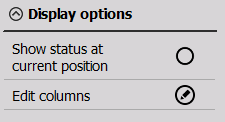
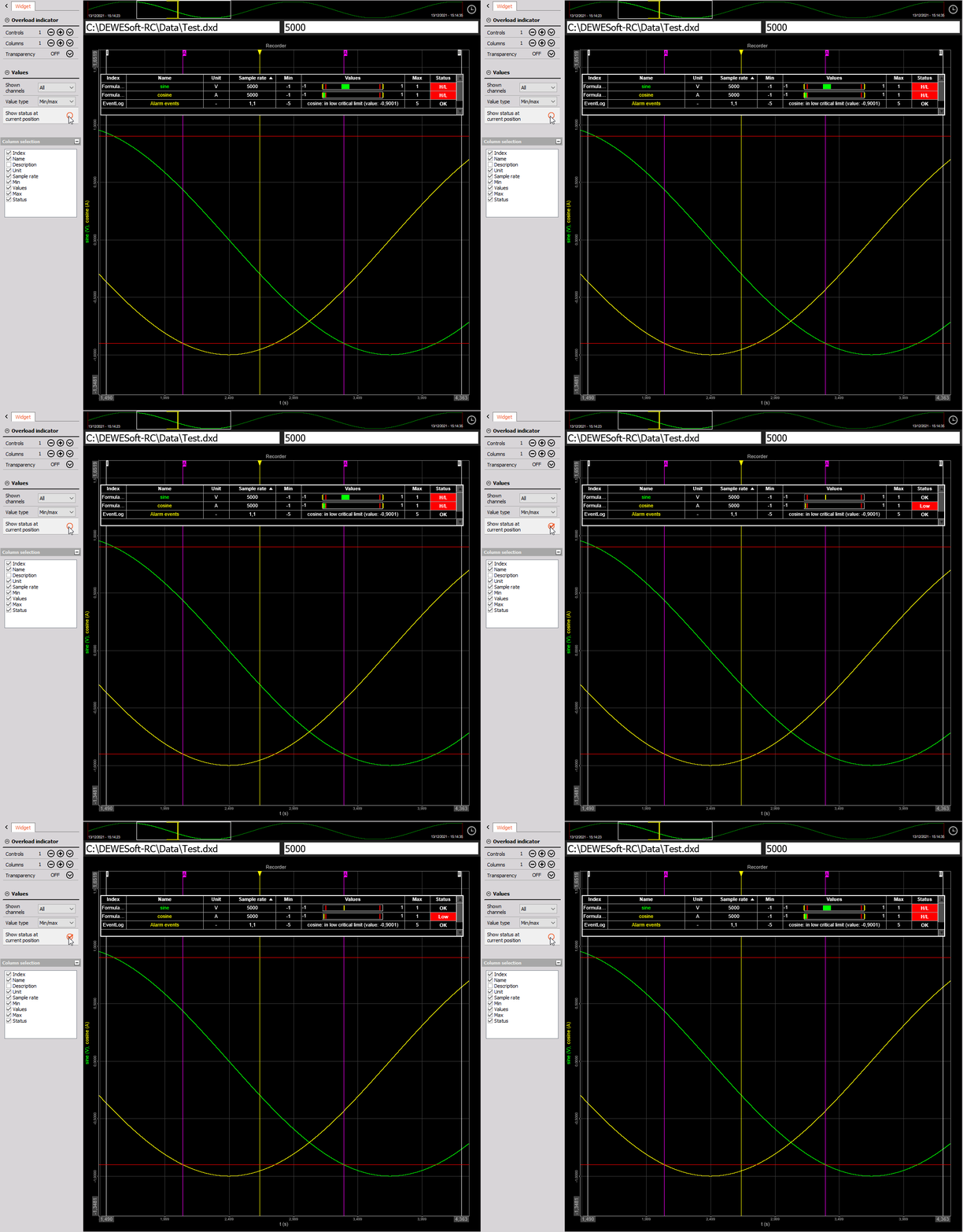
By default, the Show status at current position is disabled, meaning that the Overload indicator displays statuses for the entire recorded file. However, if you enable this option, the Overload indicator will only display statuses related to the current position (yellow cursor). This option is only available in Analyze mode.
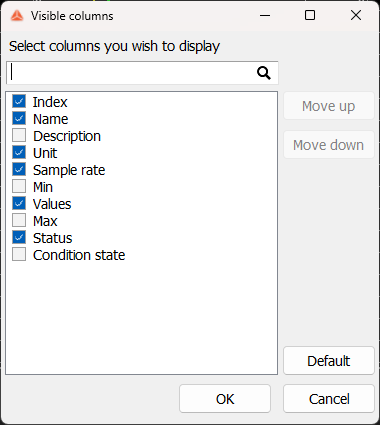
The Edit columns menu will open in a new window. You can choose which columns to display in which order, as well as reverting to default settings.